

![PIXY Wireless[DEFAULT]](http://emeet.com/cdn/shop/files/pixy_647010c6-662a-4af7-b8bb-ad66e457c662.png?v=1780025408&width=480)


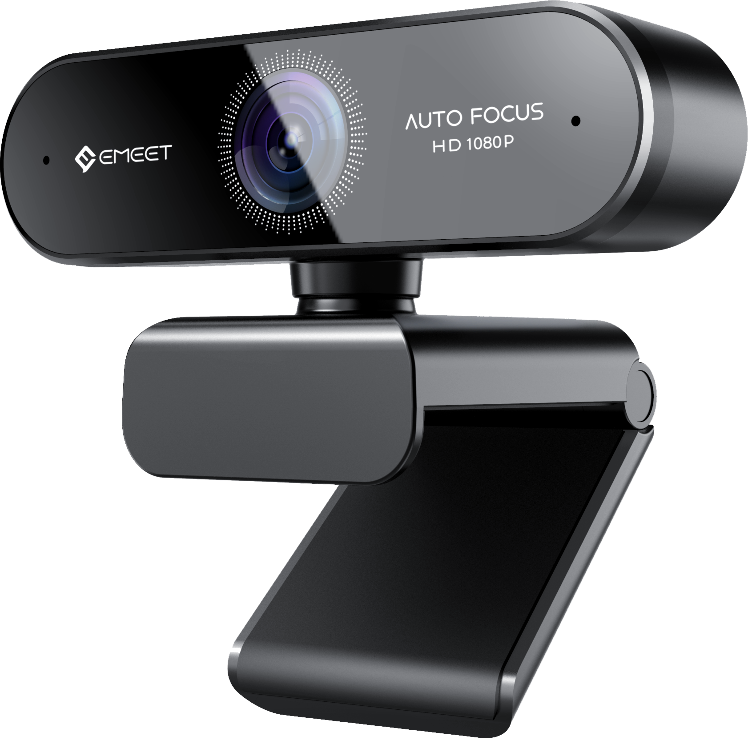
APPEARANCE
IMAGE
Max Resolution:
1080P at 30FPS
Field of View (FoV):
73°
Focus Type:
Auto Focus
Video Pickup Radius:
20-300cm
Video Codec:
YUY2 / MJPEG
Image Sensor:
1/2.7", CMOS, 2.07M
Optical Focal Length:
2.95mm
Exposure Mode:
Automatic
White Balance:
Automatic
BLC (Black Light Compensation):
Automatic
AUDIO
Microphone:
2 Omni-Directional Microphones
Optimal Pickup Range:
1M
CONNECTION
Connection:
USB2.0, USB-A
UVC Communication Protocol:
UVC 1.0~1.5
USAGE
Privacy Cover:
Physical Privacy Cover
Tripod Thread:
YES
Dimensions (W*H*D):
403mm*348mm*295mm
Weight:
154g
Recommended For:
Video Conferencing, For Business
Input:
5V, 500mA
Average Power Consumption:
1W
COMPATIBILITY
Compatibility:
Works with Zoom, Microsoft Teams, Skype for Business, Slack, Webex, and many more
Operating System:
Windows10, 11 Mac OS 10.14 or later
1. What's in The Box of EMEET Nova Webcam?
It contains a Nova webcam, a privacy cover, a safety guide, and a user manual.

2. Device Display of EMEET Nova Webcam

3. How Can I Turn The EMEET Nova On/Off?
Turn on
Plug the USB-A connector into your computer, the device will automatically turn on.
Then open the software you want to use with the webcam, the device status indicator will turn blue.
Turn off
Unplug the USB, making it disconnect to your computer or laptop. When it is not connected, the device will automaticlly turn off.
Plug-and-play supports your computer to recognize the webcam immediately. If your computer does not instantly recognize the webcam, try plugging into a different USB port or restarting the computer.

4. How to Install EMEET Nova on a Tripod?
- Look for a 1/4 inch threaded hole in the bottom of the camera.
- Twist the pieces together until they are snugly joined.
- Place your webcam with the tripod anywhere you desire to the best position to frame yourself.

5. How to Install EMEET Nova on The PC?
- Place your webcam on a computer, laptop, or monitor at a position you desire.
- Unfold the universal clip so it fits the top of your monitor or laptop screen.
- Manually adjust the webcam up/down or rotate to the best position to frame yourself.

6. How to Adjust The EMEET Nova Settings?
Please connect the device to the computer and follow the steps below:
1. Connect the device to the computer via USB cable.
2. Open the EMEETLINK software and click on the device picture to enter the setting interface.
-
Webcam setting
In this setting interface, you can adjust the resolution, focus and exposure.
Click the "Auto" button to open or close the auto adjustment function. When the auto button shows grey, you can drag the slider according to your needs.
-
Video setting
In this setting interface, you can set the power line frequency (anti-flicker) according to your own needs, and adjust the brightness, contrast, sharpness, saturation, and white balance.
-
Settings
In this setting interface, you can update the software version and change the device's name.
3. If you want to restore all settings, just click "Restore Default Settings".


7. How to Update The EMEET Nova Software?
Please install the EMEET PC tool EMEETLINK
Note: Do not plug or unplug the device and make sure the network is normal during the upgrade process.
1. Connect the device to the computer via USB;
2. Open the EMEETLINK software and click on the device picture to enter the setting interface.

3. Click "Settings", click "Check for Updates" to confirm the upgrade, and wait for the upgrade to succeed.


4. Then re-plug the camera to make it effective.

5. After the upgrade is completed, click "Check for Updates", and it prompts "Now the latest version";

8. How to Protect My Privacy?
The webcam has an incidental protect privacy cover in the box, which you can use to block the lens when it's not in use. This guarantees nobody will be able to record video of you while the camera is plugged in.
Please follow the steps below to install it.
1. Wipe the front of the webcam.
2. Tear off the tape on the cover.
3. Paste the cover onto the front of the webcam.
4. Press and hold the cover firmly for 3s.


9. What should I do if the focusing speed is slow during camera use?
If there is dirt or dust on the lens, it can affect the transparency and reflective ability of the lens, leading to an increase in the diffraction and scattering of light, which can cause a decrease in the sensitivity and accuracy of the focusing system, affecting the speed and accuracy of focus.
We suggest using a dust-free cloth or eyeglass cloth to gently wipe the dirty lens.
If the above methods do not solve the problem, please contact us in a timely manner.

EMEETLINK
A basic companion software for EMEET webcams, speakerphones, and other devices. It allows users to adjust camera settings such as image parameters, focus, and zoom, as well as configure audio features like Bluetooth and microphone gain.
Only supports Windows, MacOS

System Requirement
Windows 10 and above, 64-bit operating systems. Not supported on ARM architecture Windows systems.
Supported Products
Cameras
Meeting Capsule
Meeting Capsule Pro
C950
C950 4K
C955
C960
C960 AF
C960 2K
C960 4K
C965
C970
C970L
C980 Pro
C980 Pro 4K
C990
Jupiter
Nova
Nova 4K
C60E
C60E 2K
C60E 4K
S600
S800
C100 1080P/2K/4K
Speakerphones
M0
M0 Plus
M1A
M2
M220
M2 Max
Luna
Luna Lite
Luna Plus
M3
Headsets
HS50
HS80
HS100
HS150
Accessories
Emute
A200
A300
A350

EMEET SmartCam Nova User Manual
Download Now >