

![PIXY Wireless[DEFAULT]](http://emeet.com/cdn/shop/files/pixy_647010c6-662a-4af7-b8bb-ad66e457c662.png?v=1780025408&width=480)


APPEARANCE
AUDIO
Microphone Array:
3 Omni-Directional Microphones
Mic Sample Rate:
16kHz HD Voice
Speaker:
3W*1, 85dB
Microphone Technology:
360° Voice Pickup, Full Duplex, Noise Cancellation, Voice Enhancement
BATTERY
Battery Capacity:
2600mAh
Battery Type:
Lithium-ion
Talk Time:
Up to 10h
Charge Time:
2-3 hours
CONNECTION
Connection Method:
USB-C Cable, Bluetooth, 3.5mm Jack, USB Adapter
USB Cable:
USB-C to USB-C, 1m + USB-C to USB-A Adapter
Wireless Frequency:
Bluetooth 5.0
Bluetooth Adapter:
EMEET A300
Connected Devices:
1 corded, 1 via Bluetooth
Supported Bluetooth Profiles:
A2DP, AVRCP, HFR Profiles, SBC codec
USAGE
Meeting With:
Up to 8 people
Daisy Chain:
Up to 16 people
Recommended For:
Workspace & Home Office, Huddle Room
Software Supported:
EMEET Exclusive Software EMEETLINK
Input:
5V, 1A
Average Power Consumption:
1.25W
COMPATIBILITY
Compatibility:
Works with Zoom, Microsoft Teams, Webex, Skype, etc.
Operating System:
Windows 7, 10, 11, or later, Mac OS 10.10 or later
GENERAL
Dimensions(W*H*D):
4.7 in* 4.7 in*1.5 in (120mm*120mm*39mm)
Weight:
0.66 lb (301g)
1. What's in the box?
It contains an EMEET Luna speakerphone, a USB cable, an audio cable, a USB dongle, a dongle-QSG, a safety guide, and a user manual.

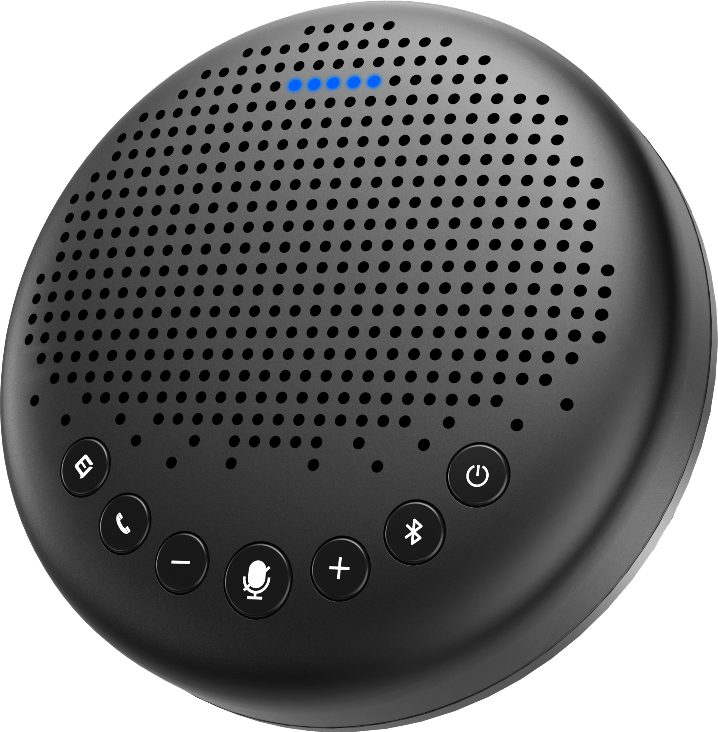
2. Device display of EMEET Luna


3. How to turn on/off EMEET Luna?
- Long press the power button for 2 seconds to turn on or off the device.
- When the device is turned on, the equipment status indicator will flash blue with a prompt tone.
- When the device is turned off, the equipment status indicator light goes off with a prompt tone.
Note: It will automatically power off after 1 hour of inactivity.
4. How to connect EMEET Luna?
(1) USB Connection
- Connect the Luna to your computer by using a USB-C cable, then long-press the power button to turn on the device.
- When the connection is successful, the status LED light turns green to indicate you.

(2) Bluetooth Connection

Connection Steps
Follow the below steps to pair the Conference Call Speaker Luna to your smartphone, tablet, computer, laptop, or other mobile devices:
- Turn on the Bluetooth setting on your mobile device.
- Press and hold the Bluetooth button on the speakerphone for 2 seconds to enter pairing mode. In the mode, the status indicator turns blue and flashes.
- Enter the Bluetooth menu of your mobile device, then select Luna from the available devices list. When it is connected successfully, the device status indicator turns steady blue.
Disconnection
- Short press the Bluetooth button on the Luna, the device status indicator will turn white. In this situation, if you short-press the Bluetooth button again, the Luna will be connected via Bluetooth immediately.
- Long press the Bluetooth button on the Luna, the device status indicator turns blue and flashes. In this situation, to connect via Bluetooth again, you need to enter the Bluetooth menu of your mobile device and select Luna from the available devices list.
Reconnection
When the device is turned on, the Bluetooth will be reconnected to your mobile device (the last connected device) automatically. And there is no need to long-press the Bluetooth button to enter pairing mode.
(3) USB Dongle Connection

Automatically connect
- Plug the USB dongle into the computer, the Luna will be connected automatically when it is turned on.
- And the status LED light of USB dongle & Luna will show steady blue.
Note: USB dongle is not included with EMEET Luna lite.
Dongle status
| Dongle Status | Pairing Mode | Connect successfully |
|---|---|---|
| Dongle LED | Flashing blue | Steady blue |
Pairing of USB Dongle
To pair a dongle with your EMEET device, please operate as follows:
- Insert the dongle into the computer, and open the Bluetooth of your device.
- Open the EMEETLINK software.
- Click the "Search" button, then click EMEET Luna from the available list.
- When it shows "Connected", the dongle is paired successfully.

(4) AUX Cable Connection
Audio Input
Use the 3.5 mm AUX cable to connect the phone to the AUX IN ports of this device. This device will replace the speaker and microphone of the phone.

Audio Output
Use the AUX cable to connect the external speaker to the AUX OUT/LINK port of this device. And the audio will be played synchronously with this device through the external speaker.

5. How to increase/decrease the volume of the device
- Short press the "+" / "-" button of the device to increase/decrease the volume of the device.
- There are 5 sections of the volume. Every twice you press the "+" button, the volume number will increase 20 with status LED changes. Until press 10 times, it will up to the max volume with a prompt tone to remind you.

6. How to mute the microphone of the device?
Short press the mute button to mute/unmute the microphone of Wireless Speakerphone Luna.
Just one-click to the mute microphone, no need to click the computer interface via mouse.
And when the mute function is turned on, there will be a red indicator.

7. How to use the call button of the device?
This function can be used on telephone communication and Skype for business when the Luna is connected to your device.
When there is an incoming call, the device indicator will light up flashes green.
- Short press to answer and hang up calls.
- Long press for 3 seconds to reject calls.
When you use the Luna to answer calls, it will automatically play the call through the speaker.
When you use your phone to answer calls, it will be played through your phone. If you want to play the call via the Luna, just select it when answering the call.

8. How to use the Voice IA function of the device?
(1) What is Voice IA
- Voice IA is an EMEET independent research and development acoustic technique. It can offer crystal-clear audio when you call.
- The core technologies include reliable full-duplex echo cancellation, microphone array positioning & enhancement, Intelligent voice noise reduction & de-reverberation, and multi-speaker role separation.
- Voice IA is turned off by default. In a quiet conference room without noise, the default mode is generally recommended.
Note: After Voice IA mode is enabled, in order to maintain a good sound pickup effect, please make a call within a range of 1.5m(4.9ft).
(2) How to turn it on/off
- Short press the Voice IA button, the function will be turned on/off.
- When it turns on/off, there will be a prompt tone (Voice IA ON, Voice IA OFF) and an indicator to remind you.
Note: When you make a call at wireless state, there will be no prompt tone.

9. How to check the Luna's power? How to charge the Luna?
(1) Check battery level
Short press the power button when the device is turned on.
And the device status LED turns green to indicate the battery level.

When the battery level is low to 5%, the status LED flashes red to warn the low battery.

(2) Charge the device
Please plug the device into an outlet via a USB cable when the device is turned off.
When the battery is not fully charged, the status indicator lights up yellow-green and flashes.
When the battery is full, the status indicator lights up steady yellow-green.
(3) Battery life and battery capacity
The Luna has a built-in 2600 mAh battery and when it is fully charged typically supports a 10-hour continuous call.
It will take about 2-3 hours to get fully charged if you use a regular household outlet. But the charging time may vary depending on the remaining battery power and battery condition.
10. What is the compatibility of Luna?

11. How to use the daisy chain (Cascade Function)?
- The cascade function requires an EMEET daisy chain cable.
- Use a daisy chain cable to connect the OUT/LINK ports of each device.

There are two ways to use the cascading function:
USB Connection + Daisy chain
Source light of the device shows green under the USB connection.
Source light of the device shows ice blue when Daisy chains another device.

Bluetooth Connection + Daisy chain
Source light of the device shows blue under Bluetooth connection.
Source light of the device shows ice blue when Daisy chains another device.

- Microphone Mute button, Volume "+" "-" button, Voice IA button can be synchronized while cascading.
- It's an extension of a mono speaker and microphone to improve the range, not stereo.
12. How many participants can be supported?
It is ideal for medium size meetings with up to 8 participants.
After daisy chain and with its built-in 85dB & 3W speaker, you could hold a meeting with up to 16 participants.
13. How to set up my device on the Mac system?
Connect your device to the computer at first. Then select System Preferences > Sound.
Set Default Microphone
Click "Input" under the Sound tab, then select EMEET Luna as the default microphone device.

Set Default Speaker
Click "Output" under the Sound tab, then select EMEET Luna as the default speaker device.

14. How to set up my device on the Windows system?
Connect your device to the computer at first.
Right-click the icon from the lower right corner of the computer, then click "Open Sound Settings".


(1) Test the speaker of EMEET Luna on your computer:
- Select EMEET Luna as the output device.
- Just simply play music or video on any website or software.
- Then you can hear the sound coming from EMEET Luna.

(2) Test the microphone of EMEET Luna on your computer:
- Select EMEET Luna as the input device.
- Tap the device or say something.
- Then you can see the volume bar fluctuates.

15. How to set my device as default?
First, search for "Control panel" in the lower-left corner, then open it.

Click "Hardware and Sound", then select "Manage audio devices" in sound.

Set Luna as the default microphone
- Click the Recording tab on the top of the displayed setup window.
- Select EMEET Luna under the tab, and then click the Set Default button.
- Click "OK" to save your changes.

Adjust the microphone volume
- Double click the microphone (EMEET Luna) and then click "Levels".
- Drag the slider to the volume level you want, and click "OK" to save the changes.

Set Luna as the default speaker
- Click the Playback tab on the top of the displayed setup window.
- Under the tab, select EMEET Luna, and then click the Set Default button.
- Click "OK" to save your changes.

16. How to start a meeting on Zoom?
After connecting your EMEET Luna to the computer, you can start your meeting on Zoom with the following steps:
- Click the upper-right settings icon.

- Select the "Audio" option, then set the microphone and speaker to Echo cancellation speakerphone EMEET Luna.


17. How to start a meeting on Skype?
After connecting your EMEET Luna to the computer, you can start your meeting on Skype with the following steps:
- Click the settings icon.

- Select the "Audio & Video" option, then set the microphone and speaker to Echo cancellation speakerphone EMEET Luna.


18. How to start a meeting on Skype for Business?
After connecting your EMEET Luna to the computer, you can start your meeting on Skype for Business as the following steps:
- Click the lower left button to select your primary device.
- Or click the audio device settings to enter the setting interface.

- Select the "Audio Device" option, then set the microphone and speaker to Echo cancellation speakerphone EMEET Luna.


19. How to start a meeting on Microsoft Teams?
- In the Microsoft Teams main window, click your profile picture in the top right of the window then select Device Setting from the drop-down menu.

- Choose EMEET Luna as your Audio device (Speaker & Microphone).



EMEETLINK
A basic companion software for EMEET webcams, speakerphones, and other devices. It allows users to adjust camera settings such as image parameters, focus, and zoom, as well as configure audio features like Bluetooth and microphone gain.
Only supports Windows, MacOS

System Requirement
Windows 10 and above, 64-bit operating systems. Not supported on ARM architecture Windows systems.
Supported Products
Cameras
Meeting Capsule
Meeting Capsule Pro
C950
C950 4K
C955
C960
C960 AF
C960 2K
C960 4K
C965
C970
C970L
C980 Pro
C980 Pro 4K
C990
Jupiter
Nova
Nova 4K
C60E
C60E 2K
C60E 4K
S600
S800
C100 1080P/2K/4K
Speakerphones
M0
M0 Plus
M1A
M2
M220
M2 Max
Luna
Luna Lite
Luna Plus
M3
Headsets
HS50
HS80
HS100
HS150
Accessories
Emute
A200
A300
A350

EMEET OfficeCore Luna User Manual Download Now >