


APPEARANCE
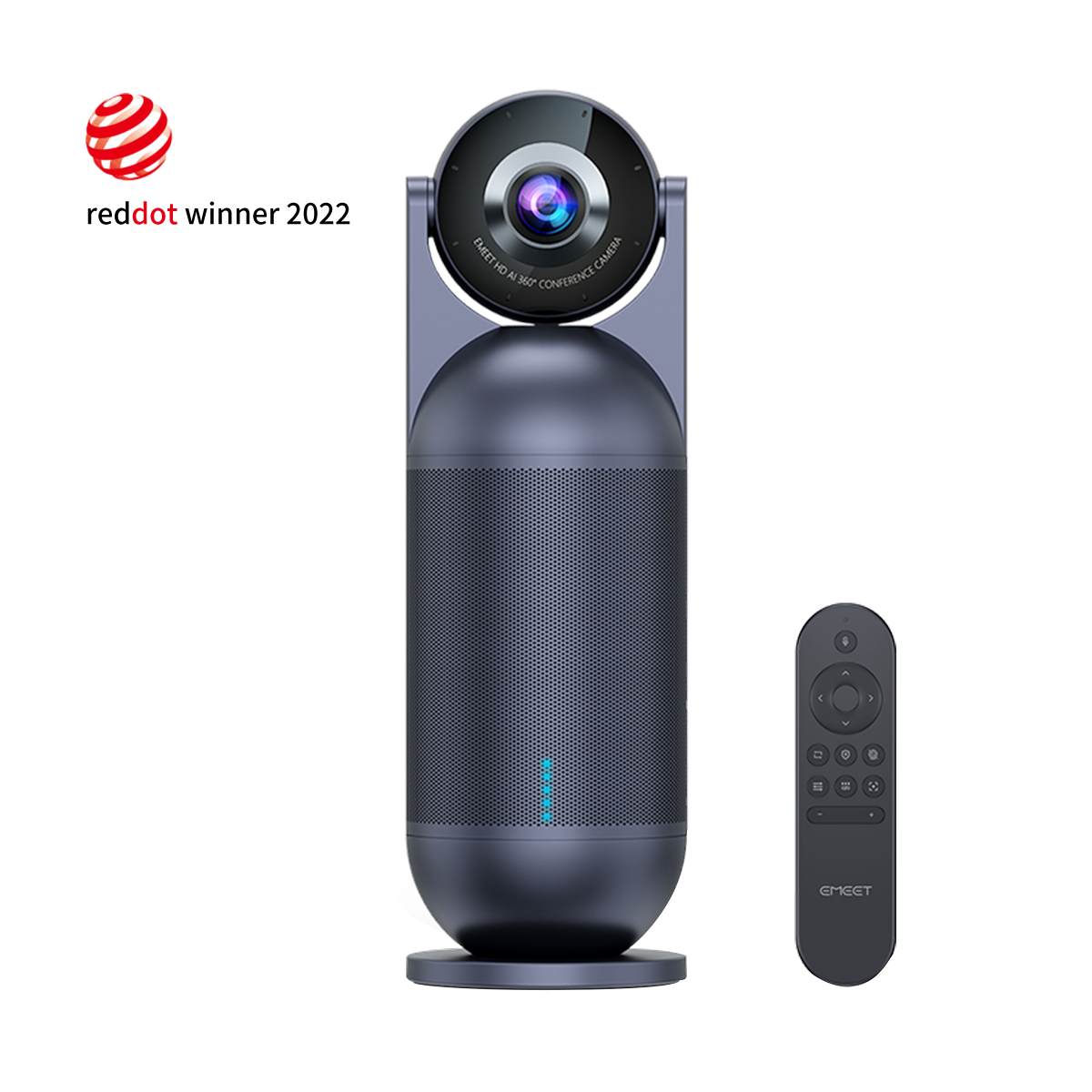
CAMERA
Lens:
360° optional fisheye lens
Focus type:
AI-based focus
Output Resolution:
1080P HD Video
Video Pickup Radius:
13' (4m)
Field of View:
0 - 360° adjustable
MICROPHONE
Microphones:
8 omni-directional beamforming Smart Mics
Audio Pickup Radius:
18' (5.5m)
Extended audio:
Extend the audio range to 36' (11m) when daisy chained with an EMEET M3.
SPEAKER
Speaker:
One built-in speaker for 360° coverage and clear in-room sound
Output level:
10W/90dB
CONNECTION
Connection:
Plug and play connection to host computer via USB-C
Daisy Chain:
Option to connect to an EMEET M3 via an EMEET daisy chain cable
Management:
Via remote control or the physical buttons on the device
Power Supply:
AC 100 - 240V
Line cord:
Specific to region
COMPATIBILITY
Connection:
Plug and play connection to host computer via USB-C
Compatibility:
Works with Zoom, Microsoft Teams, Skype for Business, Slack, Webex, and many more
Platform Support:
Compatible with virtually all web-based video conferencing platforms
SOFTWARE
Software:
Upgrade firmware and customize video parameters in EMEETLINK
SETUP
Place Options:
Center of the table, tripod-mounted, 60cm ahead of the user for spotlight mode, at one end of the table by using a Kensington lock
USAGE
Input:
12V, 2000mA
Average Power Consumption:
10W
SECURITY
Data Handling:
Meeting capsule does not record any video or audio content
Streaming:
Video and audio are streamed to the host computer via USB-C connection
Physical Security:
Option to secure the Meeting Capsule with lock adapter
WARRANTY
Warranty:
2-year warranty
DIMENSIONS
Dimensions:
4.4" W x 4.4" D x 10.72" H (97mm*291mm)
Weight:
1060g
1. What's in the box of EMEET Conference Camera Meeting Capsule?
It contains an EMEET Meeting Capsule, a 2m USB cable(C-C), a C to A adapter, a power adapter, a safety guide, a user manual, a remote control, and two batteries (number 7).

2. Device display of EMEET Meeting Capsule
1. Product description

2. Buttons and Ports

3. How do I place the capsule?
It shall be placed on the flat surface of the desk.
Also, a standard 1/4 inch thread at the bottom can be used for mounting onto a tripod.
Kindly note: The device weighs 1KG. Please make sure that the tripod you buy can support it.
4. How do I turn on the meeting capsule?
Connect the host to the power adapter. The host will automatically start after it is energized.
The input voltage of the power adapter is 100~240V AC, and the output is 12V DC voltage.
Please note that the device operates as below before it's ready to work.
- Five LED indicators on the body turn blue.
- The lens turns to face upward.
- The 5 blue LEDs go on from bottom to top.
- Finally, only 1 green LED bottom indicator keeps on.

5. How do I connect the meeting capsule?
Connect the video conference camera meeting capsule and your computer via a USB cable after it is energized.
The bottom indicator will turn green when the capsule is not working; 5 indicators will be on when it starts to function.

6. How many modes does the capsule have?
(1) Collaboration Mode
Active speakers (up to 3) can be detected by their voices and appear on the screen at the same time. Their faces will be automatically centered.
The lower part of the screen displays a panoramic view of the conference room.
(2) Speech Mode
Only one active speaker will be focused and appear on the screen.
The lower part displays a panoramic of the conference room.
(3) Classic Mode
In this mode, the camera records a 180-degree wide-angle video.
(4) Spotlight Mode
Adopting a 65° field of view, this is a mode designed for one-person use.
(5) InPrivate Mode
This mode turns off both the microphones and the camera for privacy protection.
7. How many participants can be supported?
The EMEET Meeting Capsule can be used according to the number of participants and different scenarios:
- The Collaboration mode and Speech mode are suitable for multiple people. Placing it on the middle of the table, the device can deliver a panoramic view of the room;
- When the capsule enters the classic mode, the camera has a 180-degree field of view.
- Spotlight mode is suitable for a single person. The recommended distance from the user is 60cm.
8. How do I use the remote control?
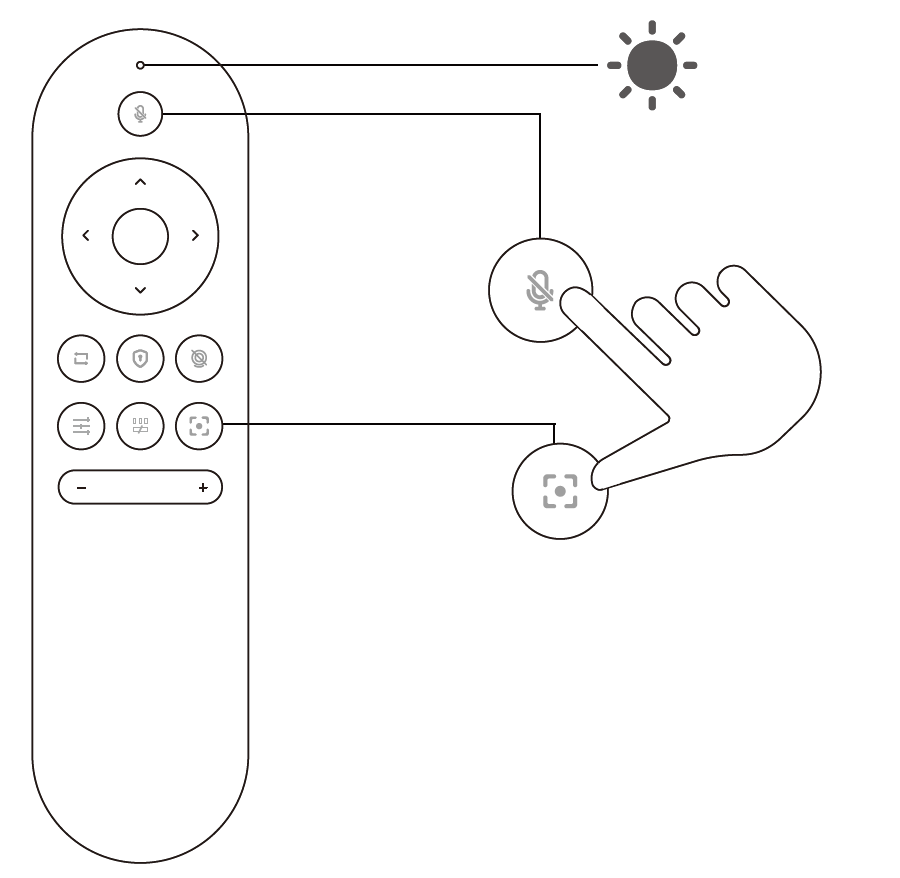
(1) Introduction

(2) Pairing
The remote control has been paired with the capsule, so there is no need to pair again.
But if you find that the remote control fails to command the capsule, please do as follows:
- Long press the zoom button and microphone mute button at the same time.
- When the LED indicator on the remote control flashes red and blue alternately, the remote control begins to pair with the capsule.
- During the pairing process, please be careful to bring the remote control close to the EMEET Meeting Capsule lens, and their distance is less than or equal to 10cm.
- The LED indicator will stop flashing when the pairing is done.
9. How to zoom and adjust the view of the capsule?
(1) Adjust the view
Speech mode
In speech mode, you can press the left and right buttons on the remote control to adjust what is being framed.
You also can click the left and right icons on the EMEETLINK to make the adjustment.


Classic mode
You can tune the view up, down, left, and right via the remote control or EMEETLINK.
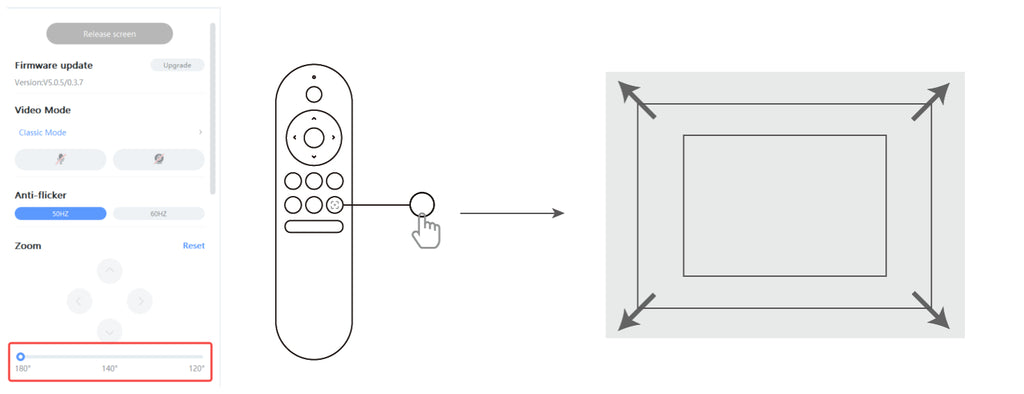
The default field of view for the classic mode is 180°. Please decrease it to 140° or 120° before tuning.

(2) Zoom
In the classic mode, the camera can zoom in or out via EMEETLINK or the remote control.
10. How do I protect my privacy?
(1) InPrivate mode
This mode turns off both the microphones and the camera for privacy protection. The lens faces downwards.
And there are two ways to enter the inprivate mode:
- Short press the InPrivate button on the capsule.
- Short press the InPrivate button on the remote control.


(2) Turn off the camera
- Short press the camera on/off button on the remote control to turn off the camera.
In this mode, the speaker and microphone work normally, but the camera is off.

- You also can turn off the camera via EMEETLINK. Just click the icon, and the camera will turn off.

(3) Mute microphones
There are two ways to merely mute the microphones.
Short press the mic mute/unmute button on the capsule.
Short press the mic mute/unmute button on the remote control.

You also can mute the microphones via EMEETLINK. Just click the icon to mute them.

11. How do I turn on/off the panoramic frame?
Each time you turn on the capsule, a panoramic view of the room will be captured by the camera and appear on the screen.
Before turning on/off this frame, please make sure that the EMEET Conference Room Camera Meeting Capsule has entered either the Collaboration Mode or the Speech Mode (the lens faces up);
You can take the following two steps to turn on/off the panoramic frame:
(1) Use the EMEETLINK software
- Download the EMEET PC software EMEETLINK and connect the capsule with your computer.
- Enter the setting interface, and find the panoramic frame on the right settings.
- When the button is grey, it means the panoramic frame is off.

(2) Use the remote control
Just click the Panoramic frame button to turn it on/off.

12. How do I adjust the video settings?
Connect the capsule to a computer with a USB cable and energize the capsule. Then turn on the EMEETLINK software.
- White balance — Click the button to let it turn grey, then you can adjust the white balance according to your needs.
- Image — You can adjust brightness, contrast, sharpness, and saturation.
- Image flip — Flip the image horizontal or vertical.

13. How do I change the video resolution?
The default resolution is 360P or 480P for smooth video calls when you have a video conference on a meeting platform.
- If the platform offers the choice of changing to a higher resolution, you can adjust it directly. Please be aware that the video calls may be not as smooth as under the default resolution.
- You can also adjust the resolution using the built-in camera software of your computer; the setting will be saved on the capsule. Please follow the steps below.
- Find the built-in camera software of your computer.
- Click the switch button on the upper right corner to change the camera to the capsule. Click the setting button in the upper left corner to enter the setting interface.


- Change the video quality according to your needs.

14. How do I update the software for the capsule?
Please download the EMEET PC software EMEETLINK first.
- Connect the capsule and the computer via USB cable, and the capsule should be energized.
- Turn on the EMEETLINK and enter the settings interface.
- Click upgrade to update the firmware.

- The update needs 5-15 mins. In this period, you will see a progress bar to let you know the status of the update. Meanwhile, the LED indicators of the capsule will be purple.
- Once the update finishes, pls restart the capsule.
Kindly note: During the upgrade, do not cut off power supply or disconnect the USB cable. In addition, please do not use the USB hub, it may lead to a failed upgrade.
15. How far does the microphone pick up voices?
The sound pick-up distance varies with the environment.
- In an open environment without reverberation, the sound pick-up distance reaches 18 feet.
- In a enclosed glass room, the sound pick-up distance will be impacted and be appropriately reduced.
- It can support meeting rooms of 5~15 square meters.
16. How to Adjust the volume of the capsule?
Click the volume button on the remote control.
There are 10 scales of the volume.
Every time you press the "+" button, the volume will increase to a higher scale.
When the scale reaches 10, the volume is the maximum one.

17. What type of lock can be used to lock the capsule?
Please choose a lock that works with the Kensington security slot.
18. What is the resolution of the EMEET Meeting Capsule?
The EMEET Meeting Capsule is a 360° camera with 1080p resolution. Due to the different picture displays in the five modes, the sharpness will also be slightly different.
Both Spotlight mode and Classic mode have been shown to provide better clarity than other modes (e.g., collaboration mode, Speech mode).
Multiplayer meeting scenario: If you are not satisfied with 360° panoramic, then we recommend you use the classic mode.
For single-player scenarios, we recommend using Spotlight mode to show you at your best.
19. Is it possible to adjust the speed of person tracking?
Absolutely! Our device has a sensitivity level adjustment function, which can be adjusted through the remote control or EMEETLINK PC software.
This button can adjust the capturing speed of the device, with three sensitivity levels: low, medium, and high. Selecting "high" will enable the device to capture the speaker's voice and video more quickly.
EMEETLINK
Un software complementario básico para webcams, altavoces y otros dispositivos EMEET. Permite a los usuarios ajustar la configuración de la cámara, como parámetros de imagen, enfoque y zoom, además de configurar funciones de audio como Bluetooth y ganancia del micrófono.
Solo es compatible con Windows, MacOS

Requisito del Sistema
Compatible con Windows 10 y versiones superiores, sistemas operativos de 64 bits. No compatible con sistemas Windows de arquitectura ARM.
Productos compatibles
Cameras
Meeting Capsule
Meeting Capsule Pro
C950
C950 4K
C955
C960
C960 AF
C960 2K
C960 4K
C965
C970
C970L
C980 Pro
C980 Pro 4K
C990
Jupiter
Nova
Nova 4K
C60E
C60E 2K
C60E 4K
S600
S800
C100 1080P/2K/4K
Speakerphones
M0
M0 Plus
M1A
M2
M220
M2 Max
Luna
Luna Lite
Luna Plus
M3
Headsets
HS50
HS80
HS100
HS150
Accessories
Emute
A200
A300
A350

EMEET Meeting Capsule User Manual
Download Now >