

![PIXY Wireless[DEFAULT]](http://emeet.com/cdn/shop/files/pixy_647010c6-662a-4af7-b8bb-ad66e457c662.png?v=1780025408&width=480)


APPEARANCE
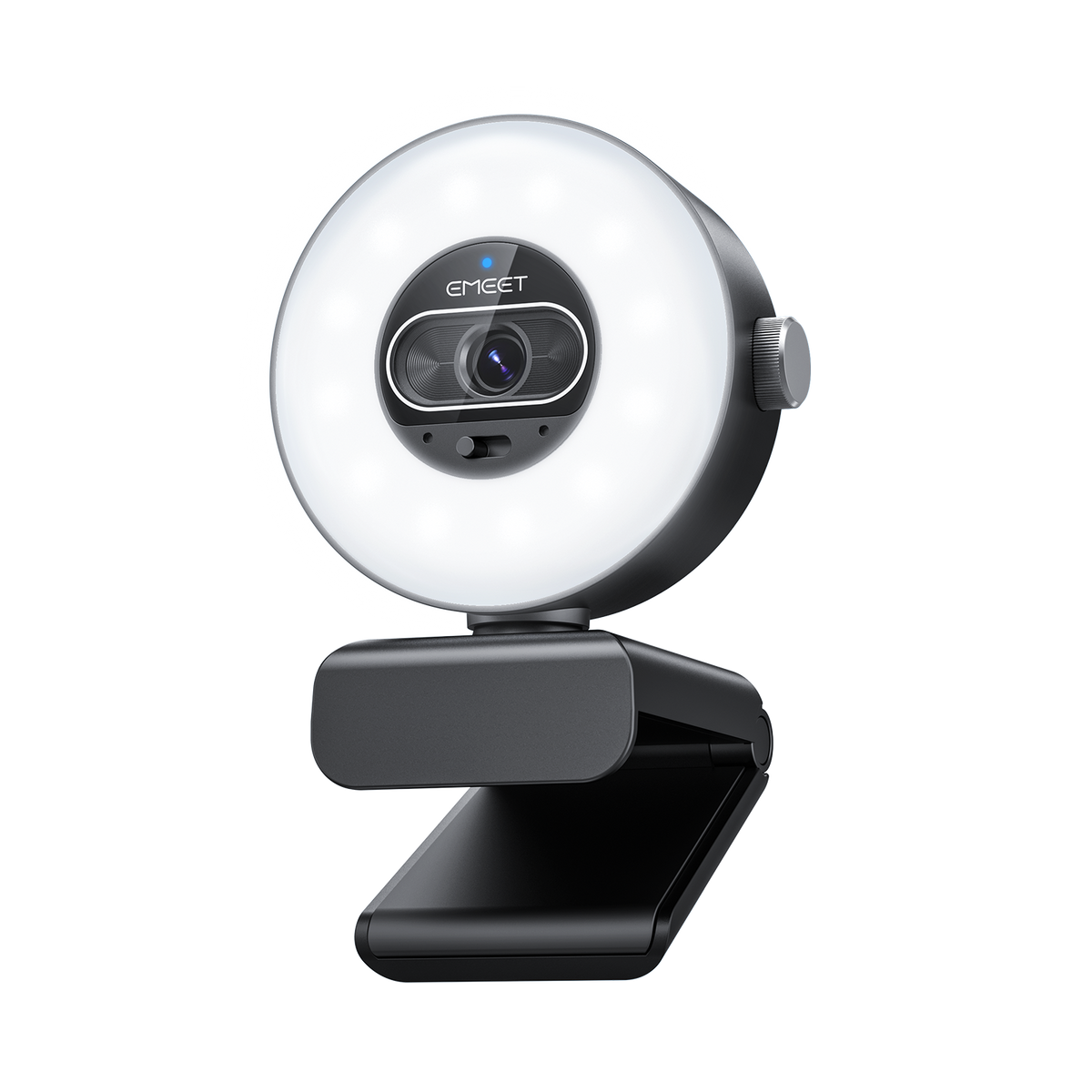
VIDEO
Sensor Size:
1/2” CMOS Sensor
Video Resolution:
Default Resolution: 3840*2160@30FPS
640*360@30FPS, 640*480@30FPS
640*360@30FPS, 640*360@60FPS
640*480@30FPS,800*600@30FPS
960*720@30FPS,1024*576@30FPS
1024*576@60FPS,1280*720@30FPS
1280*720@60FPS,1280*960@30FPS
1920*1080@30FPS,1920*1080@60FPS
2560*1440@30FPS,3840*2160@30FPS
640*360@30FPS, 640*480@30FPS
640*360@30FPS, 640*360@60FPS
640*480@30FPS,800*600@30FPS
960*720@30FPS,1024*576@30FPS
1024*576@60FPS,1280*720@30FPS
1280*720@60FPS,1280*960@30FPS
1920*1080@30FPS,1920*1080@60FPS
2560*1440@30FPS,3840*2160@30FPS
Video Coding Format:
MJPEG, YUY2
Aperture
F/1.8
Field of View:
73°
Focus Type:
PDAF Auto Focus
AUDIO
Microphone:
2 Built-in Microphones
Lighting
Built-in Ring Light:
Yes
Brightness:
5~60Lux@0.5m
Color Temperature:
Code: 6200K
Warm: 2600K
Mixed: 4000K
Warm: 2600K
Mixed: 4000K
Dimensions (W*H*D):
69.7*58.5*89.6mm
Software
Connectivity
2m USB-C
Interface
1/4” Threaded Hole
System Requirement
A 2.4 GHz Intel® Core 2 Duo processor or higher
2 GB of RAM or more
A USB 2.0 port
2 GB of RAM or more
A USB 2.0 port
Compatibility
Windows 10 or later (64-bit operating systems)
macOS (10.14 or later)
Does not support Windows systems based on the ARM architecture
macOS (10.14 or later)
Does not support Windows systems based on the ARM architecture
1. How to use the S600L?
You can get started with the S600L quickly by following these steps:
-
Connect the device:
Plug the S600L's USB cable directly into your computer. Once connected, the ring light will turn on as a startup indicator and automatically turn off after 6 seconds, indicating that the device is ready to use. -
Open an application
Open a compatible application on your computer (such as the system camera or video conferencing software). Select S600L from the device list. Once the video feed appears normally, the camera indicator light will turn steady blue. -
Adjust the lighting
To adjust the ring light, use the button on the right side of the S600L to switch between different light colors and adjust brightness as needed.
Note:
The S600L is totally plug-and-play and driver-free. Simply connect it to your computer and it's ready to go.
2. What mounting options does the S600L support?
The S600L supports two convenient mounting options:
-
Monitor mounting
With the included base clip, the camera can be securely mounted on top of your monitor. -
Tripod mounting
The bottom of the camera features a standard 1/4-inch threaded hole, allowing it to be mounted on most universal tripods or stands.

3. How do I use the ring light on the S600L?
The ring light can be operated as follows:
- After the camera is powered on, the ring light will display a startup lighting effect and automatically turn off after 6 seconds.
- All adjustments are made using the button on the right side of the camera:
- Short press to turn on the fill light.
- While the light is on, short press to switch between light modes, including cold, warm, mixed and ambient light. (The ambient light is blue by default and can be customized via the EMEET STUDIO software.)
- Press and hold for 2 seconds to turn off the ring light.
- Rotate the button to adjust brightness.
4. What is the maximum resolution and frame rate of the S600L?
The S600L supports a maximum resolution of 4K (3840 × 2160) at 30 fps.
It also supports 1080P (1920 × 1080) at up to 60 fps, allowing you to choose the optimal setting for meetings, live streaming, and other scenarios.
5. What is the field of view (FOV)? Does the S600L support manual zoom?
The S600L features an adjustable field of view ranging from 40° to 73°.
The default factory setting is 73°, and the FOV can be adjusted via the EMEET STUDIO software.
Note:
When operating in 4K or 1080P at 60 fps, the FOV is fixed at 73° and cannot be adjusted.
6. Does the S600L come with companion software for advanced settings?
Yes. The S600L supports companion software configuration.
You can download EMEET STUDIO from the official website to easily adjust image parameters, ring light settings, and other advanced features.
7. How to use Privacy Mode on the S600L?
Find the physical privacy switch beneath the camera lens and slide it fully to the right to enable Privacy Mode.
When activated, the lens will be physically covered to protect your privacy—no additional software settings are required.

8. Does the S600L have a built-in microphone?
Yes. The S600L features dual built-in high-definition microphones that delivers clear audio pickup, making it suitable for video calls, live streaming, and online meetings without the need for an external microphone.

EMEET STUDIO
A comprehensive companion tool designed for EMEET webcams. It supports device setup, live preview, PTZ control, image adjustments, beauty enhancement, screen recording, live streaming, and virtual camera features for meetings, streaming, and content creation.
Only supports Windows, MacOS, iOS, Android

System Requirement
Windows 10 and above, 64-bit operating systems. Not supported on ARM architecture Windows systems.
Supported Products
EMEET PIXY Wireless
EMEET PIXY
EMEET PIXY 2K
EMEET Piko
EMEET Piko+
EMEET Piko Dual
EMEET S600L
EMEET S600
EMEET S630
EMEET C60E 4K
EMEET C60E 4K Dual
EMEET C63E 4K Dual
EMEET Nova 4K Dual
EMEET C960 Ultra
EMEET C960 UltraX
EMEET C60E 4K Light
EMEET C960 2K
EMEET C960 AF
EMEET C960 4K


EMEET SmartCam S600L User Manual Download Now >


astralsway_


tyler.creates_studio


strawbxrryfox


fluxphy


gaminginpink


bigraingirl


papasgame