


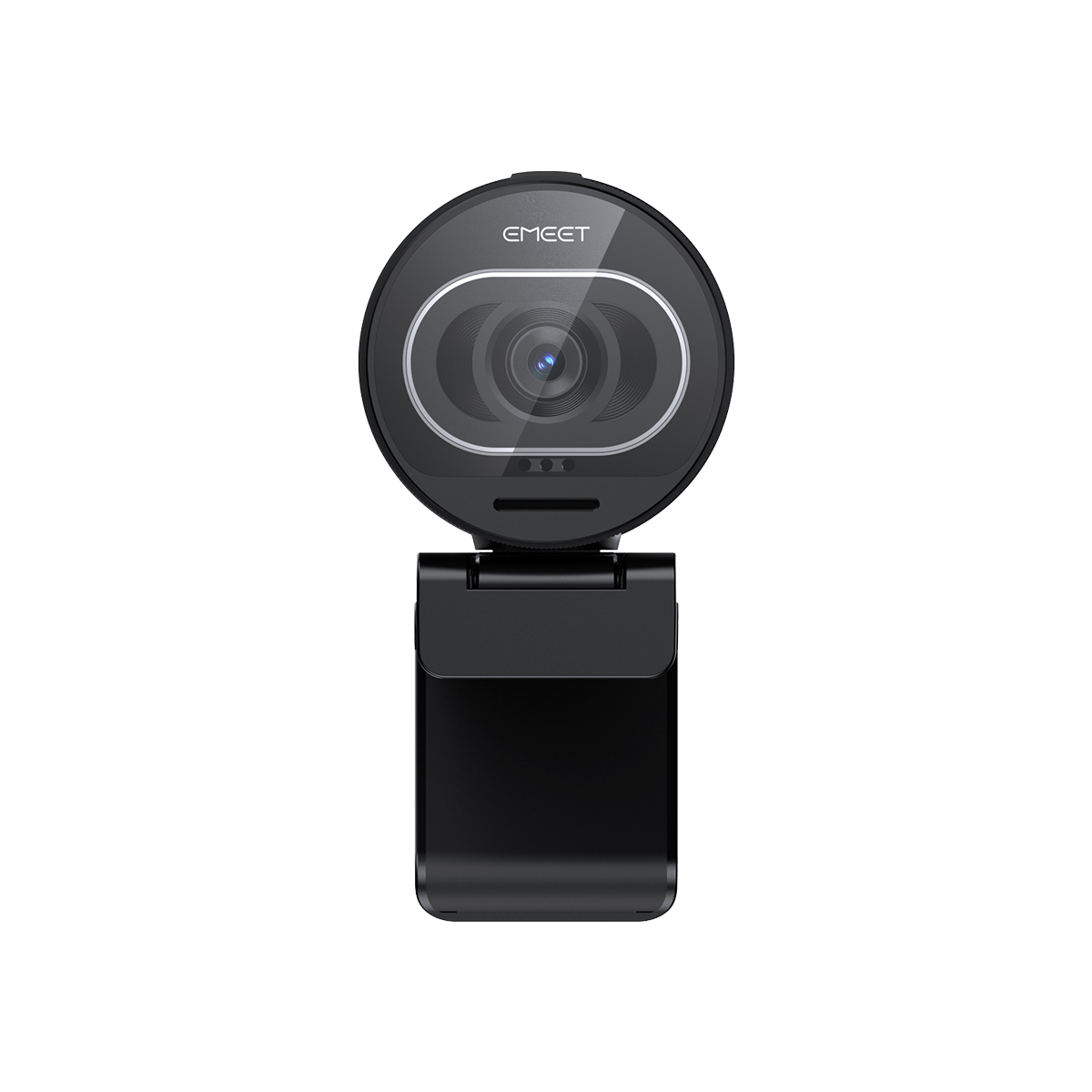


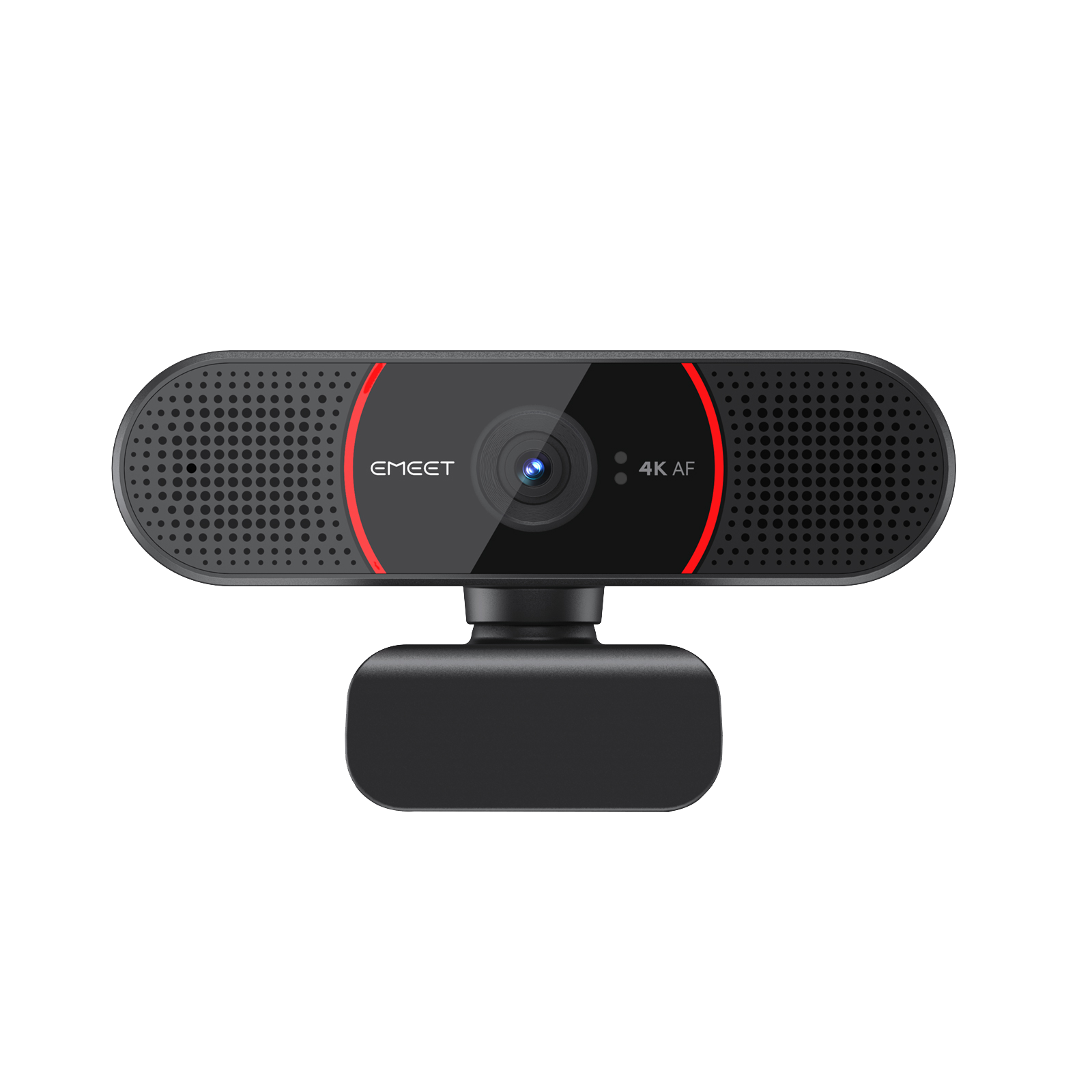
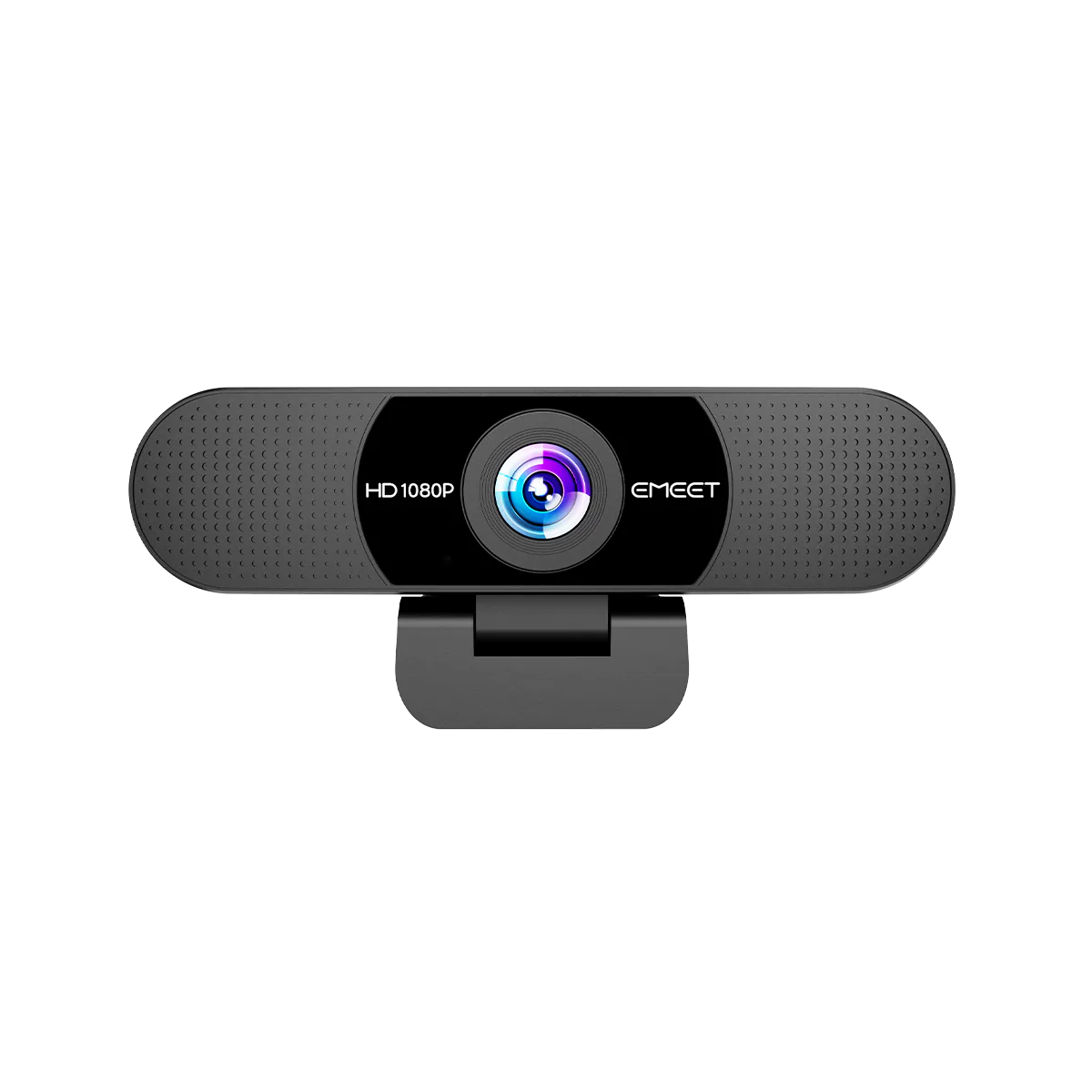
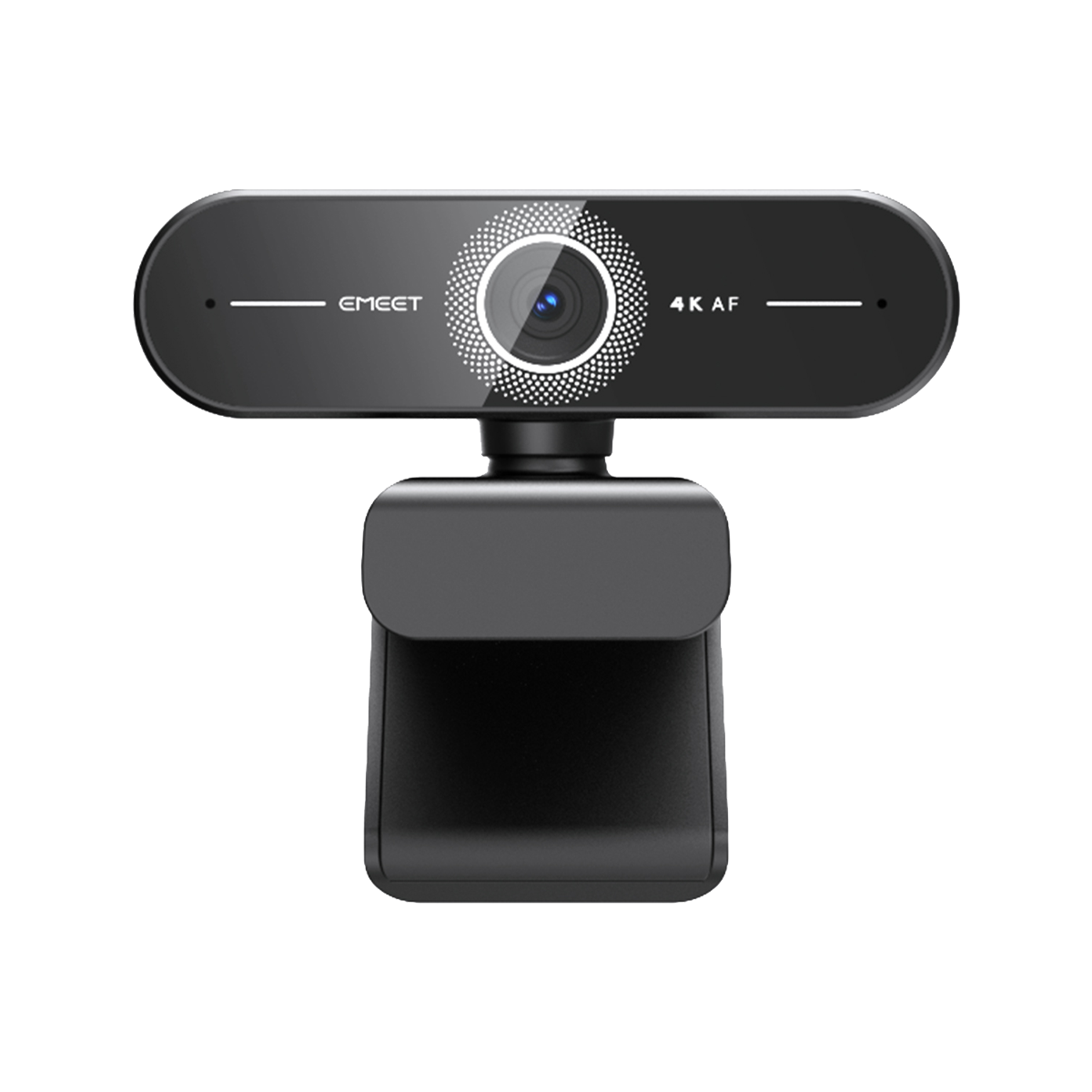

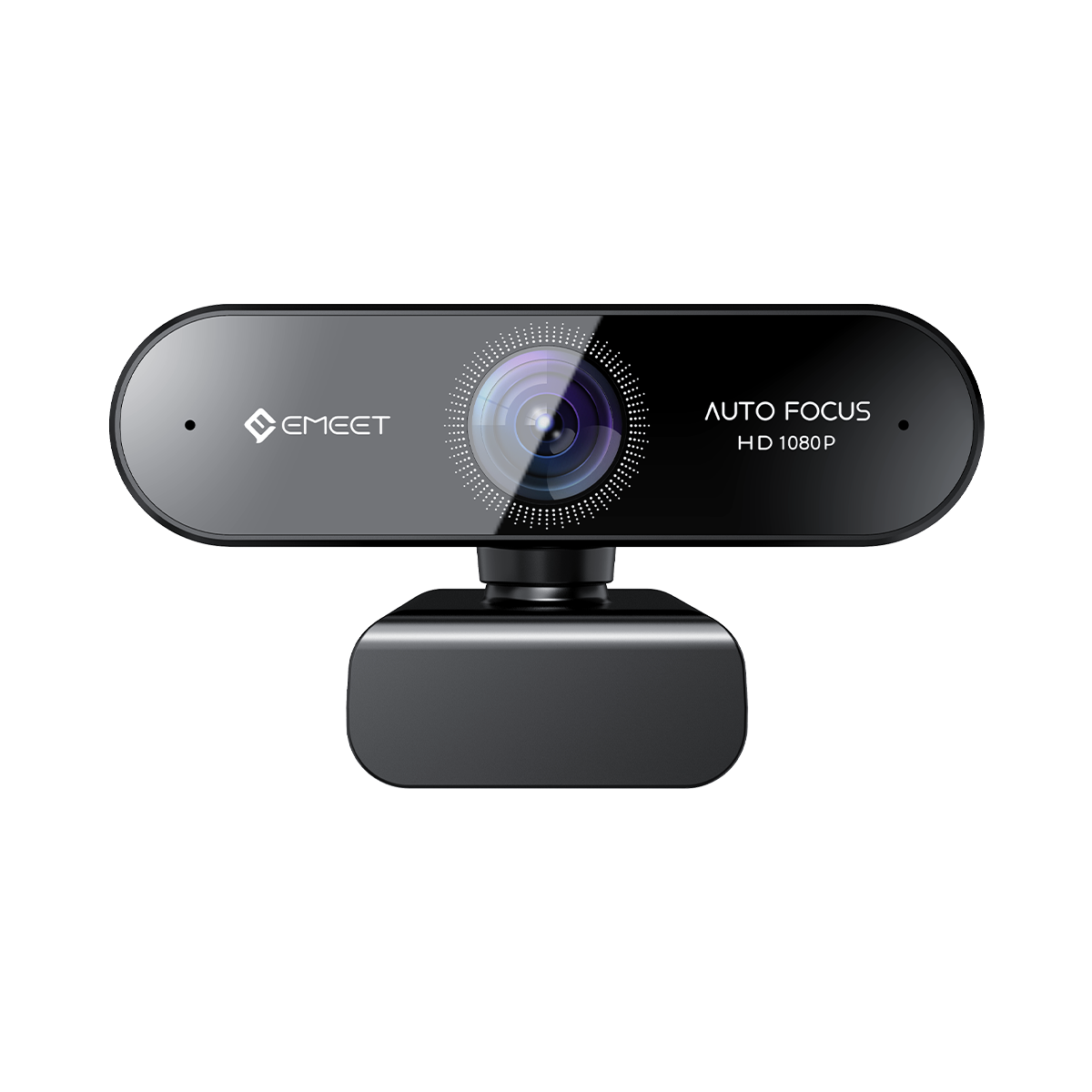

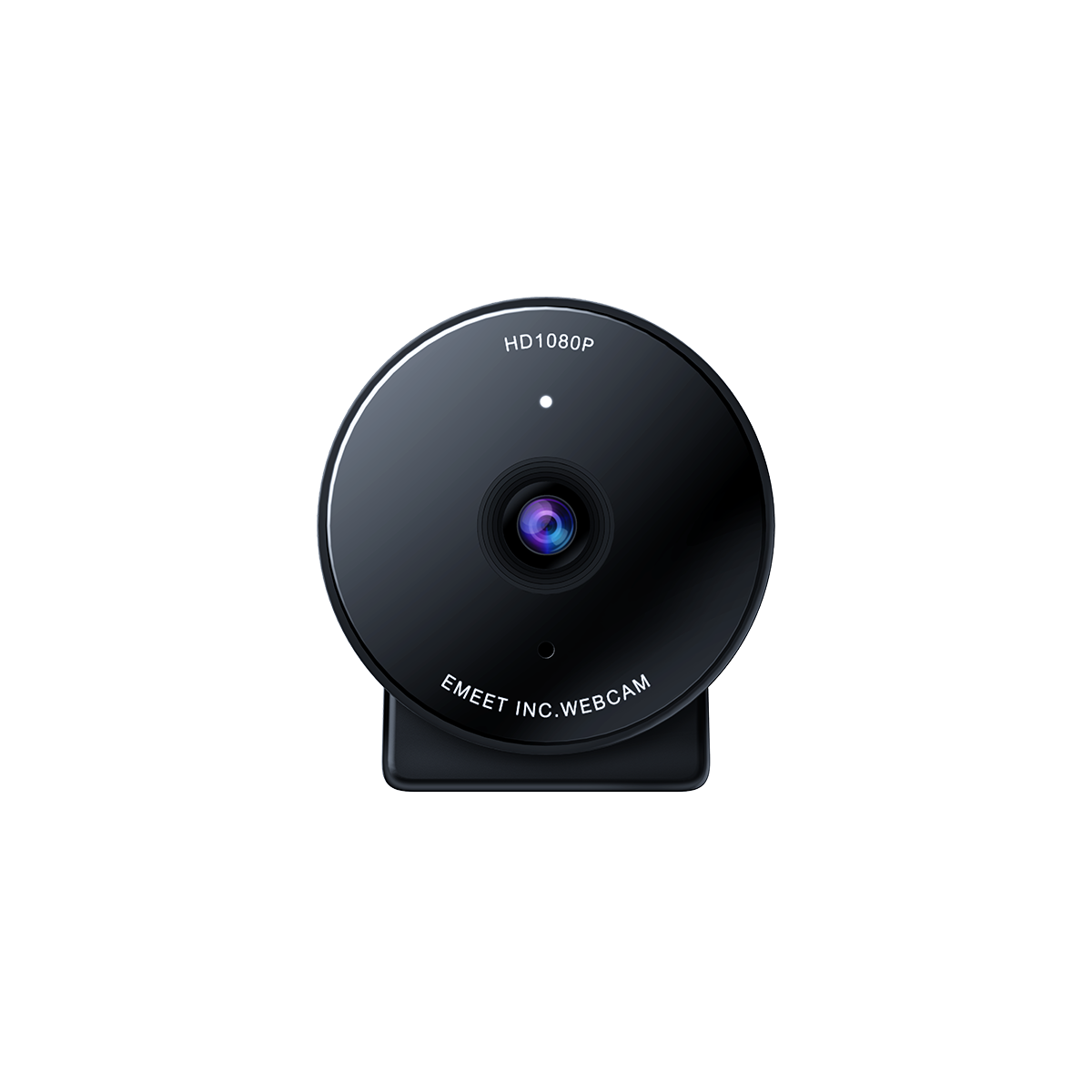
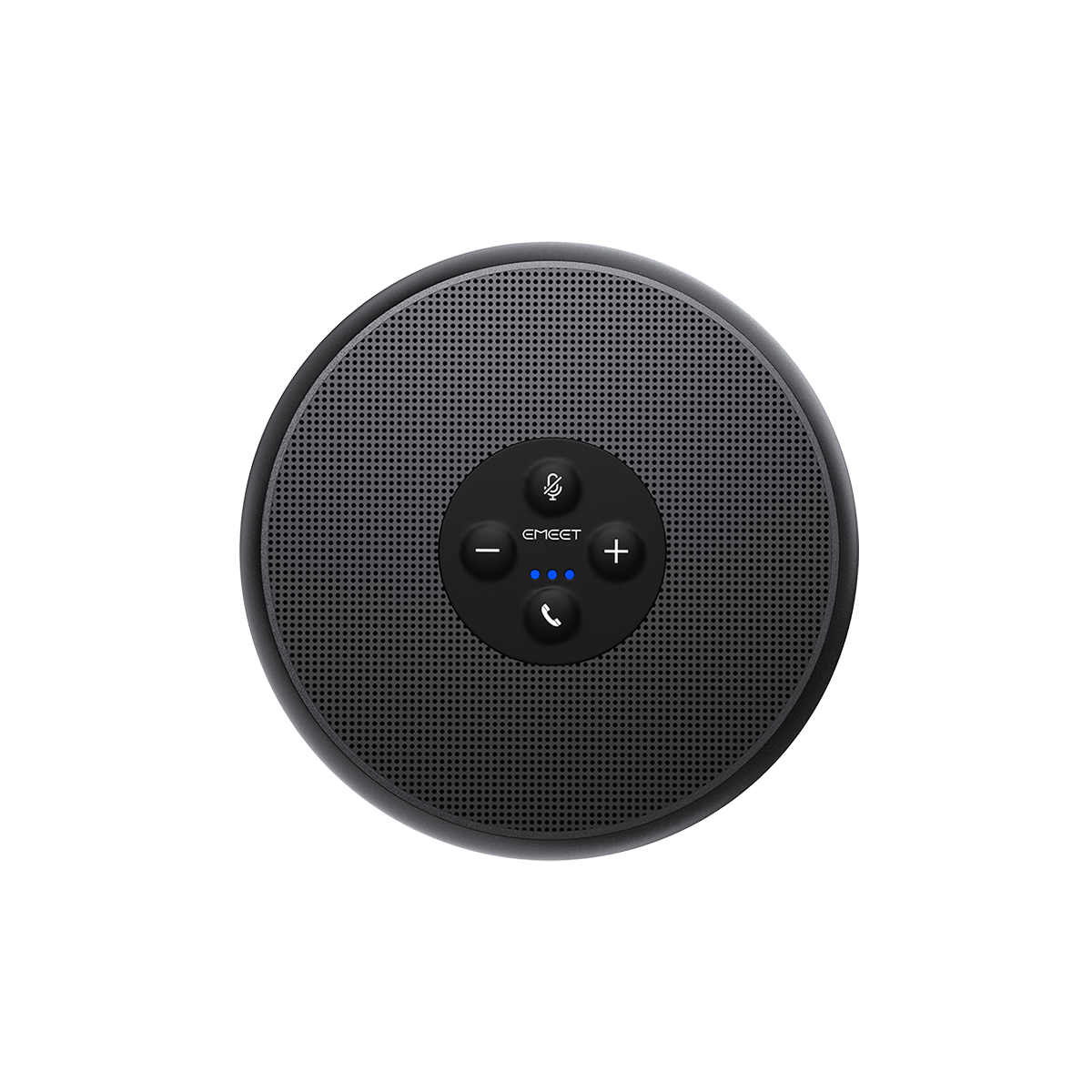






| Specifications | EMEET Prime | EMEET Prime SE | |
|---|---|---|---|
| Video & Sensors | Wide-Angle Sensor | 1" CMOS | 1" CMOS |
| Telephoto Sensor | 1/2.88" CMOS | 1/2.88" CMOS | |
| Pixel Count | 50MP | 50MP | |
| Max. Video Resolution | 4K@60fps | 4K@30fps | |
| Field of View (Wide-Angle) | 85.1° | 85.1° | |
| Field of View (Telephoto) | 49.1° | 49.1° | |
| HDR | Dual-frame HDR | Single-frame HDR | |
| Aurora Color | Supported | Not Supported | |
| Digital Zoom | Up to 12x | Up to 12x | |
| Autofocus Speed | 0.2s BlinkFocus | 0.2s BlinkFocus | |
| Imaging Features | Landscape/Portrait Switching | Supports landscape/portrait resolution switching via UVC | Landscape by default; portrait via software rotation |
| Da Vinci-Inspired Real-Time Color Tuning (HSL) | Supported | Not Supported | |
| Electronic Pan/Tilt | Supported | Supported | |
| Remote Control | Supported | Supported | |
| Automatic Power Line Frequency Adjustment | Supported | Supported | |
| Ports & Connectivity | HDMI Output | Simultaneous HDMI + UVC output | Simultaneous HDMI + video output |
| USB-C Data Cable | 3.0 m USB-C data cable | 3.0 m USB-C data cable | |
| USB-C Power Cable | 2.5 m USB-C power cable | 2.5 m USB-C power cable | |
| Cold Shoe Mount | Supported | Supported | |
| External Wired Microphone | Supported | Supported | |
| Plug & Play | No capture card required | No capture card required | |
| Audio & Cooling | Microphones | 2 mics | 2 mics |
| Cooling Design | Metal housing for heat dissipation + spacious internal layout to spread heat sources | Metal housing for heat dissipation + spacious internal layout to spread heat sources | |
| MTBF Certification | 520 hours of continuous operation without failure (third-party certified) | 520 hours of continuous operation without failure (third-party certified) | |


Unboxing & Quick Setup
What is the maximum resolution supported by the EMEET Prime Series?
- EMEET Prime: Supports up to 4K at 60fps.
- EMEET Prime SE: Supports up to 4K at 30fps or 1080p at 60fps.
What is the maximum zoom level of the EMEET Prime Series?
The EMEET Prime Series supports up to 12x hybrid zoom, which can be easily adjusted using the included 2.4GHz wireless remote control.
Note: At higher zoom levels, image sharpness may decrease and noise may become more noticeable. This is normal.
What is the maximum power consumption of the EMEET Prime Series?
- EMEET Prime: 5V input voltage, 1.5A maximum input current, and 7.5W maximum power consumption.
- EMEET Prime SE: 5V input voltage, 1A maximum input current, and 5W maximum power consumption.
Note: If the camera's status indicator slowly flashes green (approximately once every 6 seconds) after powering on, it indicates insufficient power. Try connecting to a USB port with higher power output or using an external power adapter.
What is the HDMI port used for?
The HDMI port allows you to connect the camera directly to a monitor, TV, capture card, or video switcher without routing the video through a computer. This provides lower-latency video output, making it ideal for live streaming and video monitoring.
How to use:
- Connect the camera to a power source.
- Use an HDMI cable to connect the camera's HDMI port to the HDMI input on your display device.
- Select the corresponding HDMI input source on your display device.
Note: Use an HDMI 2.0 or higher cable to ensure stable video output.
Can the included power cable and data cable be used interchangeably?
No, the two cables are not interchangeable. The power cable is designed for power delivery only and does not support data transmission. The USB 3.0 data cable supports both data transmission and power delivery.
Does the camera have a built-in microphone? Can I connect an external microphone?
Yes. Both EMEET Prime and EMEET Prime SE feature built-in microphones and support external microphones via a 3.5mm audio jack.
Which microphone takes priority when an external microphone is connected?
The camera automatically prioritizes the external microphone. When one is detected, it automatically switches to it for audio capture.
Does the remote control need to be paired before use?
No. The included 2.4GHz wireless remote control comes pre-paired from the factory and is ready to use out of the box. Each remote is paired with a specific camera. A re-pairing option is available in EMEET STUDIO for troubleshooting and after-sales support.
Why is EMEET Prime set to portrait mode by default? How can I switch modes?
EMEET Prime is set to portrait mode by default to optimize vertical content creation, including live streaming, short-form videos, and TikTok. It supports both 16:9 landscape and 9:16 portrait resolutions. You can switch between these modes in EMEET STUDIO.
Why does the EMEET Prime SE image appear rotated by 90° even though the default output aspect ratio is 16:9?
EMEET Prime SE is designed for vertical live streaming without requiring users to physically rotate the camera. It handles image rotation internally, eliminating the need for additional mounting accessories.
How do I enable HDR?
Download and install EMEET STUDIO, then enable HDR in the software settings. HDR enhances image details in both bright and dark areas, especially in backlit or high-contrast environments.
Is it normal for the camera to get warm during use?
Yes, it is normal for the camera to become warm during operation. Its high-performance processor generates heat during high-resolution video capture and transmission, while the metal housing helps dissipate heat and maintain stable performance.

EMEET STUDIO
Uma ferramenta complementar completa, criada para as webcams EMEET. Oferece suporte à configuração do dispositivo, pré-visualização ao vivo, controle PTZ, ajustes de imagem, aprimoramento de beleza, gravação de tela, transmissão ao vivo e recursos de câmera virtual para reuniões, streaming e criação de conteúdo.
Compatível apenas com Windows, MacOS, iOS, Android

Requisito do Sistema
Windows 10 ou posterior, sistemas operacionais de 64 bits. Não é compatível com sistemas Windows baseados em arquitetura ARM.
Produtos suportados
EMEET PIXY Wireless
EMEET PIXY
EMEET PIXY 2K
EMEET Piko
EMEET Piko+
EMEET Piko Dual
EMEET S600L
EMEET S600
EMEET S630
EMEET C60E 4K
EMEET C60E 4K Dual
EMEET C63E 4K Dual
EMEET Nova 4K Dual
EMEET C960 Ultra
EMEET C960 UltraX
EMEET C60E 4K Light
EMEET C960 2K
EMEET C960 AF
EMEET C960 4K
EMEET Prime Series


EMEET Prime User Manual
Download Now >
EMEET Prime SE User Manual
Download Now >
Frequently Asked Questions (FAQ)
What is the maximum resolution supported by the EMEET Prime Series?
EMEET Prime: Supports up to 4K at 60fps.
EMEET Prime SE: Supports up to 4K at 30fps or 1080p at 60fps.
What is the maximum zoom level of the EMEET Prime Series?
The EMEET Prime Series supports up to 12x hybrid zoom, which can be easily adjusted using the included 2.4GHz wireless remote control.
Note: At higher zoom levels, image sharpness may decrease and noise may become more noticeable. This is normal.
What is the maximum power consumption of the EMEET Prime Series?
EMEET Prime: 5V input voltage, 1.5A maximum input current, and 7.5W maximum power consumption.
EMEET Prime SE: 5V input voltage, 1A maximum input current, and 5W maximum power consumption.
Note: If the camera's status indicator slowly flashes green (approximately once every 6 seconds) after powering on, it indicates insufficient power. Try connecting the camera to a USB port with higher power output or using an external power adapter.
What is the HDMI port used for?
The HDMI port allows you to connect the camera directly to a monitor, TV, capture card, or video switcher without routing the video through a computer. This provides lower-latency video output, making it ideal for live streaming, video monitoring, and other applications.
How to Use:
- Connect the camera to a power source.
- Use an HDMI cable to connect the camera's HDMI port to the HDMI input on your display device.
- Select the corresponding HDMI input source on your display device to view the camera feed.
Note: Use an HDMI 2.0 or higher cable to ensure stable video output.
Can the included power cable and data cable be used interchangeably?
No, the two cables are not interchangeable.
The power cable is designed for power delivery only and does not support data transmission. The USB 3.0 data cable supports both data transmission and power delivery. Please use each cable for its intended purpose.
Does the camera have a built-in microphone? Can I connect an external microphone?
Yes. Both EMEET Prime and EMEET Prime SE feature built-in microphones for audio capture.
They also support external microphones via a 3.5mm audio jack, providing greater flexibility for applications that require higher-quality audio recording.
Which microphone takes priority when an external microphone is connected?
The camera automatically prioritizes the external microphone over the built-in microphone.
When an external microphone is detected, the camera automatically switches to it for audio capture. No manual configuration is required.
Does the remote control need to be paired before use?
No. The included 2.4GHz wireless remote control comes pre-paired from the factory and is ready to use right out of the box.
Each remote is paired with a specific camera and can only control that paired device.
A re-pairing option is available in EMEET STUDIO for troubleshooting and after-sales support.
Why is EMEET Prime set to portrait mode by default? How can I switch modes?
EMEET Prime is set to portrait mode by default to optimize the experience for vertical content creation, including live streaming, short-form videos, and TikTok.
The camera supports both 16:9 landscape and 9:16 portrait resolutions. You can switch between these modes in the EMEET STUDIO software according to your needs.
Why does the EMEET Prime SE image appear rotated by 90° even though the default output aspect ratio is 16:9?
EMEET Prime SE is designed to accommodate vertical live streaming without requiring users to physically rotate the camera.
While conventional webcams typically need to be rotated 90° using a mounting bracket for vertical streaming, EMEET Prime SE handles image rotation internally, eliminating the need for additional mounting accessories.
How do I enable HDR?
Download and install EMEET STUDIO, then enable HDR in the software settings.
HDR enhances image details in both bright and dark areas, delivering improved visual clarity, especially in backlit or high-contrast environments.
Is it normal for the camera to get warm during use?
Yes, it is normal for the camera to become warm during operation.
The camera uses a high-performance processor for high-resolution video capture and transmission, which generates heat during operation.
Its metal housing helps dissipate heat and maintain stable performance. As a result, the camera may feel warm to the touch during use.