


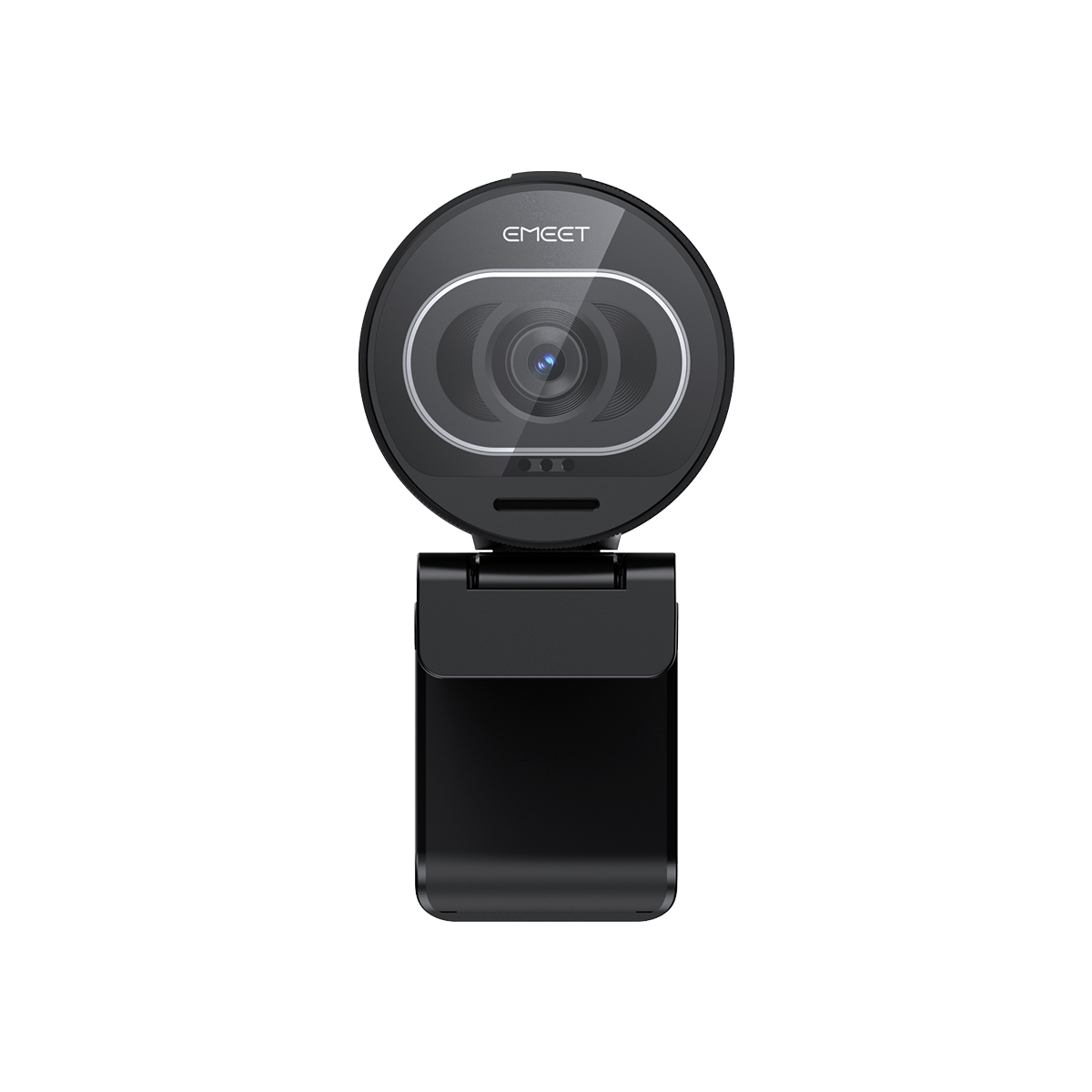


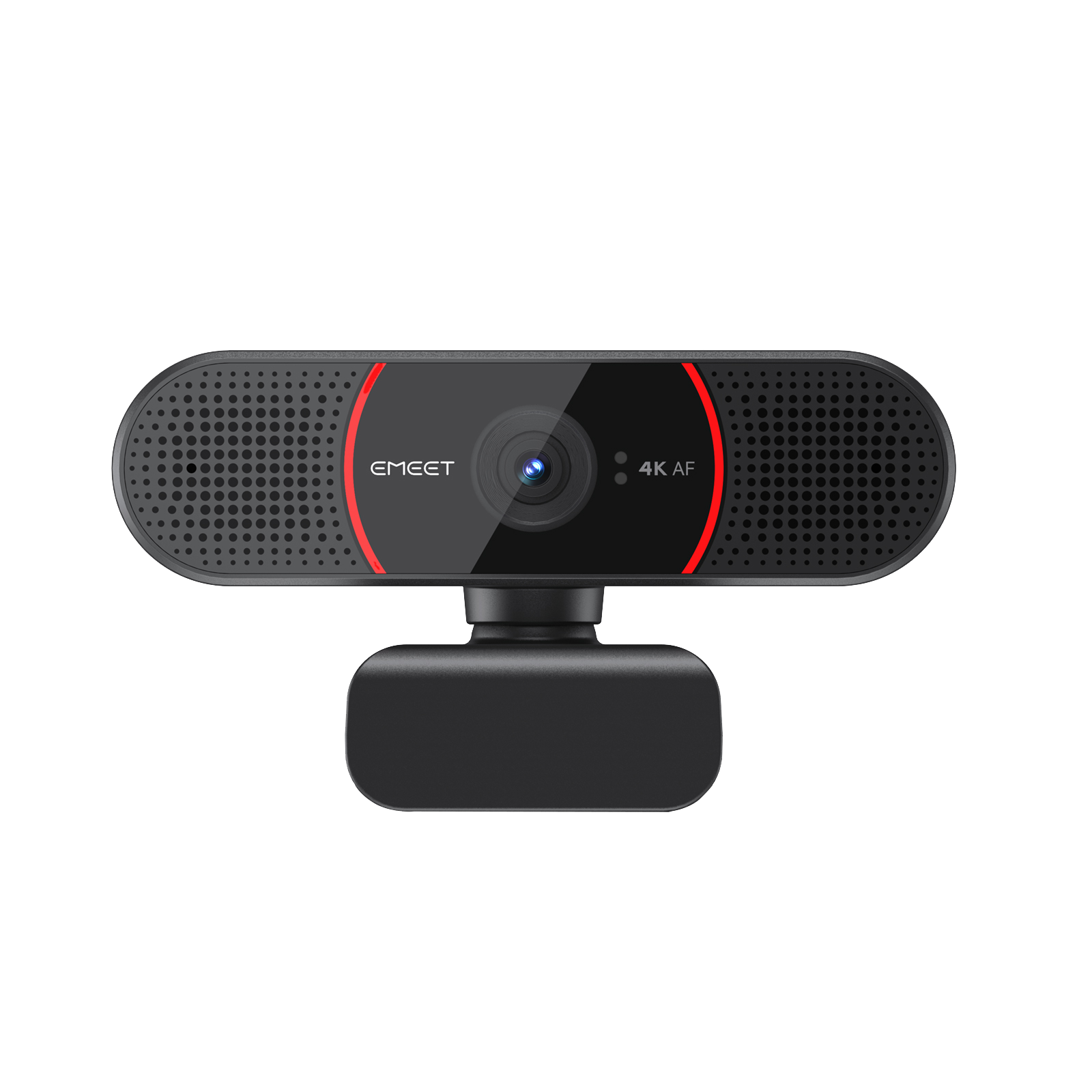
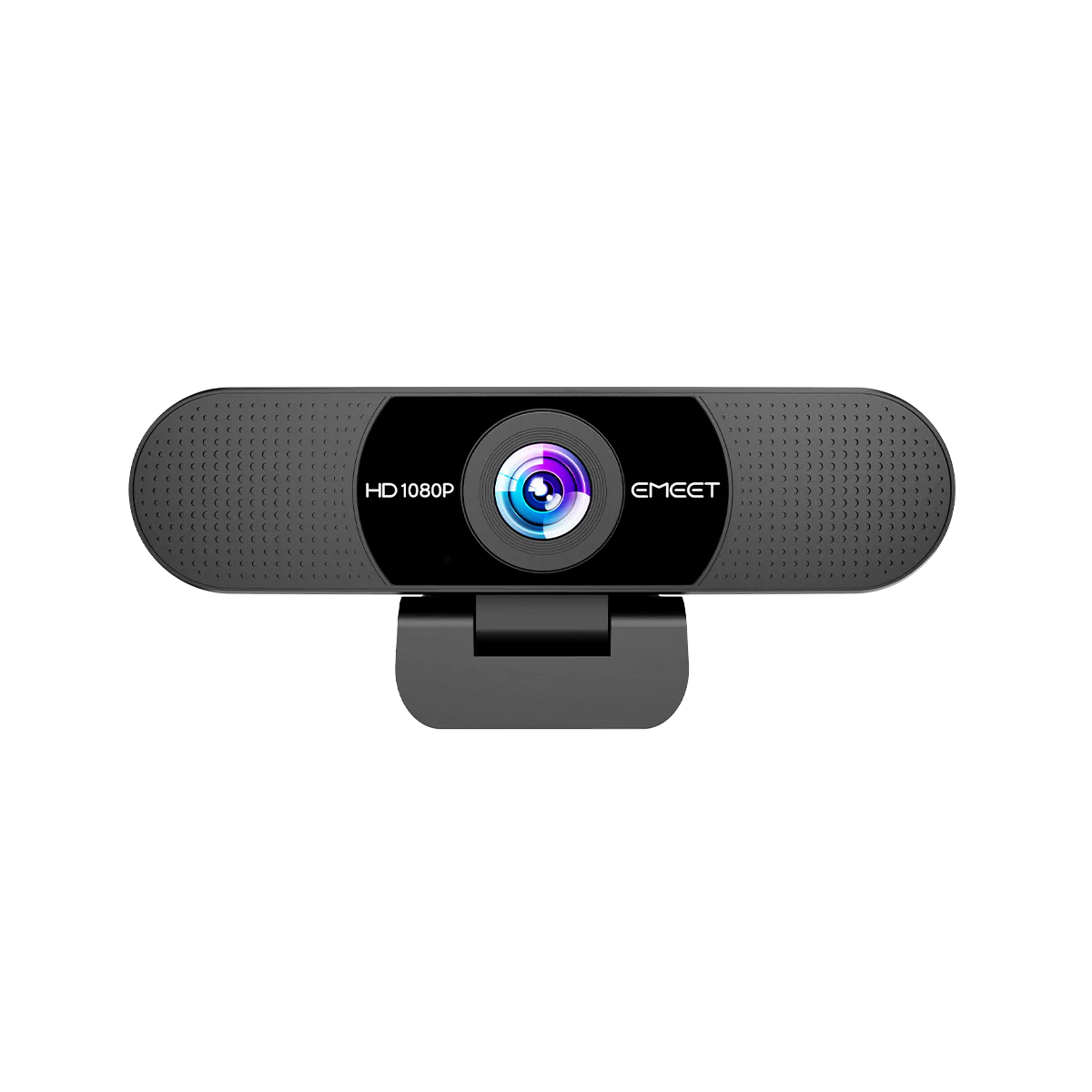
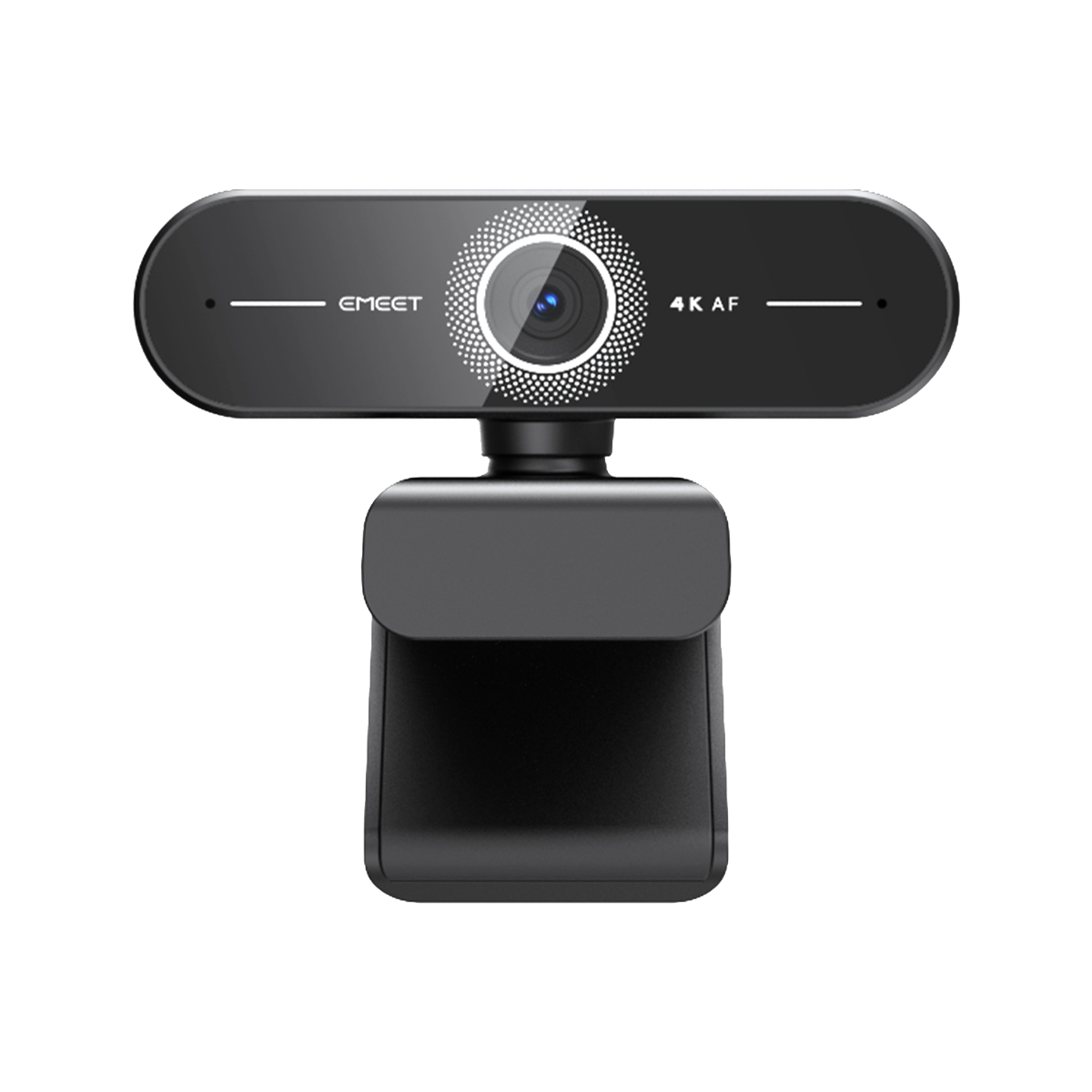

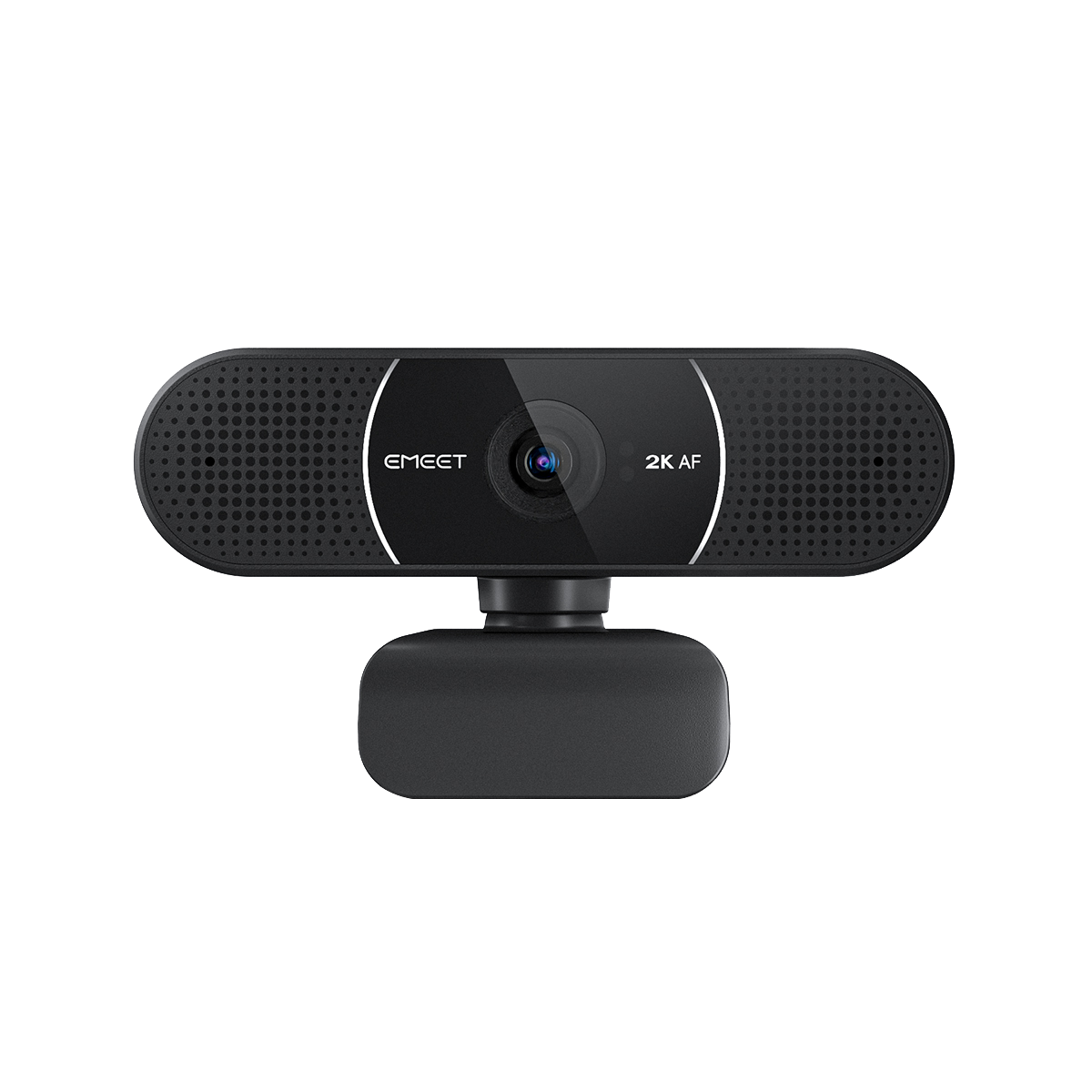
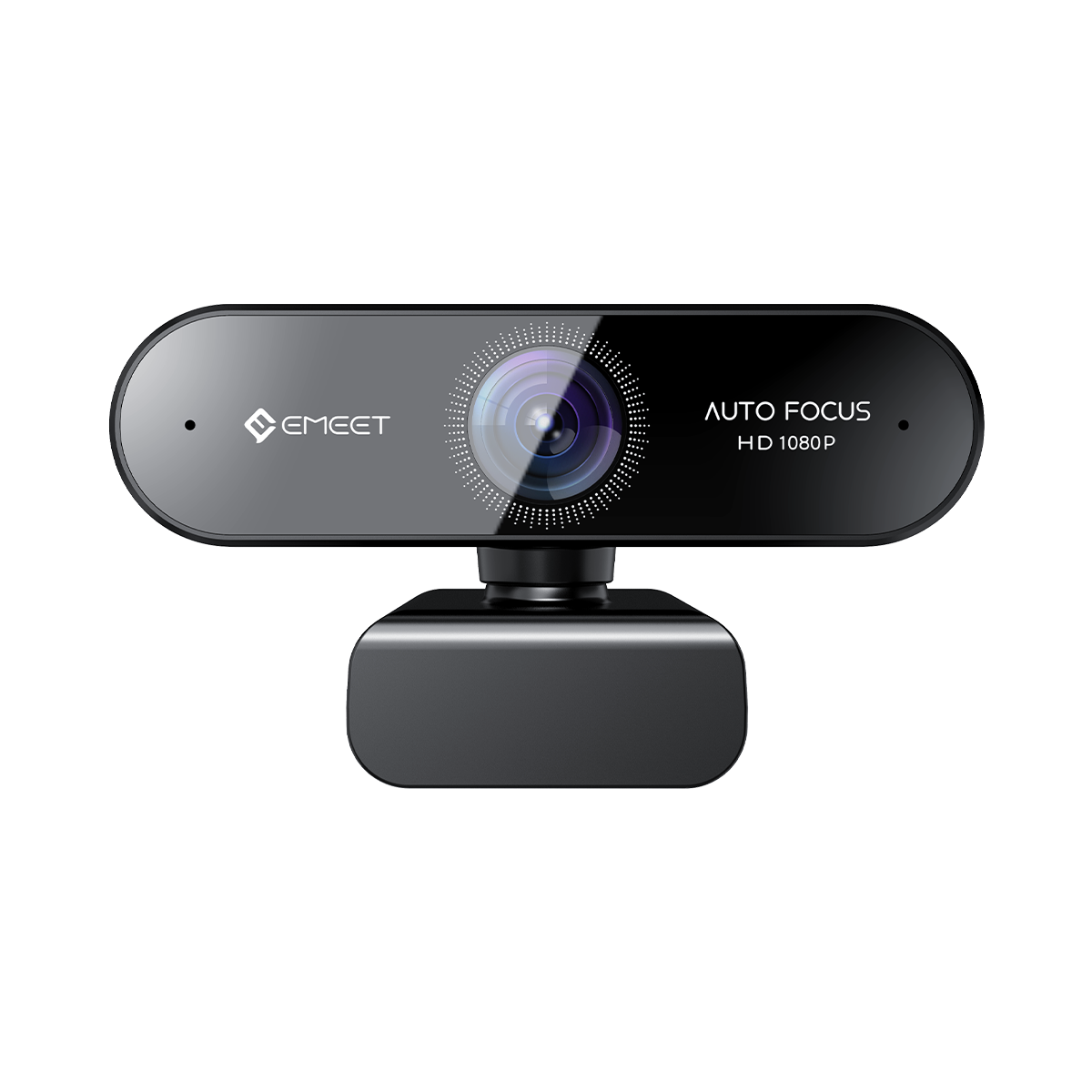

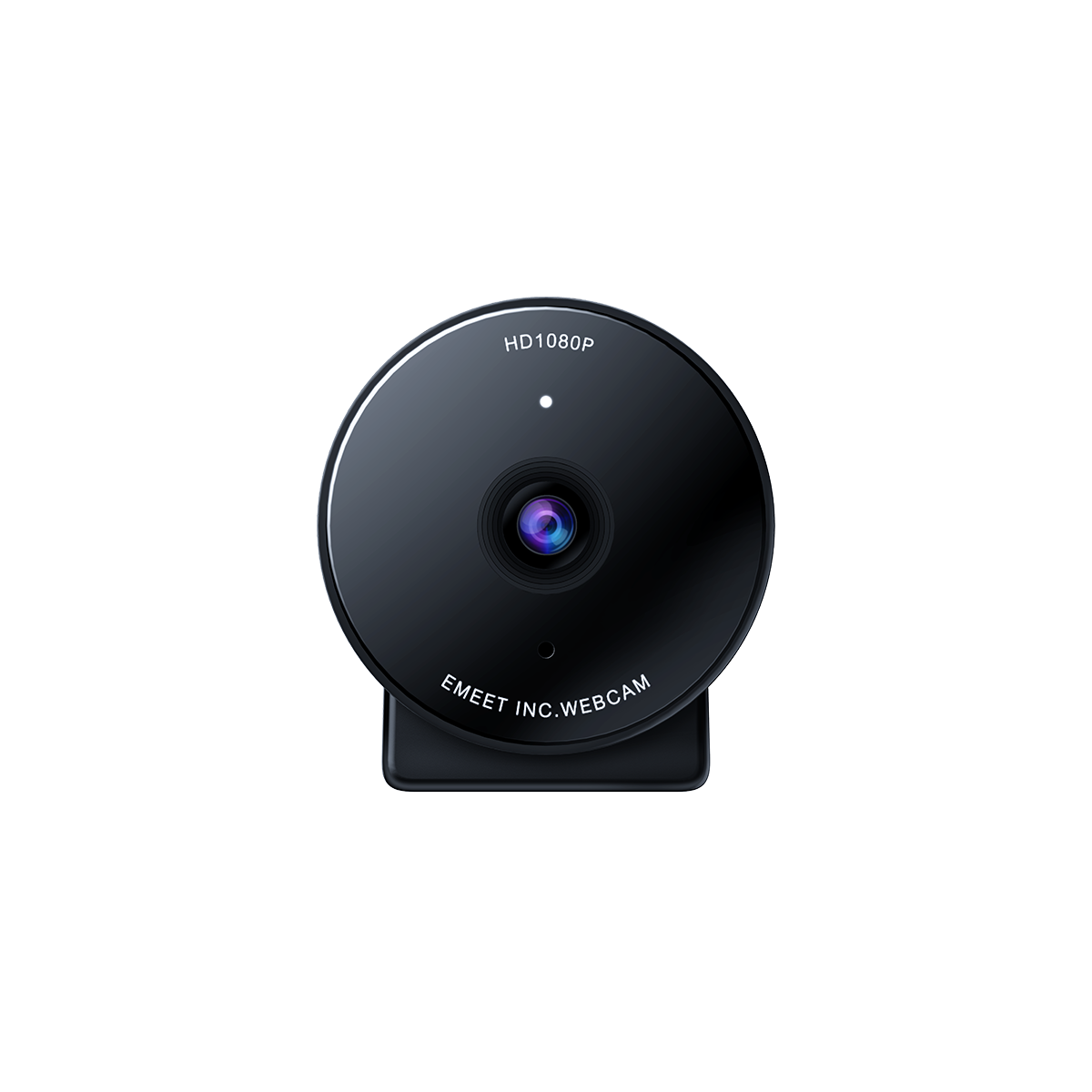





| Model |
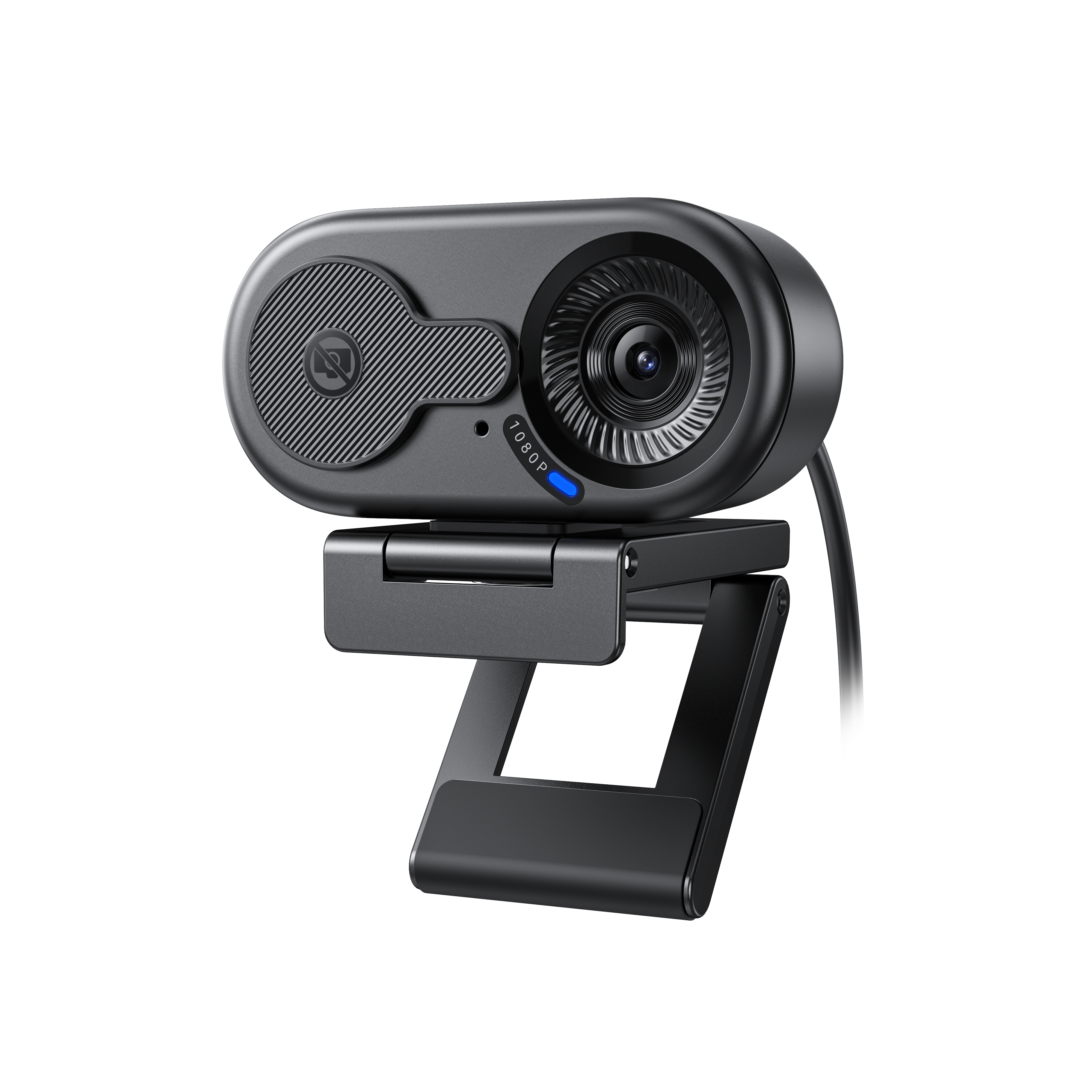
C100 4K
|
C100 2K
|
C100 1080P
|
|---|---|---|---|
| Maximum Supported Resolution | 3840*2160@30FPS | 2560*1440@30FPS | 1920*1080@30FPS |
| Maximum Pixels | 8MP | 4MP | 2MP |
| Maximum Frame Rate | 60FPS(1080P) | 30FPS | 30FPS |
| Focus Method | Fixed focus | Fixed focus | Fixed focus |
| Field of View | 78.5° | 56.4° | 66° |
| USB Cable Length | 1.4m | 1.4m | 1.4m |
| Microphone | ✔️ | ✔️ | ✔️ |
| Privacy Cover | ✔️ | ✔️ | ✔️ |
| 1/4" Screw Hole | ✔️ | ✔️ | ✔️ |
Tutorial videos for this product are coming soon. Need help in the meantime? Contact us at support@emeet.com.
1. What video resolutions does the C100 support?
| Model | C100 1080P | C100 2K | C100 4K |
|---|---|---|---|
| Maximum Supported Resolution | 1920*1080@30FPS (1080P) | 2560*1440@30FPS (2K) | 3840*2160@30FPS (4K) |
| Other Supported Resolutions | 1280*960@30FPS 1280*720@30FPS 1024*576@30FPS 960*720@30FPS 800*600@30FPS 640*480@30FPS 640*360@30FPS |
1920*1080@30FPS 1280*960@30FPS 1280*720@30FPS 1024*576@30FPS 960*720@30FPS 800*600@30FPS 640*480@30FPS 640*360@30FPS |
2560*1440@30FPS 1920*1080@30FPS/60FPS 1280*960@30FPS 1280*720@30FPS/60FPS 1024*576@30FPS/60FPS 960*720@30FPS 800*600@30FPS 640*480@30FPS 640*360@30FPS |
Note: The above resolution support is all based on the MJPEG video encoding format.
2. What is the field of view of the C100?
| Model | C100 1080P | C100 2K | C100 4K |
|---|---|---|---|
| Diagonal Field of View (DFOV) | 66° | 56.4° | 78.5° |
3. What is the focusing method of the C100?
Fixed focus, recommended usage distance is 30~100cm.
4. Does the C100 support zoom function?
Zoom function is not supported.
5. What is the pickup distance of the C100's built-in microphone?
The optimal pickup distance range of the built-in microphone is 1 meter and within. It is recommended to use it within this distance for the best effect.
6. Is there supporting software for the C100 to set its personalized functions?
With EMEETLINK, more personalized setting functions can be unlocked.
7. Why does the C100's video not look very clear?
- Check the lens: Ensure there is no dirt or obstruction. Wipe the lens gently with a microfiber cloth; do not use alcohol-containing cleaners.
- Improve lighting: Avoid backlighting/dim environments; side lighting or ring fill lights can be used.
- Adjust shooting distance: Ensure the person/object is within the camera's focusing range (30-100cm), not too close or too far.
- Check software settings: In meeting or video software, the system often prioritizes video smoothness and compresses the video, which may lead to lower clarity. Try optimizing the network or manually increasing image quality/resolution in the software.
- Confirm resolution and frame rate: Manually set appropriate resolution and frame rate in the software; avoid using default low parameters.
- Hardware troubleshooting: If the above methods are ineffective, test on another device. If the issue persists, contact customer service.
8. What may be the reasons if the C100 cannot connect or be recognized?
- USB connection: Check if the cable is plugged in properly. Try replacing the USB interface or re-plugging.
- USB Hub: If using a hub, check its quality and power supply. Try connecting directly to the computer interface.
- Privacy settings: Check computer settings to ensure the application has permission to access the camera.
- Device driver: Open "Device Manager", find the corresponding driver. If abnormal, right-click to uninstall and then re-plug the camera to reinstall.
- Cross-device test: Try connecting to another computer to rule out computer-specific issues. If it still fails, contact customer service.

EMEETLINK
Um software complementar básico para webcams, viva-vozes e outros dispositivos EMEET. Permite que os usuários ajustem configurações da câmera, como parâmetros de imagem, foco e zoom, além de configurar recursos de áudio como Bluetooth e ganho do microfone.
Compatível apenas com Windows, MacOS

Requisito do Sistema
Compatível com Windows 10 e versões superiores, sistemas operacionais de 64 bits. Não compatível com sistemas Windows de arquitetura ARM.
Produtos suportados
Cameras
Meeting Capsule
Meeting Capsule Pro
C950
C950 4K
C955
C960
C960 AF
C960 2K
C960 4K
C965
C970
C970L
C980 Pro
C980 Pro 4K
C990
Jupiter
Nova
Nova 4K
C60E
C60E 2K
C60E 4K
S600
S800
C100 1080P/2K/4K
Speakerphones
M0
M0 Plus
M1A
M2
M220
M2 Max
Luna
Luna Lite
Luna Plus
M3
Headsets
HS50
HS80
HS100
HS150
Accessories
Emute
A200
A300
A350

EMEET SmartCam C100 User Manual
Download Now >