


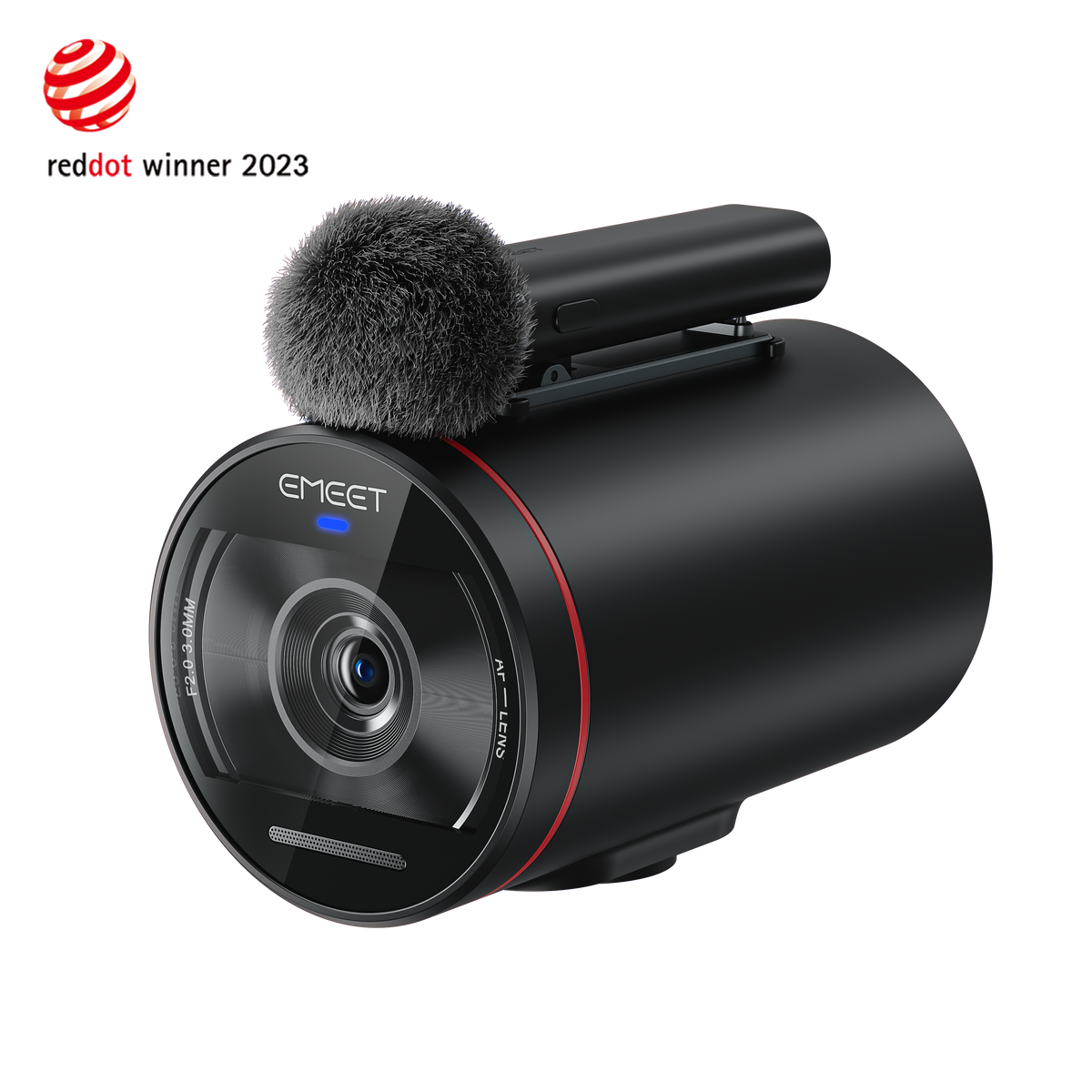




EMEET StreamCam One (Gen 2)
True Wireless Live Streaming Camera
USD
$249.99
Tributo incluído.
Frete calculado no checkout.

- Multi-camera, multi-platform streaming ready
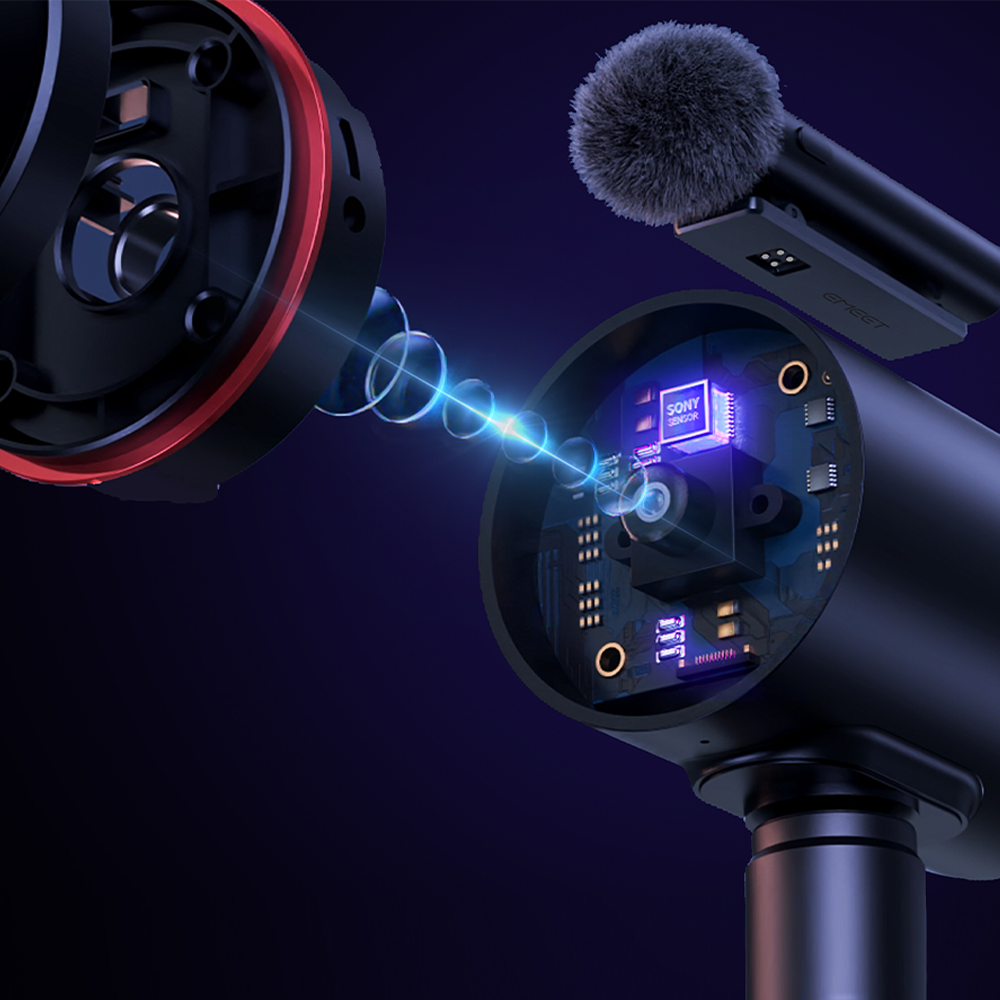
- Sony 1/2.8" sensor, supports HDR
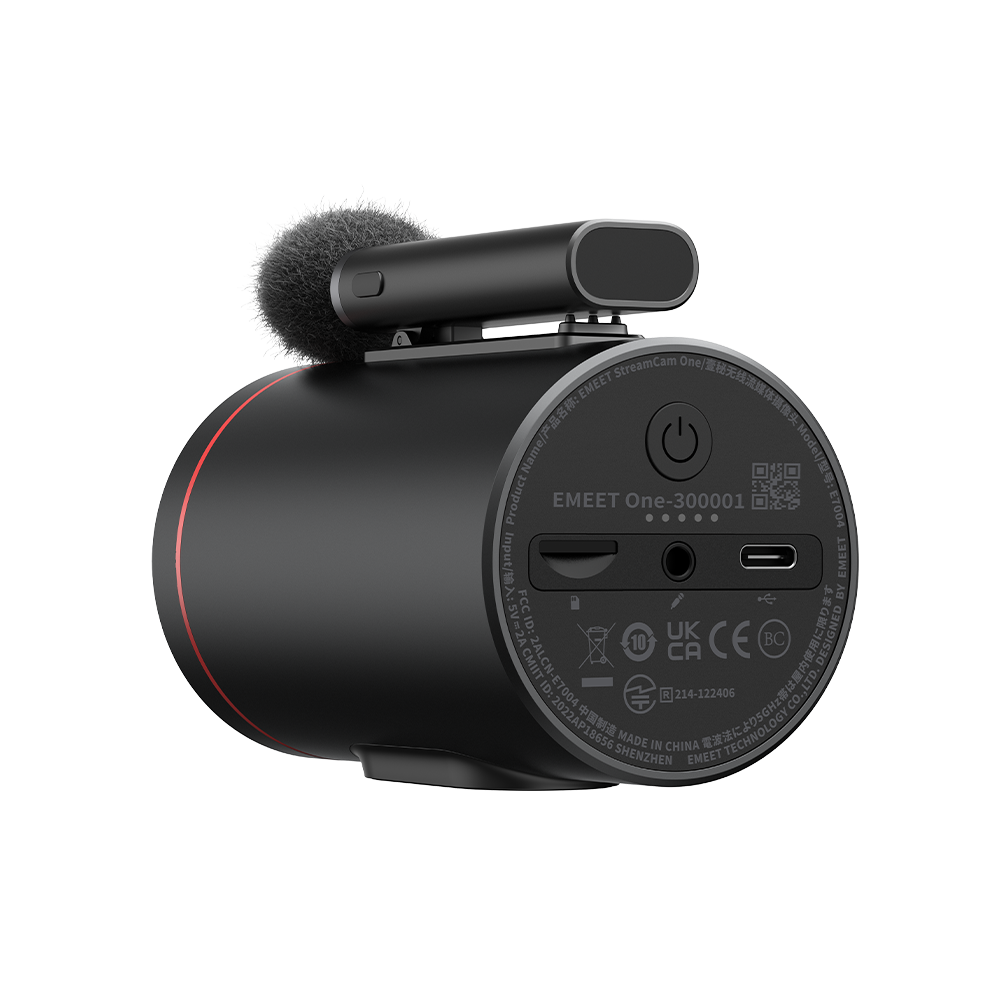
- 1 wireless magnetic mic and 2 built-in mics
- 8-hour long-lasting battery
- Smart App EMEETSTREAM integration
Quantidade:
Inquiry Form
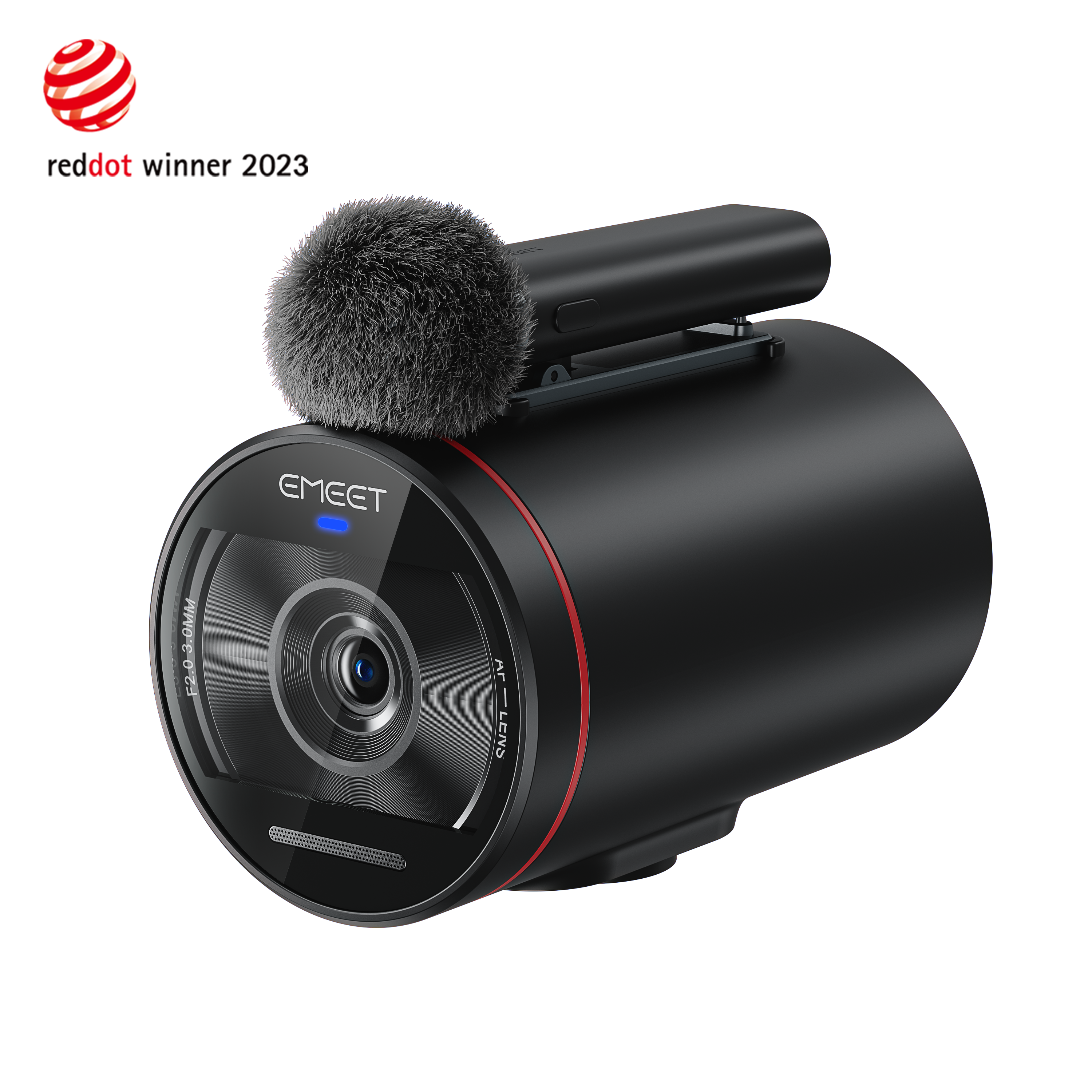
EMEET StreamCam One (Gen 2)
True Wireless Live Streaming Camera


Frete Rápido e Grátis
Reembolsável em 30 Dias
Garantia Estendida Exclusiva
Atendimento ao Cliente Sem Complicações
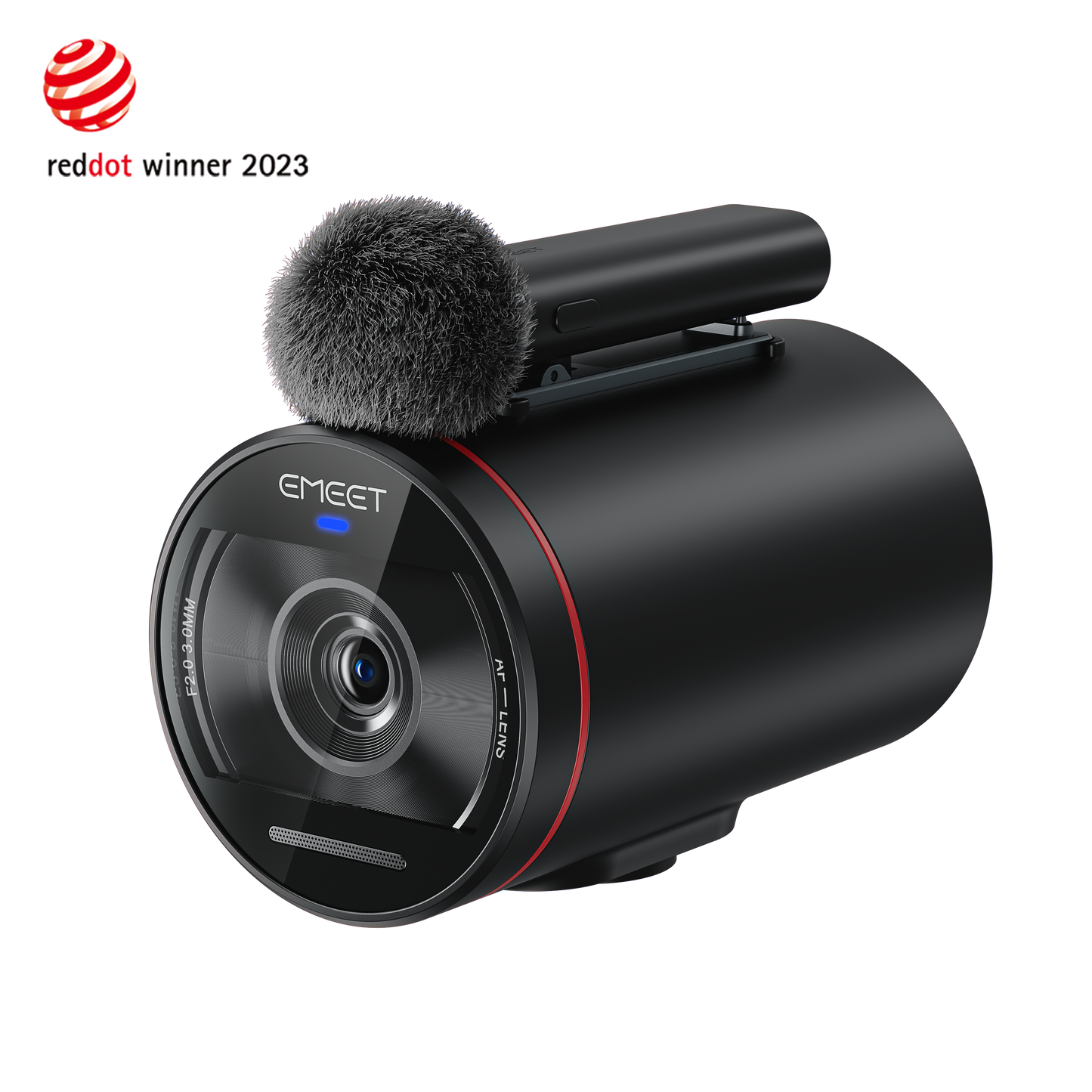






EMEET StreamCam One (Gen 2)
StreamCam One
USD
$249.99
Explorar
Visão Geral
Especificações
FAQ
Avaliações
Manual do Usuário
Junte-se à #emeet nas redes sociais
Compartilhe sua experiência e espalhe a novidade!
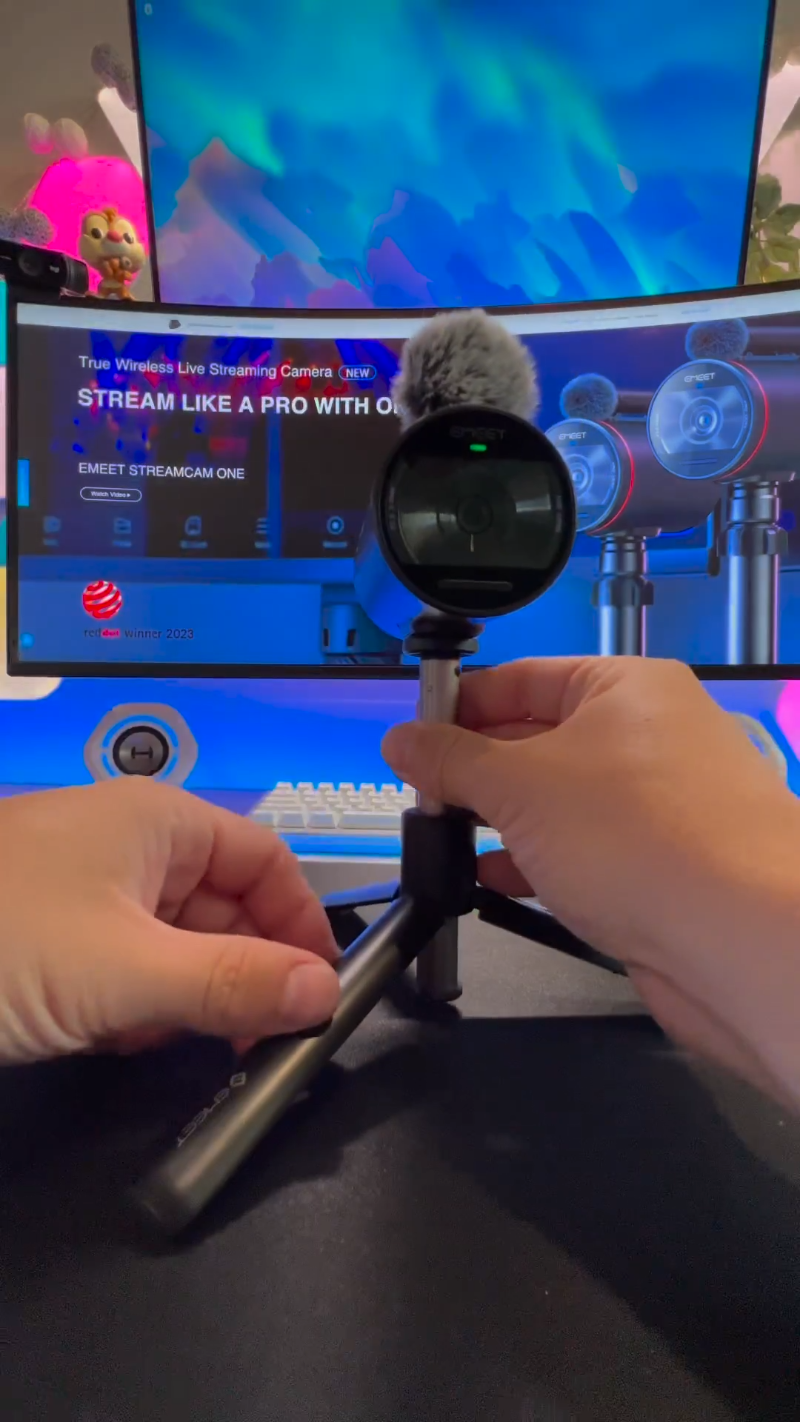

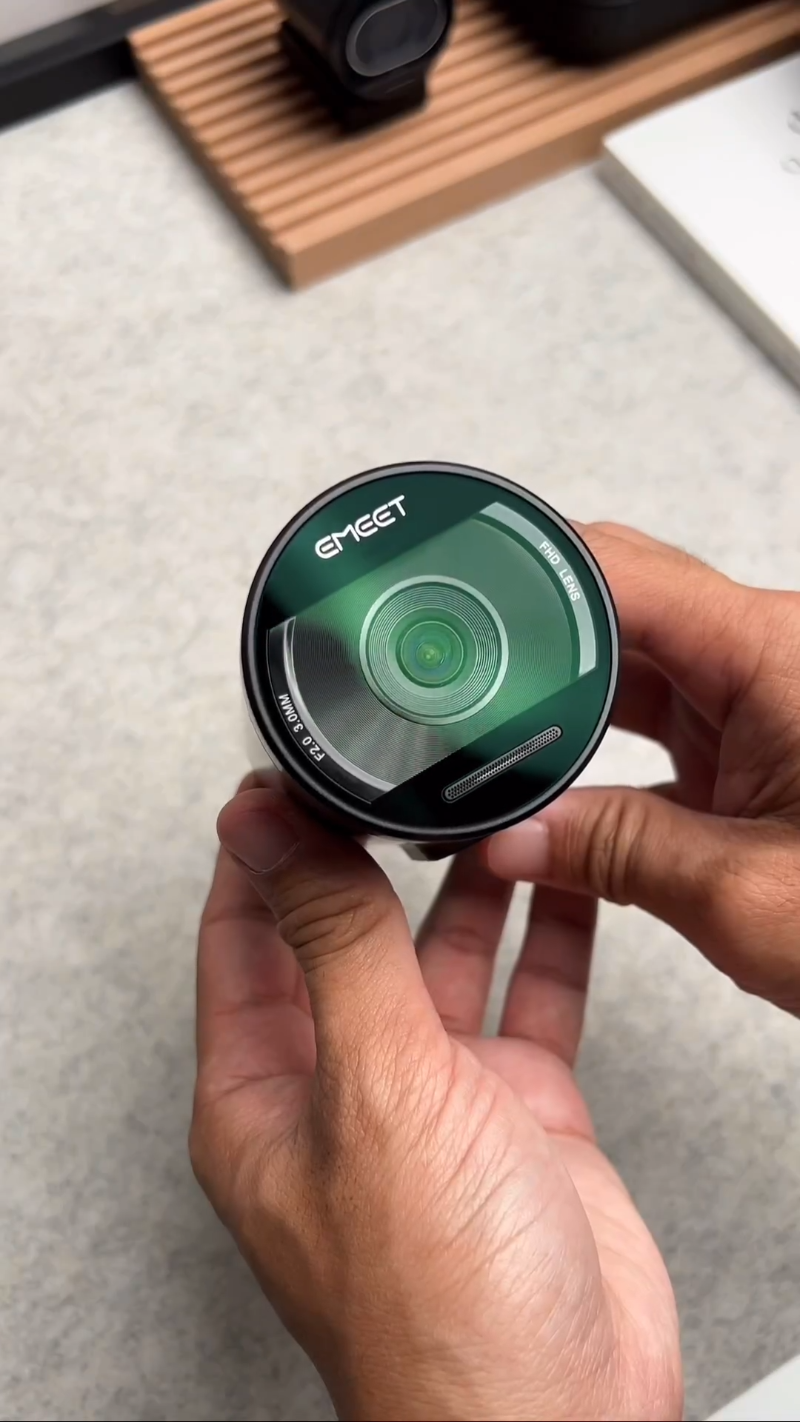

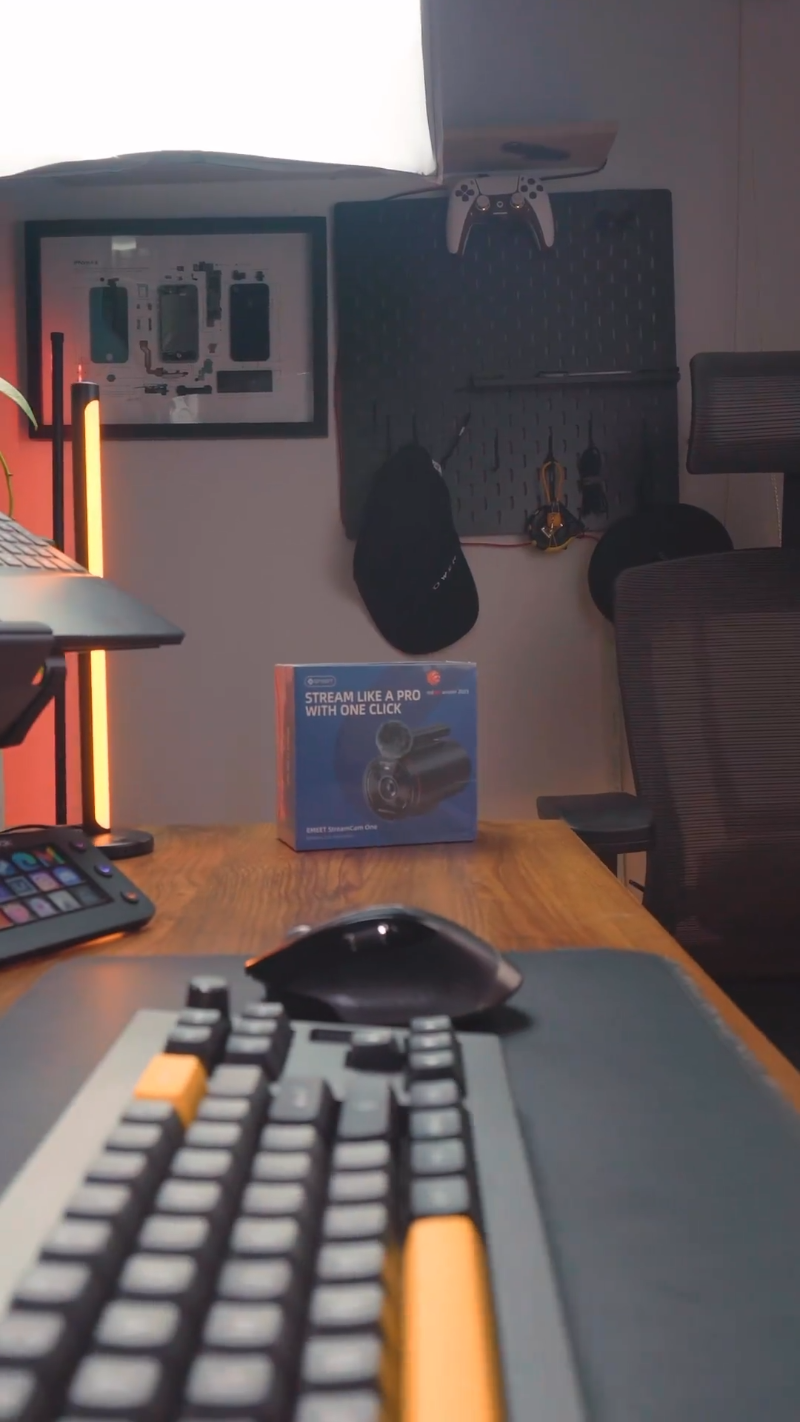

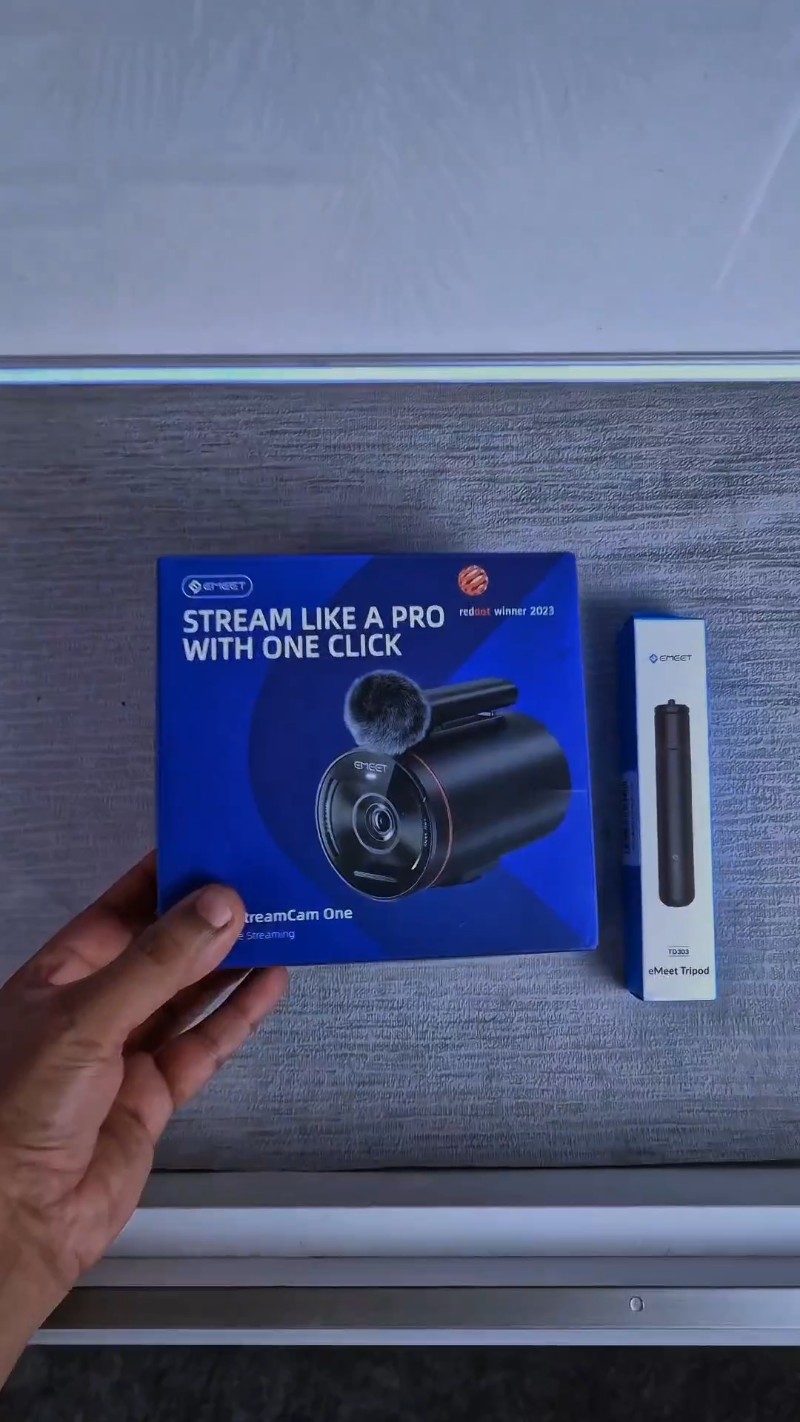

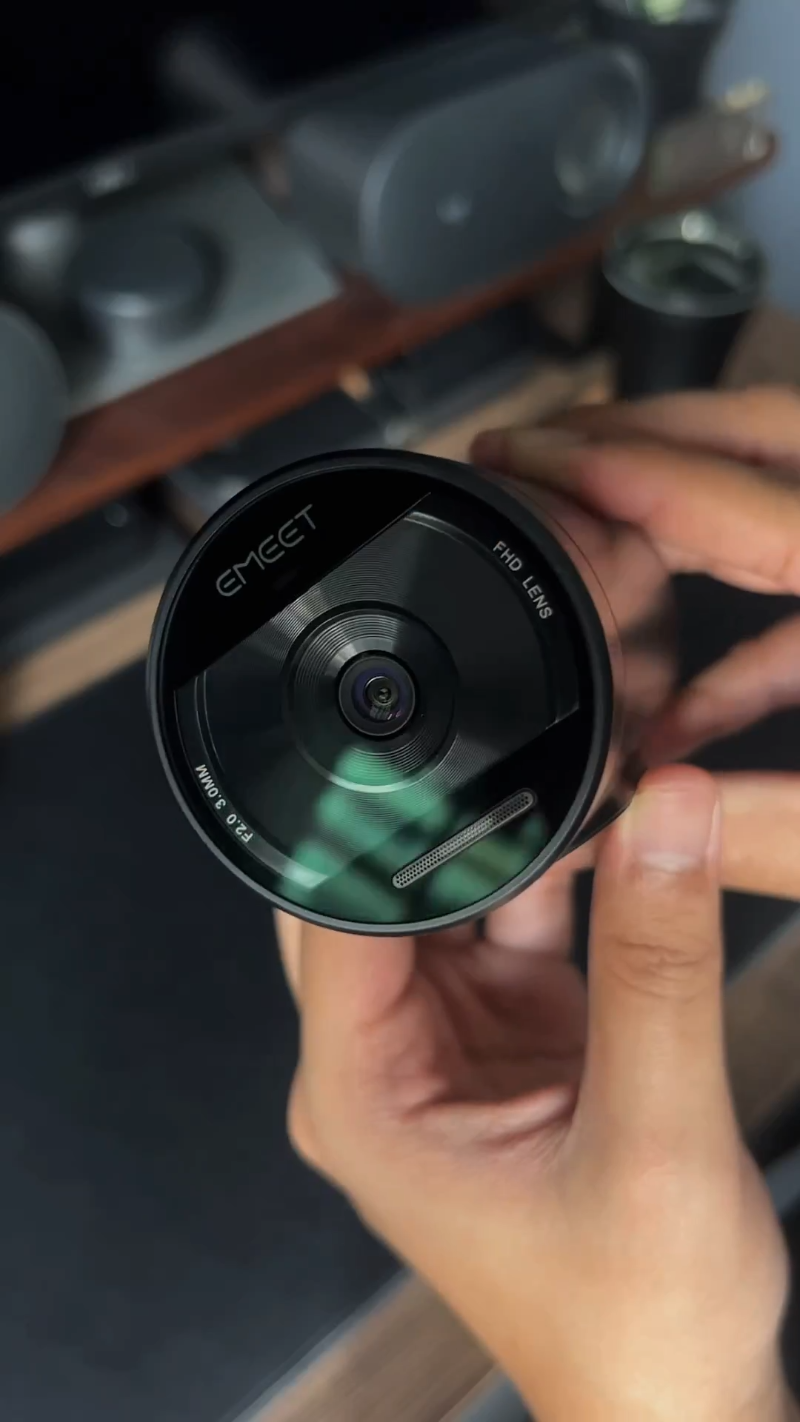
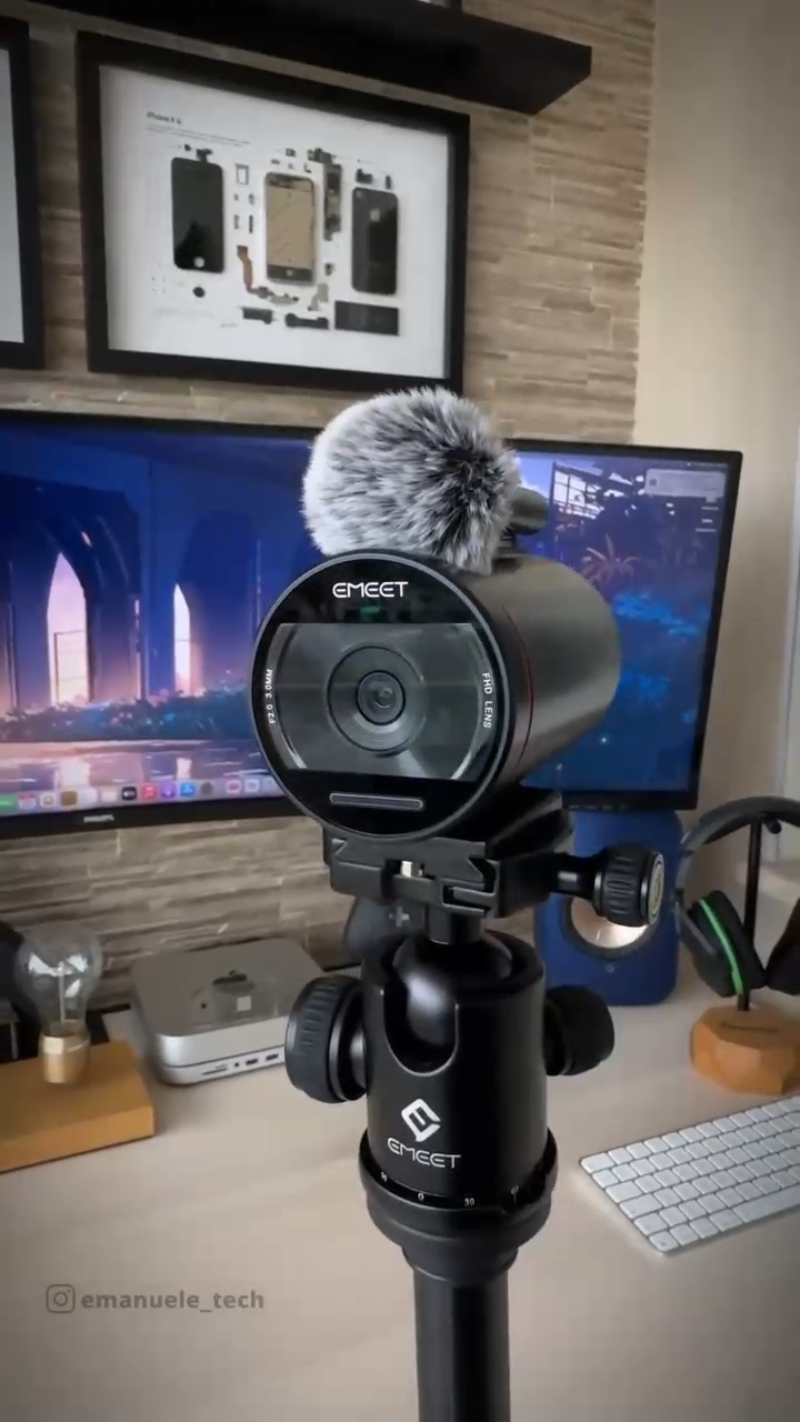

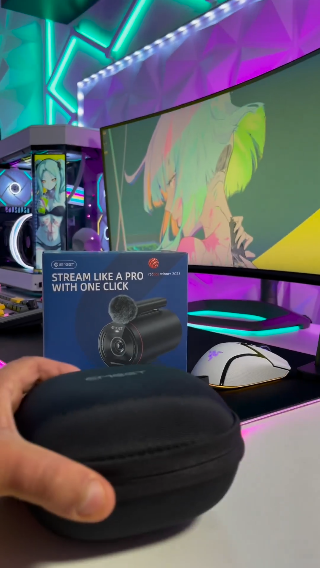

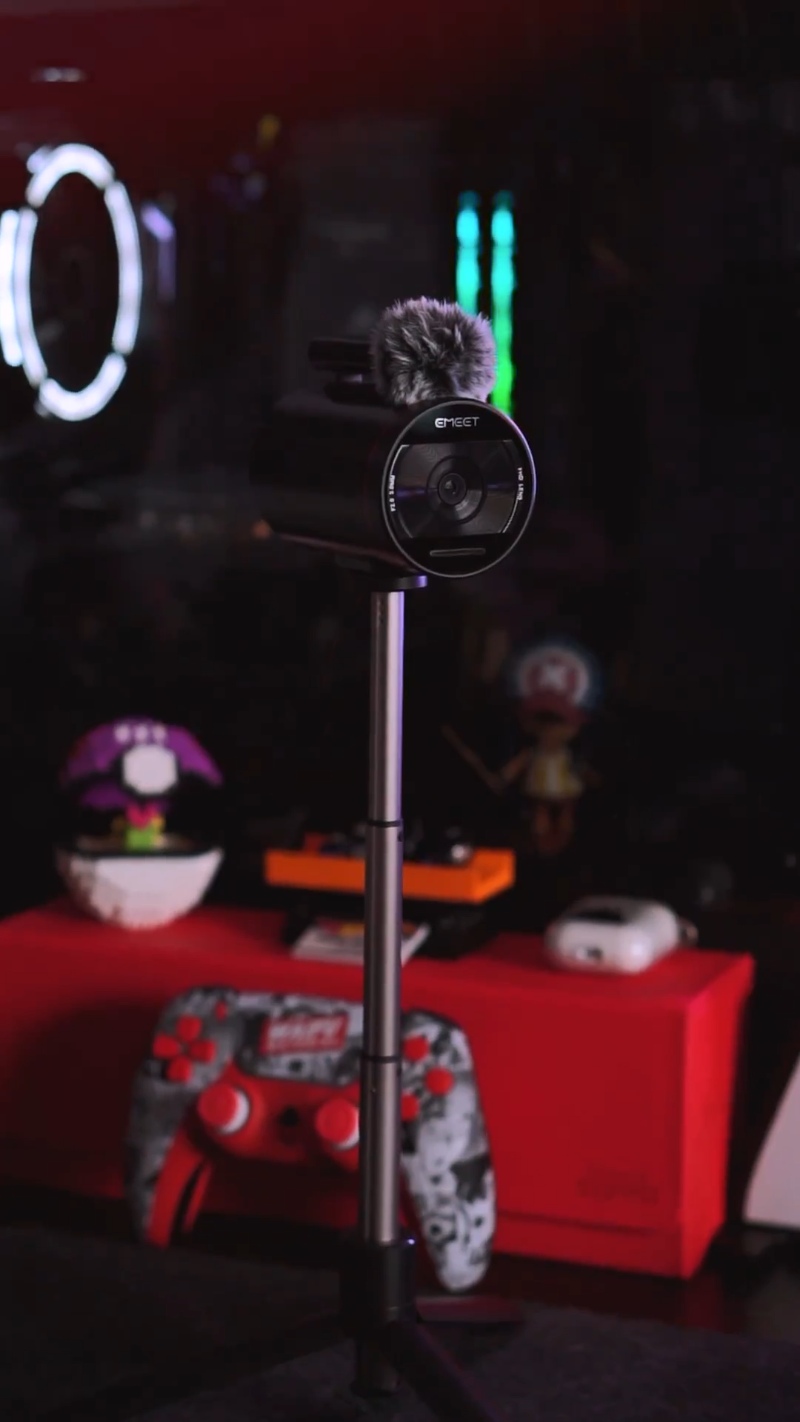


True Wireless Live Streaming Camera
Watch Video

Why Choose StreamCam One?


THE OLD WAY VS THE EMEET WAY
EMEET STREAMCAM ONE simplifies and democratizes video streaming, making
it accessible and cost-effective for everyone instead of being
complicated and expensive.



As Featured In



True Wireless Live Streaming
Stream live from anywhere in the world, using
Wi-Fi, Ethernet, without
the hassle of cables, and reach an eager audience.

10 M
With the unique magnetic clip-on microphone, you can stay connected to
the device even up to 10 meters away without interruptions.
8H
The product is equipped with a long-lasting 8-hour built-in battery,
allowing you to start streaming anytime and anywhere.
Flexible Setup
Use individually or with multiple devices. Set up at multiple angles and quickly configure your network. Suitable for various scenarios.


Stream And Record
From Multiple
Angles,Wirelessly
Flexible Setup
Use individually or with multiple devices. Set up at multiple angles and quickly configure your network. Suitable for various scenarios.

Powerful Audio Performance
It is equipped not only with a wireless magnetic microphone and two
built-in microphones but also with a 48kHz sampling rate and voice
enhancement function, providing your audience with an immersive audio
experience.


Outstanding Image Quality
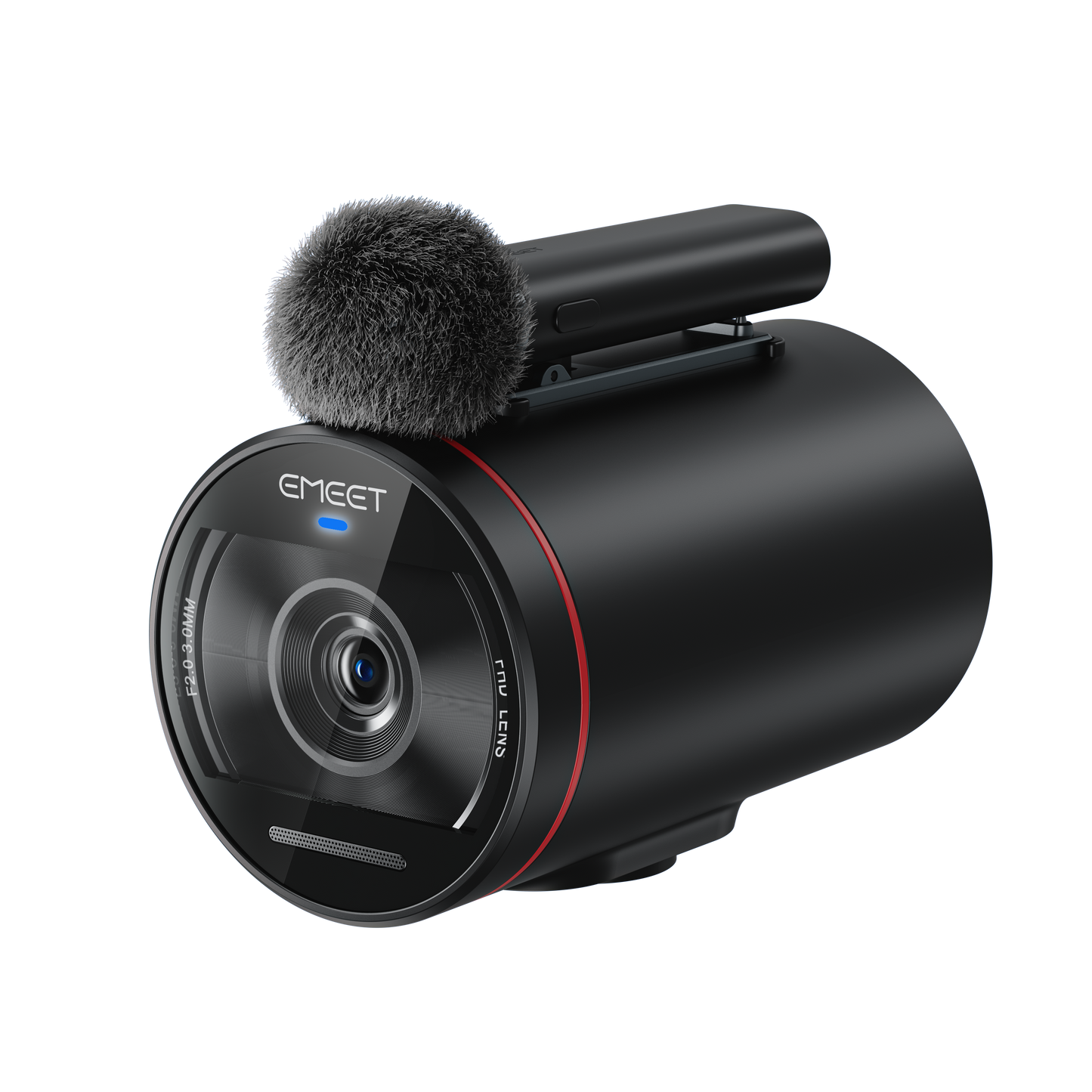
Prime Lens
This device features
1080P
resolution and is equipped with
7 glass
elements for optimum image quality. It also supports white balance
and exposure compensation, ensuring that your footage is clear and
well-balanced.
Advanced Sensor
Specially optimized for indoor use, the
Sony® STARVIS™ sensor enables EMEET STREAMCAM ONE to capture remarkable details
and minimal noise.
Smart App Integration
Our free EMEETSTREAM app supports one-click streaming, AI directing, customizable editing, and more.
One-Click Multi-Platform Streaming
Enjoy free one-click streaming to all major live broadcasting
platforms. Effortlessly stream in real-time to your preferred
platform and start your live streaming with ease.
Camera Switching
Through the wireless connection of multiple devices with
EMEETSTREAM, camera switching can seamlessly display multiple
angles, and both manual and automatic switching modes are
supported.
Screen Zooming
Users can zoom in or out the screen during live streaming to
adapt to different scene requirements and improve viewing
experience.
INSTANTLY LIVE STREAM TO
Works seamlessly with platforms that support the RTMP protocol such as YouTube, Twitch, Facebook, and video conferencing platforms such as Zoom, Teams, etc.


Works as a webcam with Video Conferencing Platforms


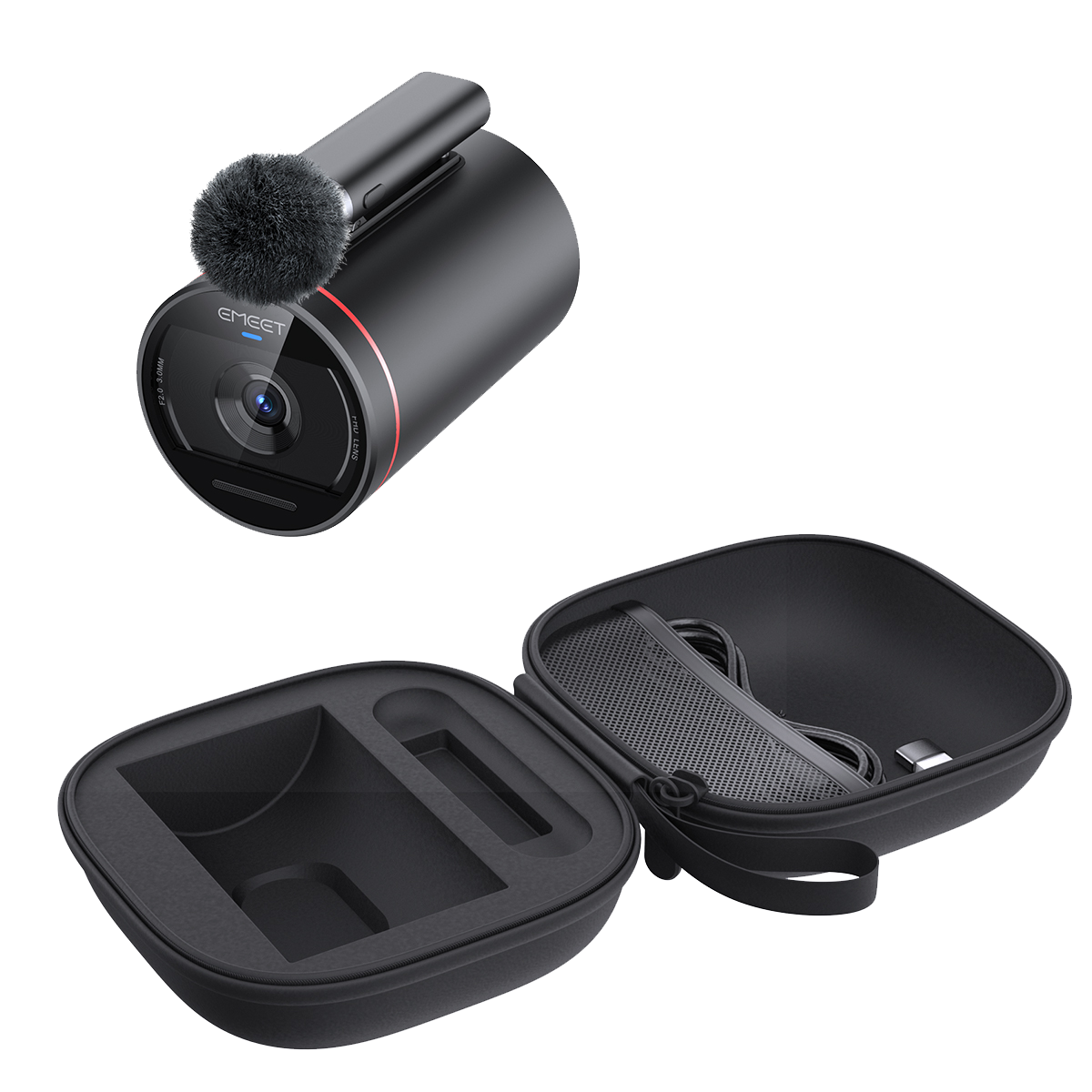
Pro Stream Room In Your Pocket
This portable bag comes with multiple partitions, enabling you to
organize your equipment and accessories separately to prevent
abrasion or compression. It is easy to manage and carry, and its
excellent quality provides comprehensive protection for your gear.
Stream.
Anywhere.
Anytime.


In-Depth Reviews by Influencers
“
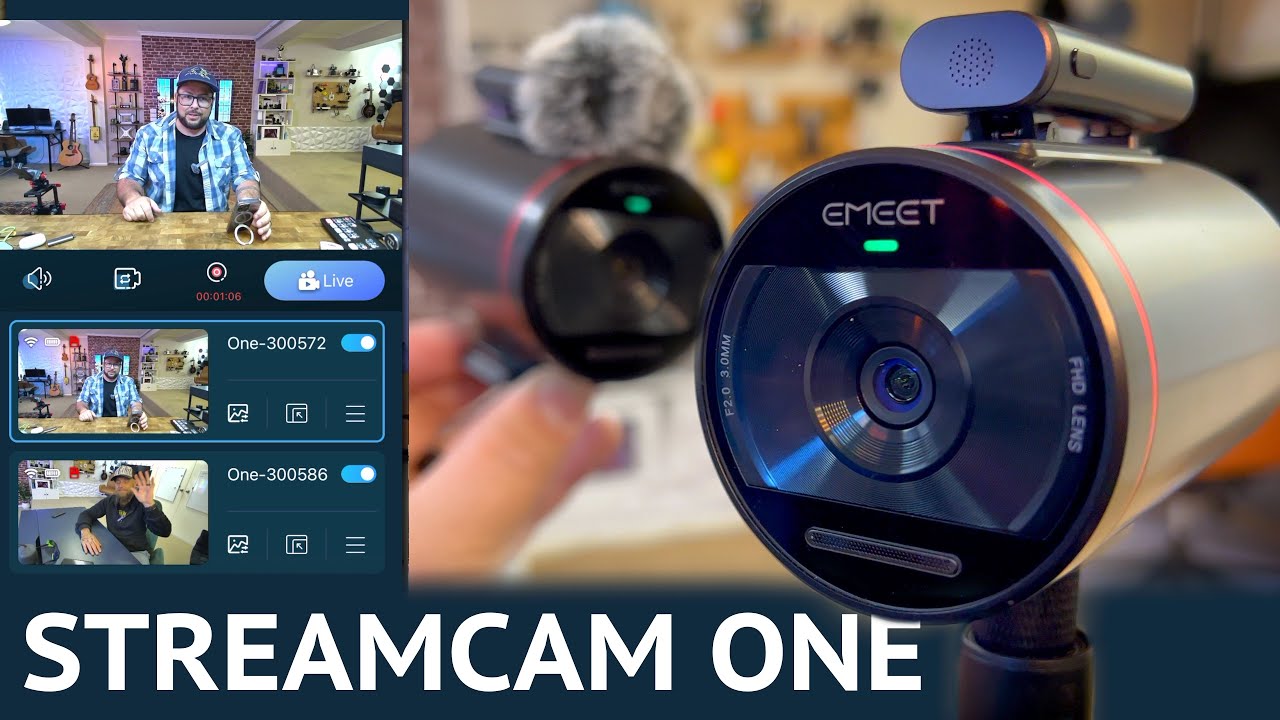
This streaming camera is truly delightful and impressive, thus, it carries my recommendation. It could possibly serve your needs.


Eddie Studios

“
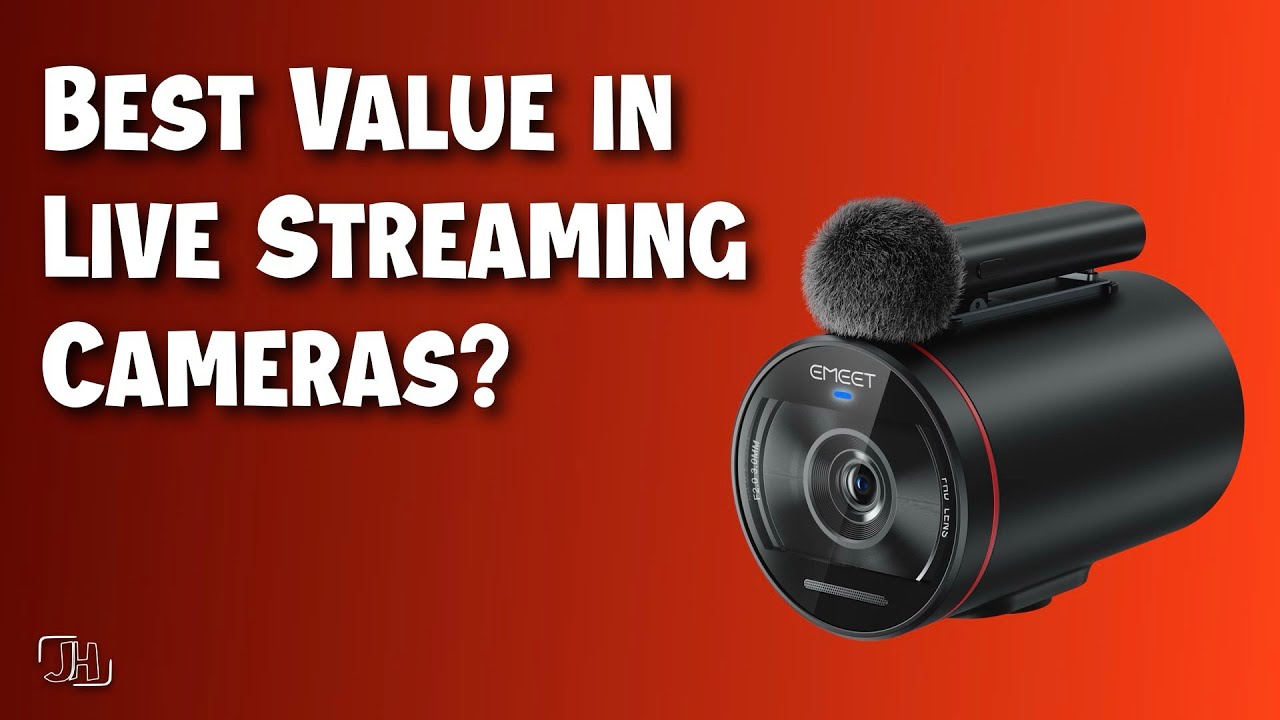
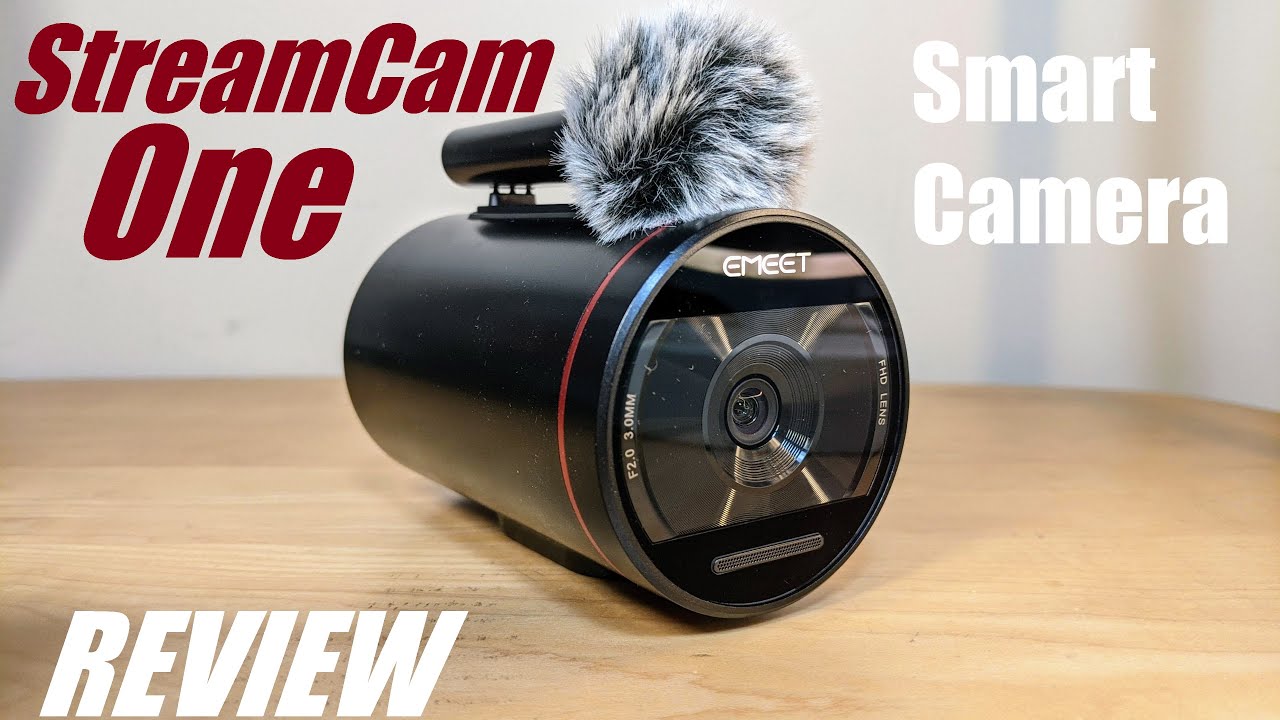
The EMEET StreamCam One is designed to simplify your streaming experience, offering a seamless and user-friendly solution for single or multi-cam setup.


GH Tech Review


“
It is a really fantastic way to stream and very easy to set up.


911Studios-Shopping, Gadgets & Tech

“
It's a very good setup if you want to stream with no wires and actually have a lot of customization with it. Overall very nice!!


RodrickViews
“
The Best Of It's Kind! I think it's a high-end camera and the quality is good and it's very reliable.


JEDIJA
Junte-se à #emeet nas redes sociais
Compartilhe sua experiência e espalhe a novidade!


ESPECIFICAÇÕES TÉCNICAS
VIDEO
Image Sensor:
Sony® 1080p sensor (IMX307)
Sensor resolution:
2 million pixels
Capture resolution:
1080p - 1920x1080
Aspect ratio:
16:9
Frame rate:
30fps
Video (MP4 recording only):
1080p30 / 720p30
Video (streaming):
1080p30fps / 720p30fps / 480p30fps / 360p30fps
Video codec:
H.264
Electronic image stabilization:
None
Vertical image flip:
Yes
High dynamic range imaging:
Yes
Metering mode:
Average, Center, Spot
White balance:
Yes
White balance presets:
Yes
Exposure mode:
Yes
Exposure compensation:
Yes
Focus type:
Fixed
Field of view:
90 degrees (diagonal)
Low light/night mode:
No
AUDIO
Built-in audio:
2 built-in microphones and 1 wireless lapel microphone
External microphone audio input:
Access external microphone via 3.5mm TRS interface
Mixer:
Through EMEETSTREAM control external audio source selection and gain
Speaker:
None
Microphone Sample Rate:
48kHz
CONNECT
Audio codec:
PCM, AAC
Network support:
2.4G/5G
Ethernet:
Support Ethernet adapter connection. Also supports charging through PoE (Ethernet power supply)
LTE:
None
Streaming bandwidth requirements:
HD - up to 3.5 Mbps (recommended stable upload speed of at least 2 Mbps)SD - up to 1.5 Mbps (recommended stable upload speed of at least 800 kbps)
RTMP support:
Yes
USAGE
Battery life:
8 hours
Size:
96mm*59mm*78mm
Weight:
265g
Color:
Black
Provided interfaces:
Micro SD slot
Waterproof:
No
Maximum supported storage card capacity:
256G
Includes memory:
No
Buttons:
The camera has a button on the back that can power on/off, start/stop recording, and check WiFisignal (configurable according to user's preference).
Operating temperature:
0°C~35°C
Remote power on/off:
Through USB-C charging cable
Installation:
Supports 1/4" screw hole
Supports NDI:
No
APP Support:
EMEETSTREAM software has a Windows version for computers and iOS/Android versions for mobile phones.

O QUE HÁ NA CAIXA
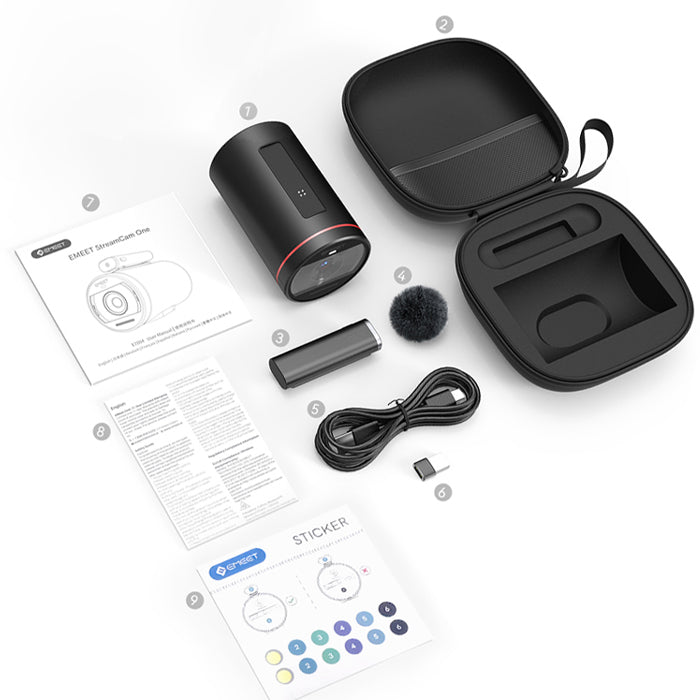
- EMEET Stream Cam One
- Carrying Pouch
- Wireless Microphone
- Mic Windscreen
- 1m C-C Cable
- C-A Adapter
- User Manual
- Safety Guide
- Sticker
FAQ
Tem alguma dúvida?
EMEET StreamCam One (Gen 2)
True Wireless Live Streaming Camera
How to upgrade the firmware of StreamCam One?
If there is a new firmware version of StreamCam One, our EMEETSTREAM app will remind you. In order to better use StreamCam one, we suggest that you upgrade the firmware to the latest version.
Please follow the steps below to upgrade StreamCam One:
Before upgrading, please make sure that the StreamCam One has a battery level of more than 50%. If the battery level is insufficient, please charge the StreamCam One first.
Turn on the StreamCam One, connect it to your phone. Please refer to the instructions for the connection procedure.
After connecting successfully, enter the EMEETSTREAM software and click Camera Settings, then select Firmware Update
How to turn on and off the wireless microphone?
If the wireless microphone is placed on the corresponding camera, then just press the camera power button, and the wireless microphone will turn on with the camera.
Press and hold the wireless microphone button for 2 seconds to turn the wireless microphone on /off.
Using Wi-Fi Wireless Network
You will see a list of available wifi networks from the EMEET camera. Select the network and enter password.
The password will be stored by the EMEET camera after the wifi connection is successful
Finally, you need to confirm whether the EMEETSTREAM application mobile device has also joined the same network (if it's already the same then no need to confirm again);
Return to home page and you have completed the adding process.
How to enable Intelligent Camera Position and Switcher?
When multiple machines are connected, the EMEETSTREAM application can automatically conduct the screen switching.
Click the icon under the video window to turn it on;
The function will not be available if only one EMEET Camera is connected.
MANUAL DO USUÁRIO
EMEET StreamCam One User Manual
Baixar Agora
- Ao escolher uma seleção, a página inteira é atualizada.