


C60E 4K Dual & C63E 4K Dual FAQ
1. What's in the box?
EMEET 4K Dual (2m cable included)*1
Remote control*1
Privacy cover*1
User manual*1
Safety and Warranty Policy*1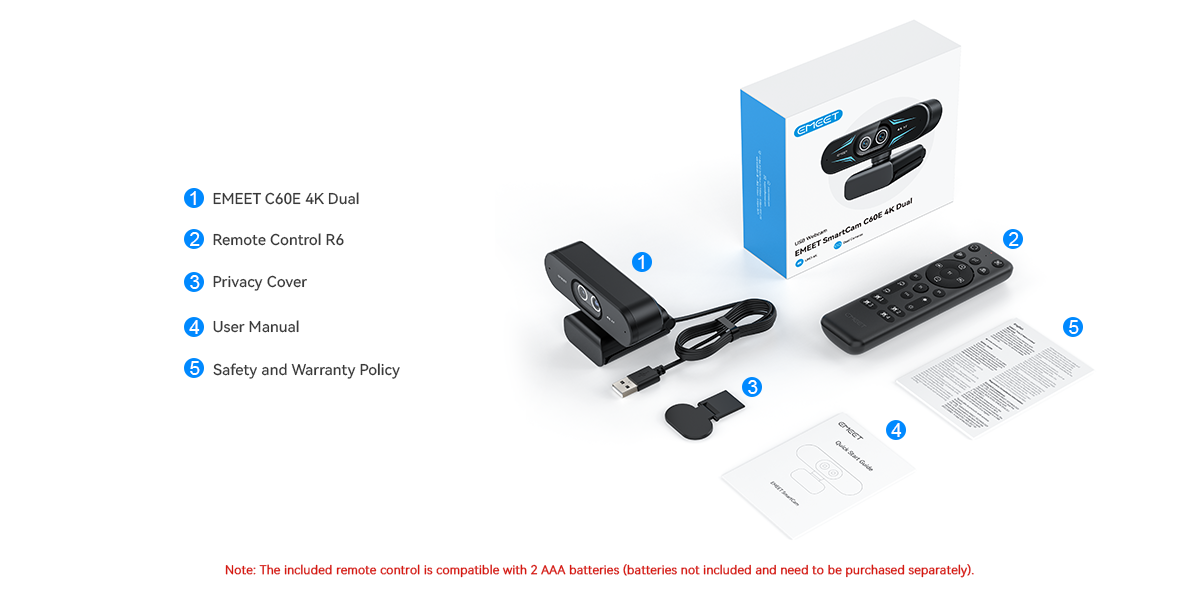
2. What are the two cameras?
Camera 1: Wide-angle camera
Camera 2: Telephoto camera
3. How does the camera connect to the PC? Do I need to install a driver?
The camera connects to the PC via a USB port. It supports UVC and don't need any drivers.
4. Does the remote control need battery? What type of battery does it need?
Yes. The remote control needs 2 AAA batteries.
Note: Batteries need to be purchsed separately.
5. Which features can be controlled with the remote control?
The remote control is mainly used for adjusting the image effect and zooming, etc. Please refer to the user manual for more info.
6. How to adjust the RGB of the camera?
Download the EMEET STUDIO and then you can adjust the RGB lights. Currently it only supports 3 colors.
7. How to use the camera?
1. Connect the USB cable to the PC and the camera will turn on automatically.
2. Open any software, select the EMEET device and the indicator light will turn blue.
8. Is there any specific software for the camera and what features does it offer?
The camera works with the EMEET STUDIO. You can adjust various features such as: iamge parameter such as brighness, saturation, white balance, etc., whiteboard mode, recording, and virtual camera, etc. If you don't need the above featues, you can access the camera directly on thir-party software such as OBS or Zoom meetings to meet your needs.
9. How does the camera work with the remote control?
1. Connect the camera to the PC and turn on the camera.
2. Install 2 AAA batteries into the remote control to make sure it's powered.
3. The camera will automatically pair with the remote control.

10. How to protect my privacy?
A physical privacy cover is included in the box. Install it and fold it down to protect your privacy when not in use.
The webcam comes with a protective privacy cover in the box that you can use to cover the lens when not in use.
This ensures that no one can record your video while the camera is plugged in.
To install it, follow these steps:
1.Wipe the front of the webcam.
2.Remove the tape from the cover.
3.Apply the cover to the front of the webcam.
4.Press the cover firmly for 3 seconds.
11. How to install the camera on a tripod?
1.Find the 1/4" threaded hole on the bottom
2.Screw the camera and the tripod together tightly
3.Put the camera on a tripod and place it on wherever you prefer.
12. How to install the camera on a PC?
1. Place the camera to wherever you like on a PC, laptop or monitor
2. Unfold the clip and put it on the monitor or the top of your laptop
3. Adjust the camera angle up and down and find the best angle for you 
1. O que vem na caixa?
EMEET 4K Dual (cabo de 2m incluído)*1
Controle remoto*1
Tampa de privacidade*1
Manual do usuário*1
Política de Segurança e Garantia*1
2. Quais são as duas câmeras?
Câmera 1: Câmera grande angular
Câmera 2: Câmera teleobjetiva
3. Como a câmera se conecta ao PC? Preciso instalar um driver?
A câmera se conecta ao PC através de uma porta USB. Ela suporta UVC e não precisa de nenhum driver.
4. O controle remoto precisa de bateria? Que tipo de bateria ele precisa?
Sim. O controle remoto precisa de 2 pilhas AAA.
Nota: As pilhas precisam ser adquiridas separadamente.
5. Quais recursos podem ser controlados com o controle remoto?
O controle remoto é usado principalmente para ajustar o efeito da imagem, zoom, etc. Consulte o manual do usuário para mais informações.
6. Como ajustar o RGB da câmera?
Baixe o EMEET STUDIO e então você poderá ajustar as luzes RGB. Atualmente, ele suporta apenas 3 cores.
7. Como usar a câmera?
1. Conecte o cabo USB ao PC e a câmera ligará automaticamente.
2. Abra qualquer software, selecione o dispositivo EMEET e a luz indicadora ficará azul.
8. Existe algum software específico para a câmera e quais recursos ele oferece?
A câmera funciona com o EMEET STUDIO. Você pode ajustar vários recursos, como: parâmetros de imagem (brilho, saturação, balanço de branco, etc.), modo quadro branco, gravação, câmera virtual, etc. Se você não precisar dos recursos acima, pode acessar a câmera diretamente em softwares de terceiros, como OBS ou reuniões do Zoom.
9. Como a câmera funciona com o controle remoto?
1. Conecte a câmera ao PC e ligue a câmera.
2. Instale 2 pilhas AAA no controle remoto para garantir que ele esteja alimentado.
3. A câmera irá emparelhar automaticamente com o controle remoto.
10. Como proteger minha privacidade?
Uma tampa de privacidade física está incluída na caixa. Instale-a e dobre-a para baixo para proteger sua privacidade quando não estiver em uso.
A webcam vem com uma tampa de privacidade protetora na caixa que você pode usar para cobrir a lente quando não estiver em uso.
Isso garante que ninguém possa gravar seu vídeo enquanto a câmera estiver conectada.
Para instalá-la, siga estas etapas:
1. Limpe a frente da webcam.
2. Remova a fita da tampa.
3. Aplique a tampa na frente da webcam.
4. Pressione a tampa firmemente por 3 segundos.
11. Como instalar a câmera em um tripé?
1. Encontre o orifício rosqueado de 1/4" na parte inferior.
2. Rosqueie a câmera e o tripé firmemente.
3. Coloque a câmera no tripé e posicione-a onde preferir.
12. Como instalar a câmera em um PC?
1. Coloque a câmera onde desejar em um PC, laptop ou monitor.
2. Desdobre o clipe e coloque-o no monitor ou no topo do seu laptop.
3. Ajuste o ângulo da câmera para cima e para baixo para encontrar o melhor ângulo para você.
1. ¿Qué hay en la caja?
EMEET 4K Dual (cable de 2m incluido)*1
Control remoto*1
Cubierta de privacidad*1
Manual de usuario*1
Política de Seguridad y Garantía*1
2. ¿Cuáles son las dos cámaras?
Cámara 1: Cámara de gran angular
Cámara 2: Cámara de teleobjetivo
3. ¿Cómo se conecta la cámara al PC? ¿Necesito instalar un controlador?
La cámara se conecta al PC a través de un puerto USB. Soporta UVC y no necesita ningún controlador.
4. ¿El control remoto necesita batería? ¿Qué tipo de batería necesita?
Sí. El control remoto necesita 2 baterías AAA.
Nota: Las baterías deben comprarse por separado.
5. ¿Qué funciones se pueden controlar con el control remoto?
El control remoto se utiliza principalmente para ajustar el efecto de imagen, el zoom, etc. Consulte el manual de usuario para obtener más información.
6. ¿Cómo ajustar el RGB de la cámara?
Descargue EMEET STUDIO y luego podrá ajustar las luces RGB. Actualmente solo soporta 3 colores.
7. ¿Cómo usar la cámara?
1. Conecte el cable USB al PC y la cámara se encenderá automáticamente.
2. Abra cualquier software, seleccione el dispositivo EMEET y la luz indicadora se volverá azul.
8. ¿Existe algún software específico para la cámara y qué funciones ofrece?
La cámara funciona con EMEET STUDIO. Puede ajustar varias funciones como: parámetros de imagen (brillo, saturación, balance de blancos, etc.), modo de pizarra, grabación, cámara virtual, etc. Si no necesita las funciones anteriores, puede acceder a la cámara directamente en software de terceros como OBS o reuniones de Zoom.
9. ¿Cómo funciona la cámara con el control remoto?
1. Conecte la cámara al PC y enciéndala.
2. Instale 2 baterías AAA en el control remoto para asegurarse de que tenga energía.
3. La cámara se emparejará automáticamente con el control remoto.
10. ¿Cómo proteger mi privacidad?
Se incluye una cubierta de privacidad física en la caja. Instálela y dóblela hacia abajo para proteger su privacidad cuando no esté en uso.
La cámara web viene con una cubierta de privacidad protectora en la caja que puede usar para cubrir el lente cuando no esté en uso.
Esto garantiza que nadie pueda grabar su video mientras la cámara está conectada.
Para instalarla, siga estos pasos:
1. Limpie la parte frontal de la cámara web.
2. Retire la cinta de la cubierta.
3. Aplique la cubierta en la parte frontal de la cámara web.
4. Presione la cubierta firmemente durante 3 segundos.
11. ¿Cómo instalar la cámara en un trípode?
1. Busque el orificio roscado de 1/4" en la parte inferior.
2. Atornille la cámara y el trípode firmemente.
3. Coloque la cámara en un trípode y ubíquela donde prefiera.
12. ¿Cómo instalar la cámara en un PC?
1. Coloque la cámara donde desee en un PC, computadora portátil o monitor.
2. Despliegue el clip y colóquelo en el monitor o en la parte superior de su computadora portátil.
3. Ajuste el ángulo de la cámara hacia arriba y hacia abajo para encontrar el mejor ángulo para usted.