


EMEET PIXY
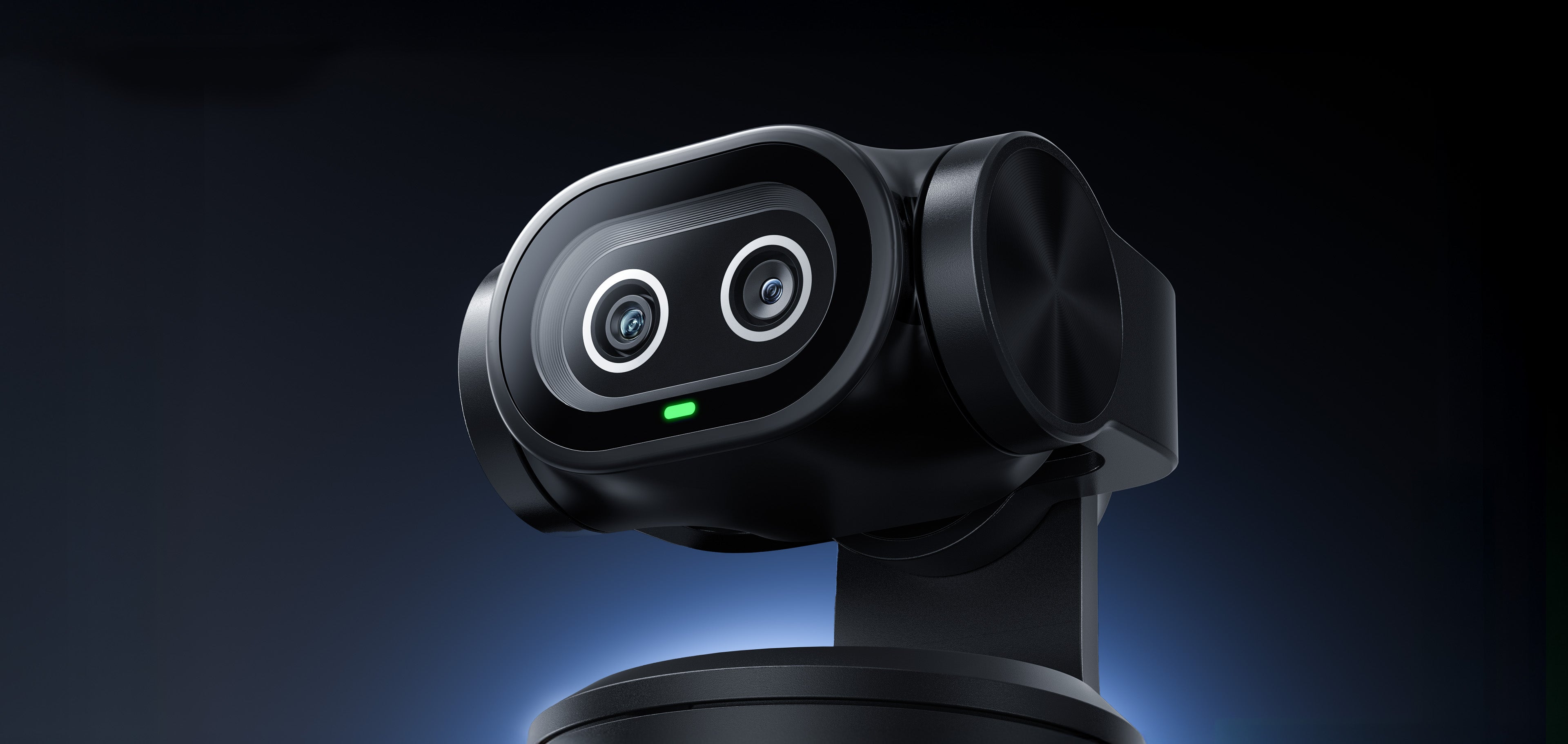
World's First Dual-Camera AI PTZ 4K Webcam
USD
$99.99
$159.99
Tax included.
Shipping calculated at checkout.
-
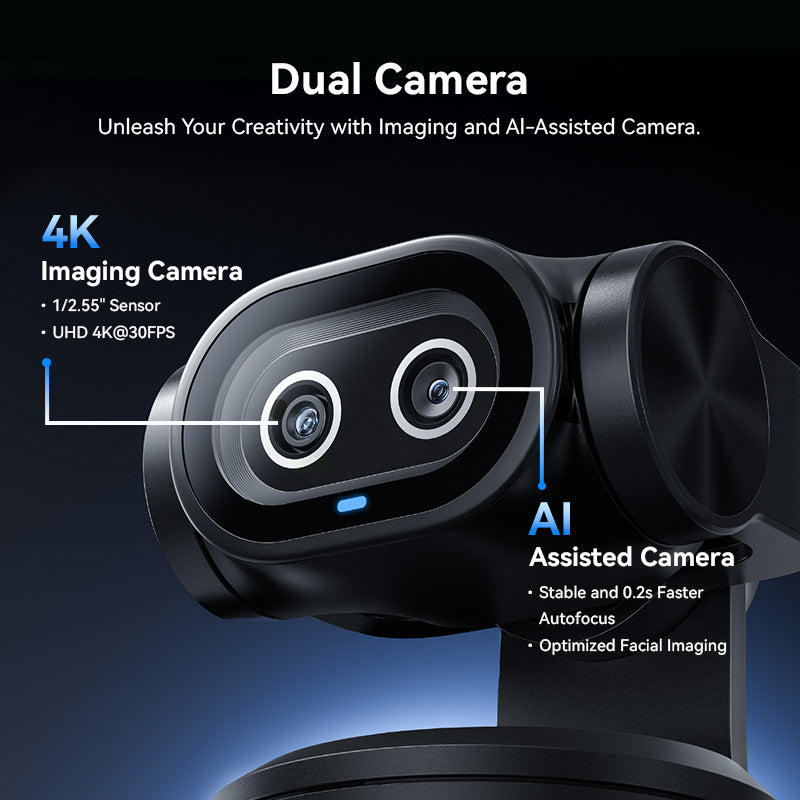
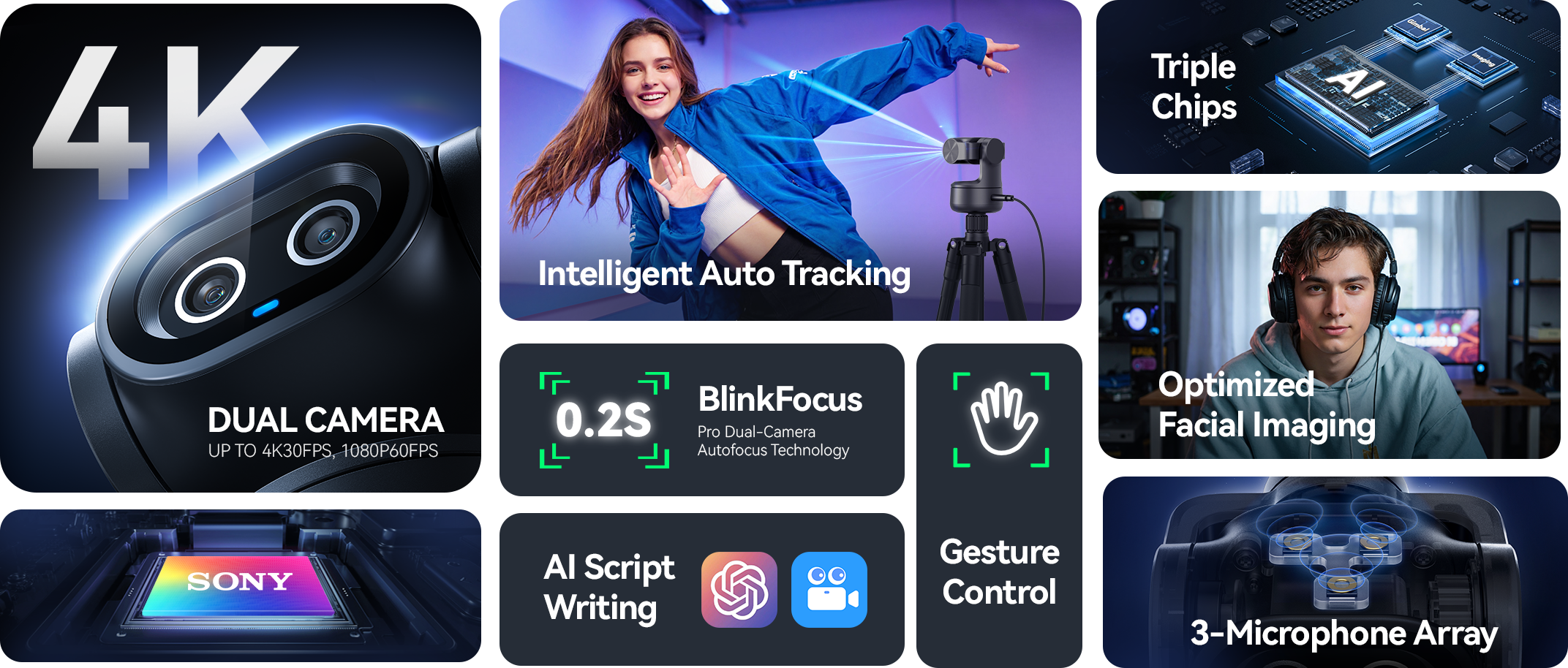
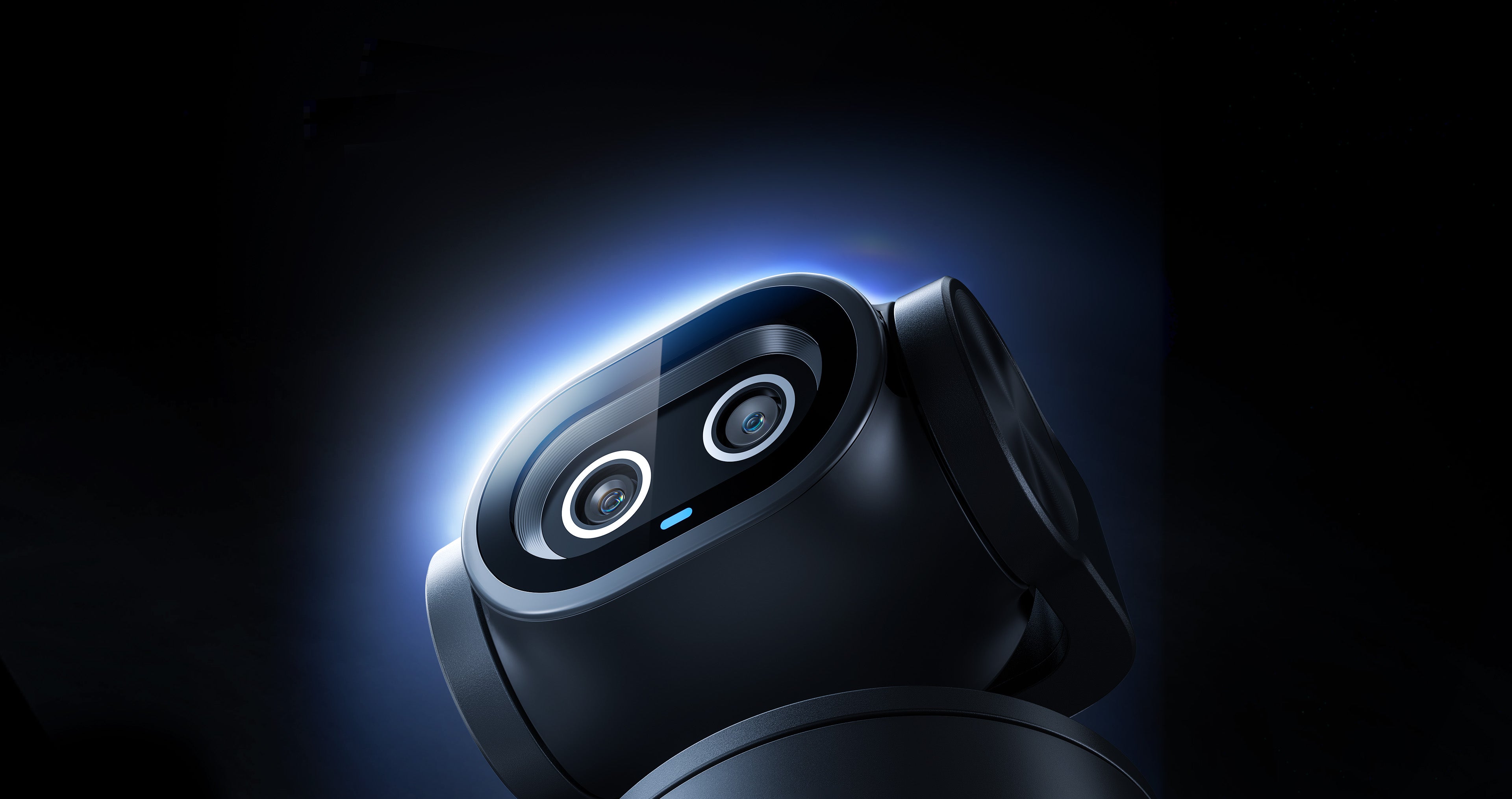
Dual Camera: 4K imaging + AI-Assisted cameras for optimized focus and exposure
-
Exceptional Video Quality: Sony sensor for UHD 4K resolution and 1080p60fps
-
Industry-Leading Autofocus: 0.2s lightning-fast AI-powered autofocus
-
Advanced AI Features: Smooth AI auto tracking and effortless gesture control
-
Clear Audio: 3 Noise cancelling mics with 3 audio modes
-
Switch2-Compatibility: Can be used as a Switch 2 camera
*Click here to view more Switch2 related tutorials.
Quantity:
Inquiry Form

EMEET PIXY
World's First Dual-Camera AI PTZ 4K Webcam
Select Accessories
More




Fast, Free Shipping
Refundable in 30 Days
Exclusive Extended Warranty
Hassle-free Customer Service
Introduction Video




EMEET PIXY
PIXY
USD
$99.99
$159.99


World's First
Dual-Camera
Al PTZ 4K Webcam



Why Choose EMEET PIXY
UHD 4K Clarity
1/2.55" Sony sensor delivers 4K@30fps UHD clarity, capturing every detail down to eyelash movements in either well-lit or low light environment.
 Effective Pixel
 BIS Large Pixel Size
 Light Captured
Optimized Facial Imaging
The innovative Al-Assisted camera employs Al algorithms to detect facial contours and independently optimizes exposure for facial regions, ensuring natural skin tone reproduction and perfect highlight/shadow balance, even in challenging backlit environments.
Low Light
Back Light




Dual-Camera Enhancement
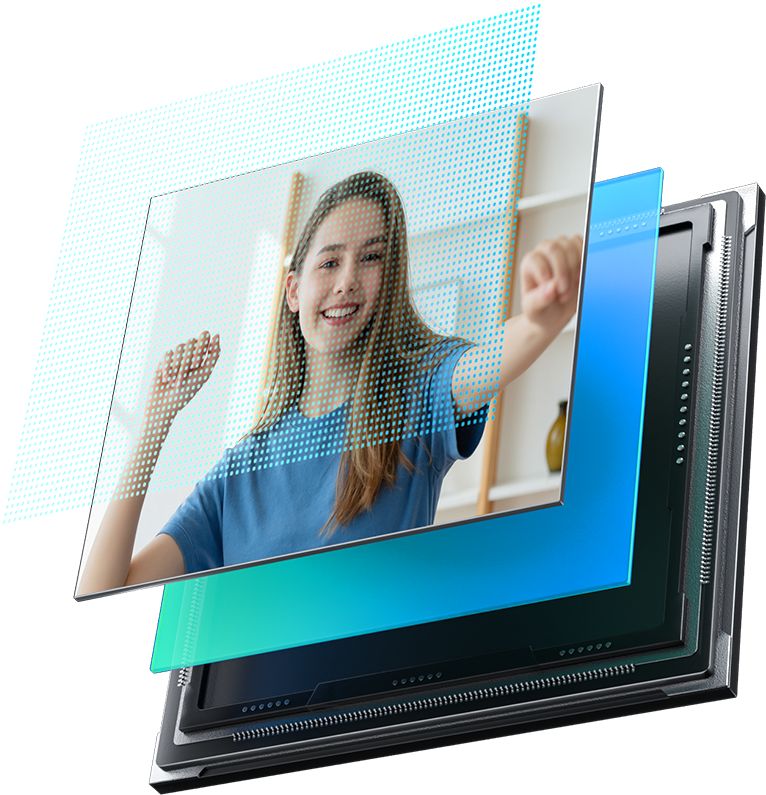
Our dual-camera imaging optimization breaks the limitation of sensor size, delivering stunning image quality comparable to that of costly large sensors.
BlinkFocus
Pro Dual-Camera Autofocus Technology
Al-Powered Focus Targeting
With dual-camera system, PIXY can detect and target at human or objects in milliseconds even in a complicated background, improving focus speed and accuracy expotentially.
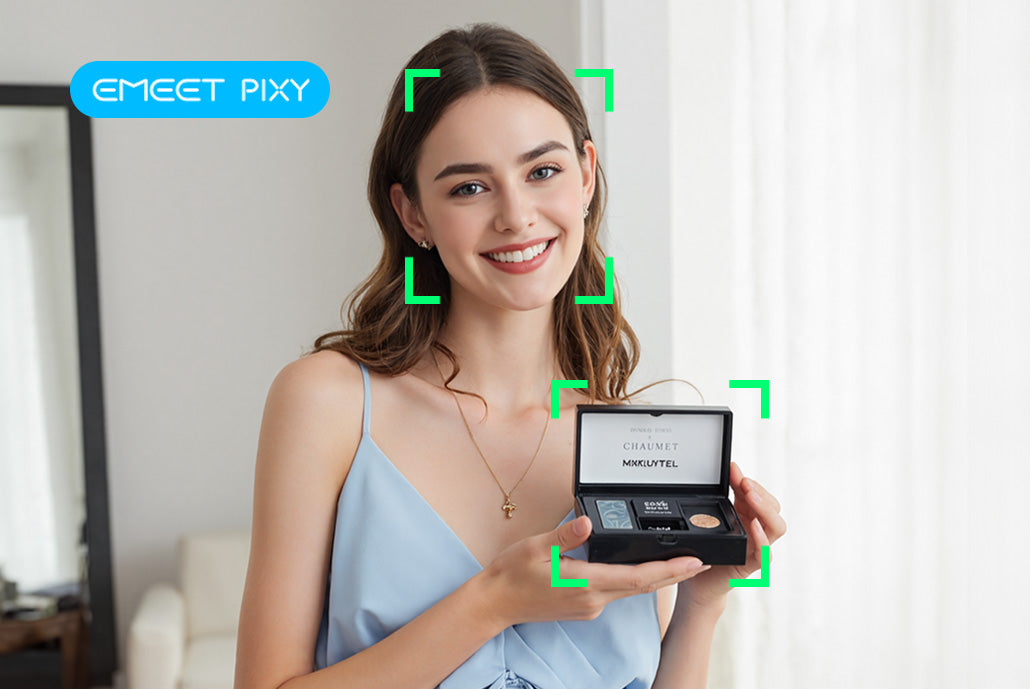
Focus Speed⚡
0.2s
Focus Accuracy Based on 2D+3D
95%
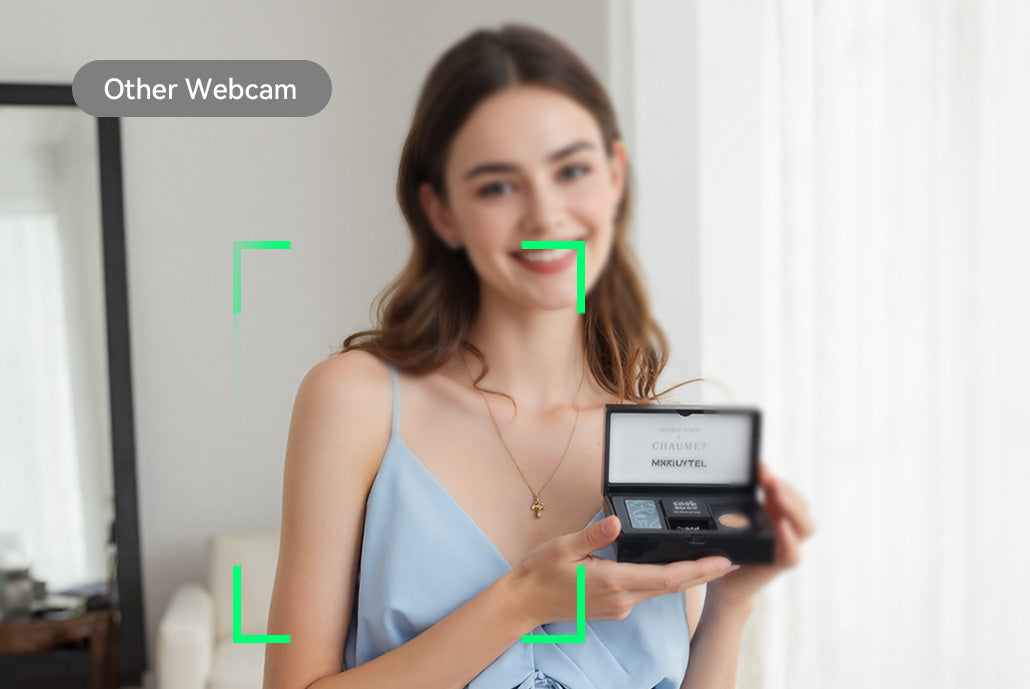
Focus Speed
1.1s
Focus Accuracy Based on 2D only
60%
100% Pixel Utilization
All 12 million pixels act as phase difference detection pixels. 100% pixel utilization, together with dual-camera system, enables 3x faster autofocus than common autofocus technology. Stable and fast autofocus can still be achieved even in dim environments or rapid movements.
12M
Focus Pixels
EMEET PIXY
1.4M
Focus Pixels

Other Webcam
All-Pixel Auto Focus
0.2s
Traditional Auto Focus
1.1s

Empowered and Inspired by
The AI Chip that Empowers
Powered by an advanced Al chip, PIXY enables sophisticated real-time calculation when it comes to imaging and tracking optimization.
Intelligent Auto Tracking
With the innovative Al-Assisted camera, PIXY recognizes and tracks you more accurately and responsively to keep yourself in perfect center frame no matter how you move with the intelligent auto tracking.
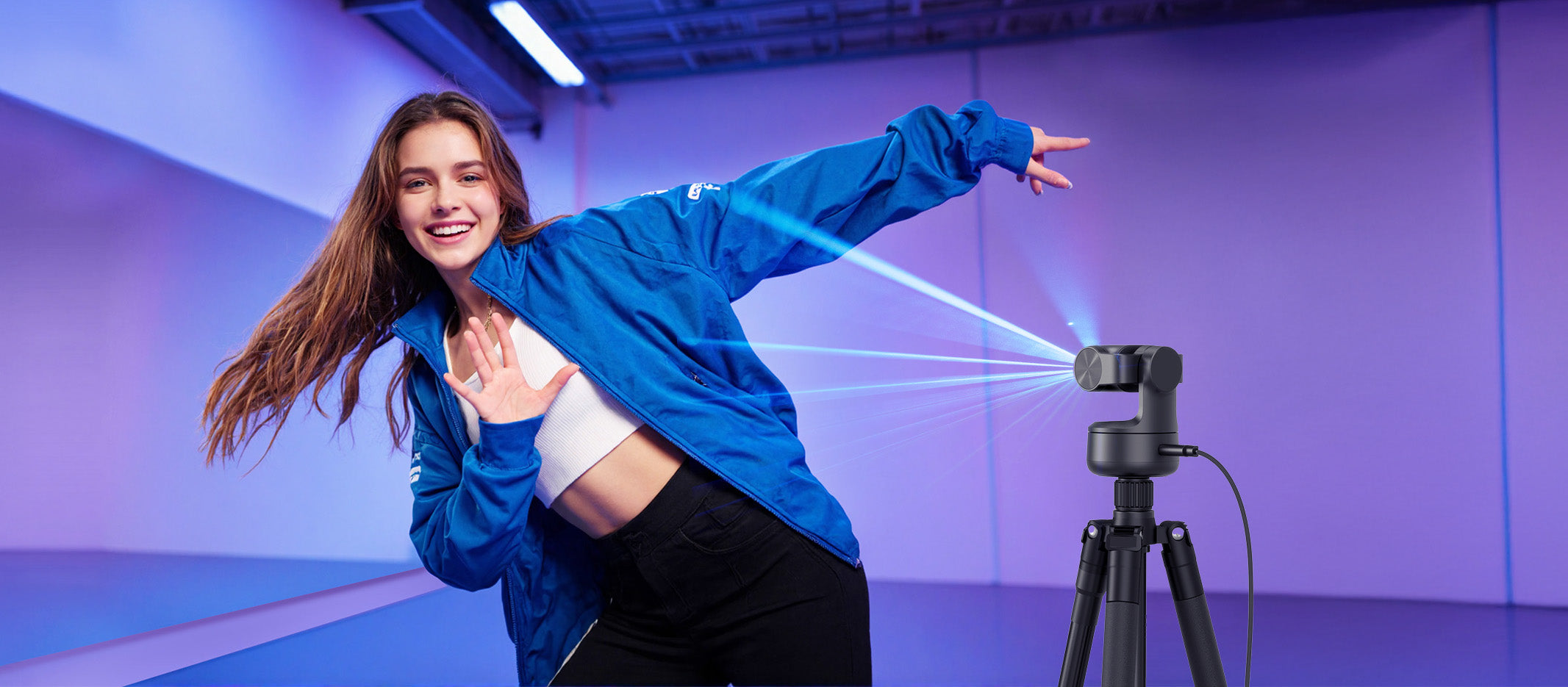
Effortless Gesture Control
Control the PIXY from afar effortlessly with the intelligent gesture control.

The Al Model that Inspires
Easily get access to a series of Al models (ChatGPT, Claude, Grok and GEMINI) within EMEET STUDIO and get endless inspirations in your content creation journey.
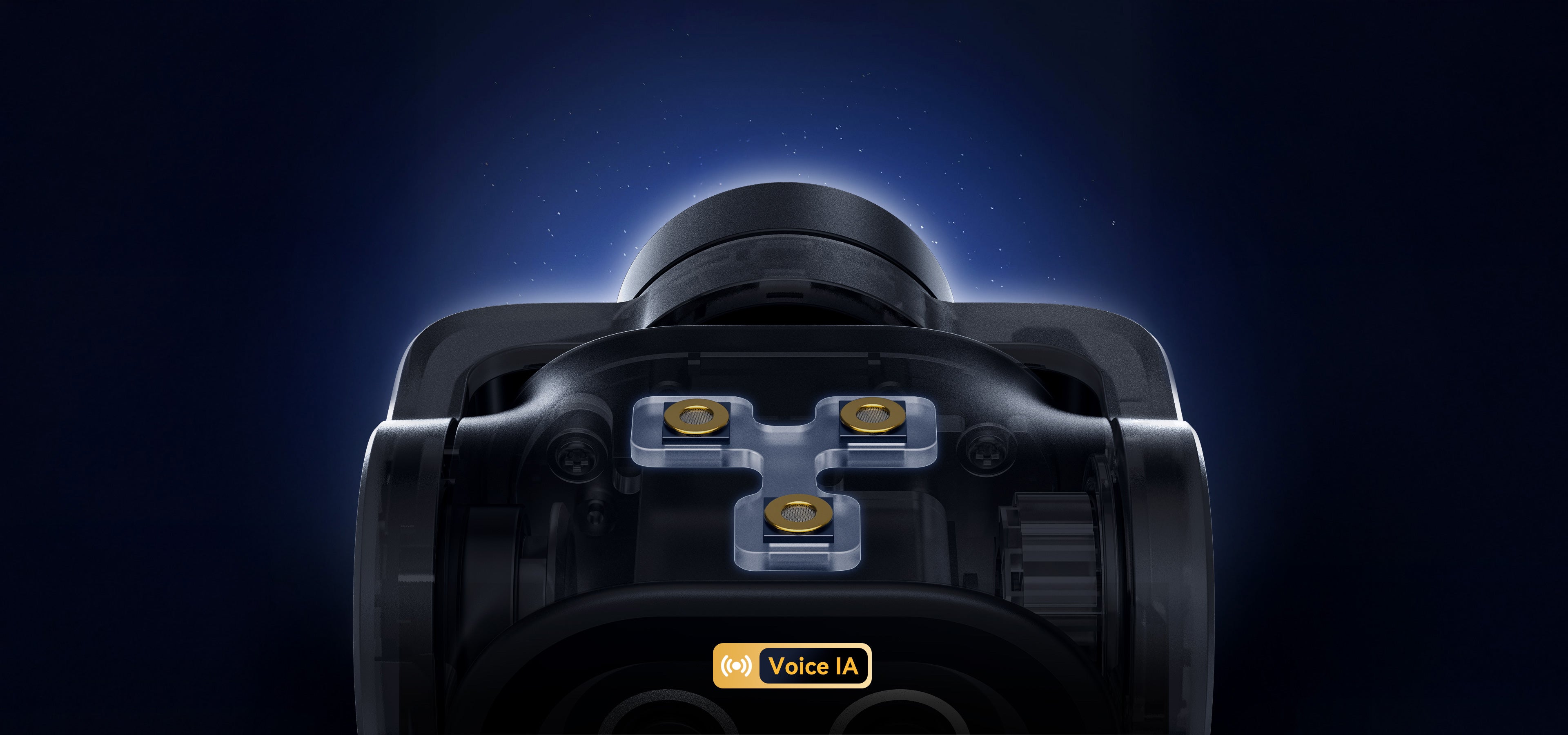
3-Mic Array Clear Audio
Equipped with a 3-mic array, PIXY picks up audio with exceptional clarity. You can always sound your best in front of your audience and let your ideas be heard.
3 Audio Modes
With 3 audio modes available in EMEET STUDIO, you can always find the most suitable one for your scenario.
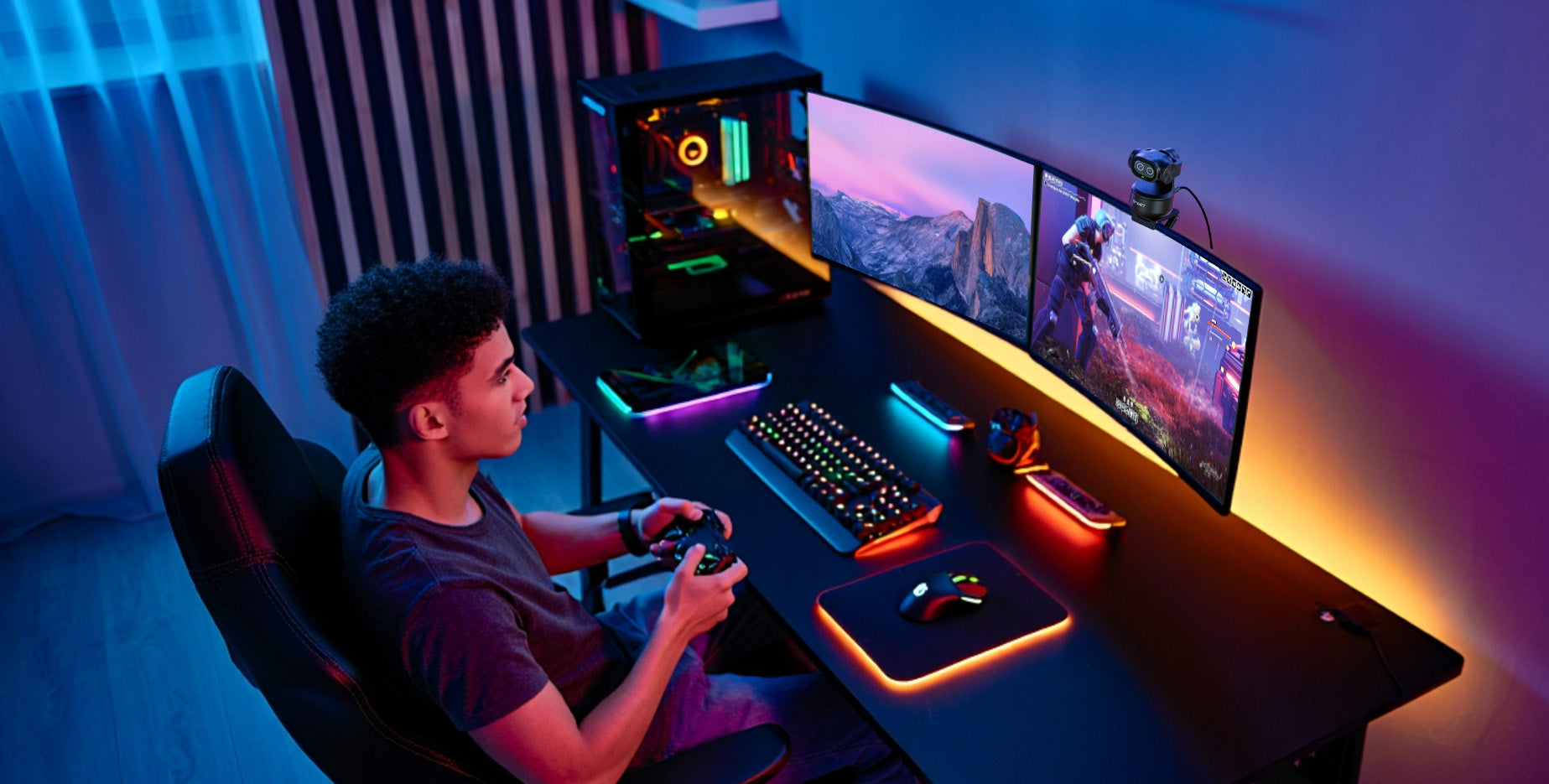
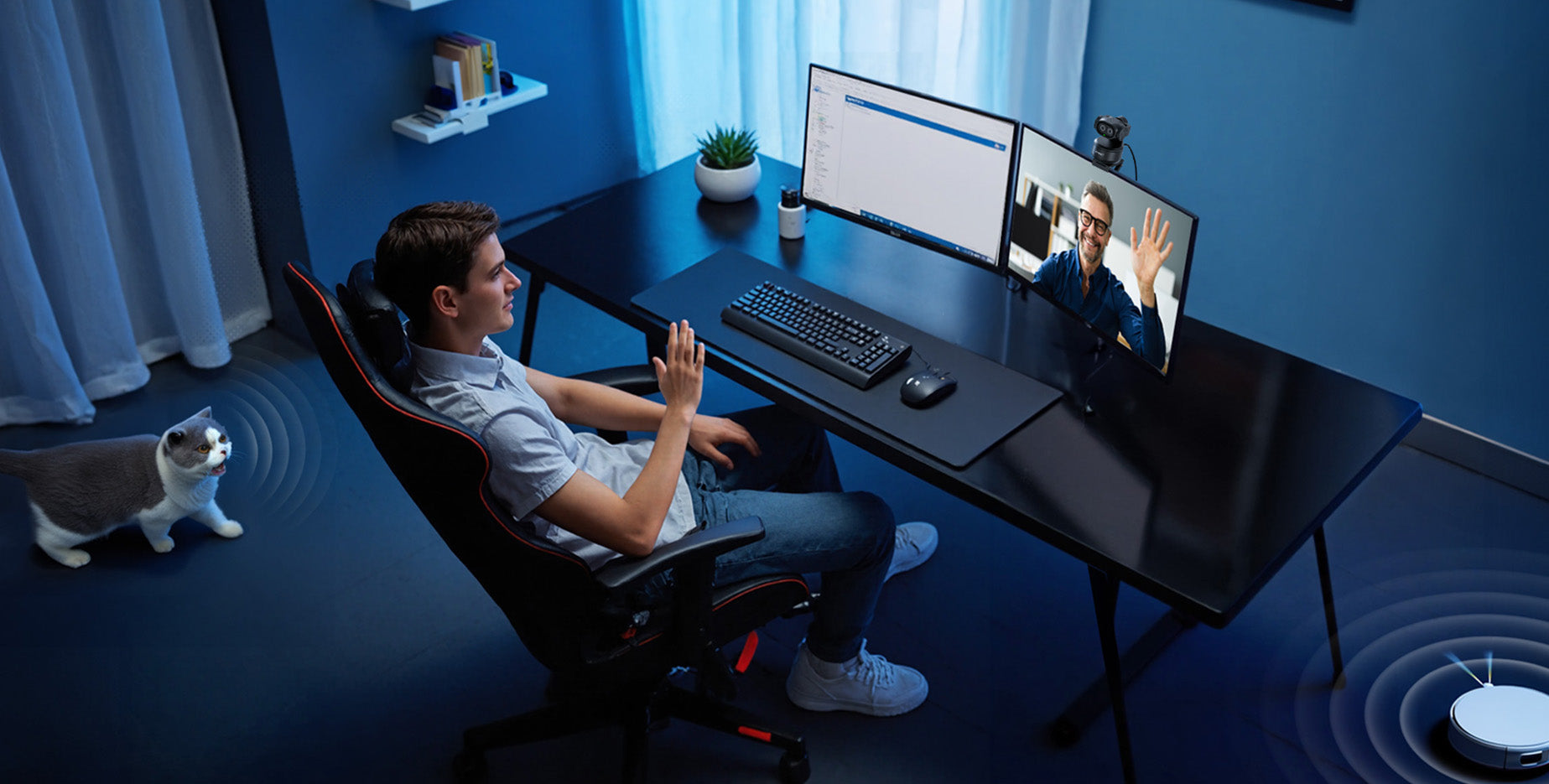



Live Mode
General Noise Cancellation


Noise Canceling Mode
Strong Noise Cancellation


Original Sound Mode
Light Noise Cancellation
More Productive with Preset Modes
EMEET PIXY allows you to set up 3 preset PTZ positions in EMEET STUDIO for you to switch between in a breeze so as to improve your productivity during live streaming or content creation.

Portrait Mode
Transform into mobile-ready content creation instantly by rotating the PIXY physically and flip the image in EMEET STUDIO.

Whiteboard Mode
Enter whiteboard mode in EMEET STUDIO and PIXY will recognize and correct the whiteboard to provide a better presentation experience.


Privacy Mode
Simply tilt the EMEET PIXY downward and it'll enter privacy mode to protect your privacy in no time.
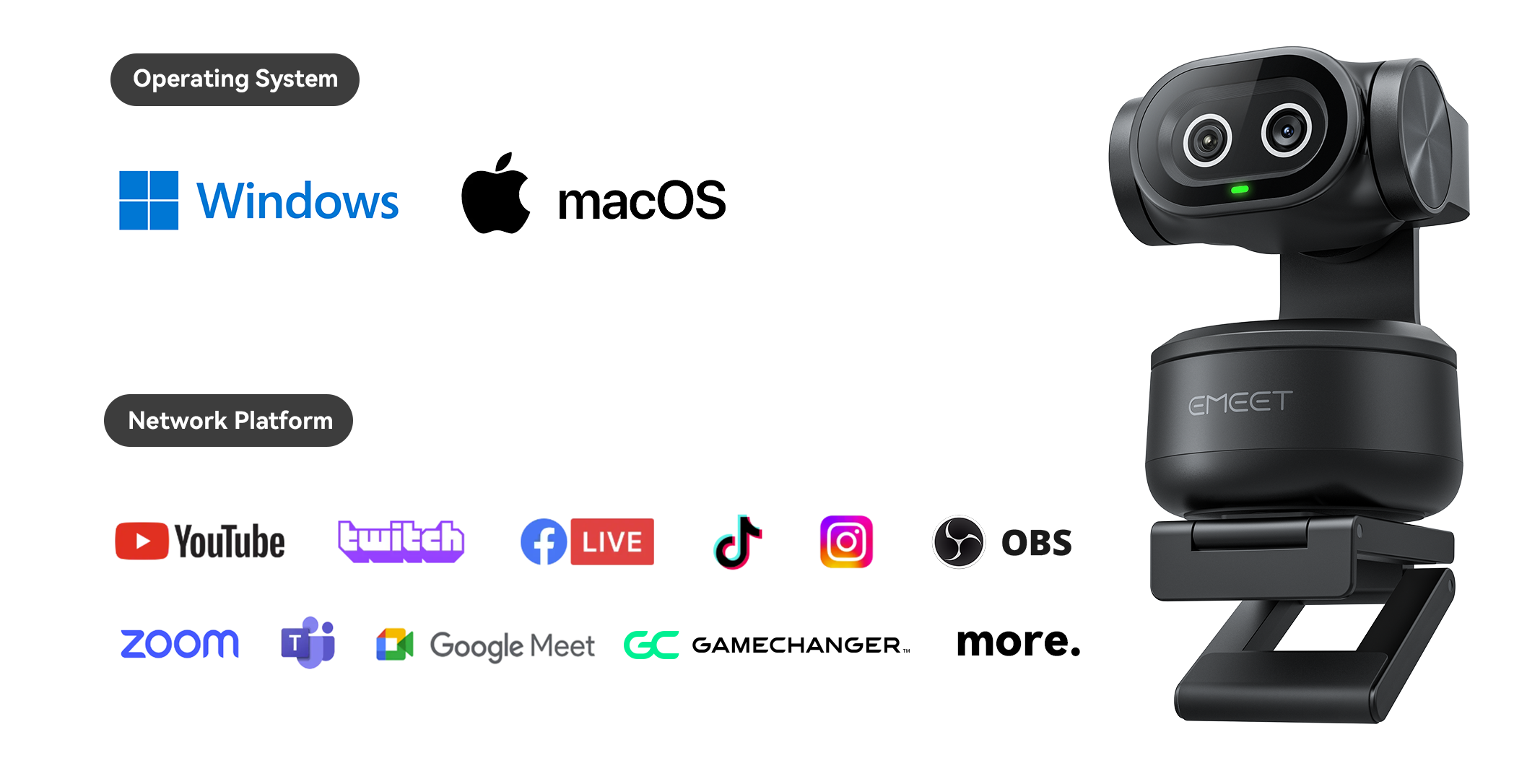
Works with Popular Software
EMEET PIXY works seamlessly with most of the popular software ranging from streaming platforms to meeting platforms.
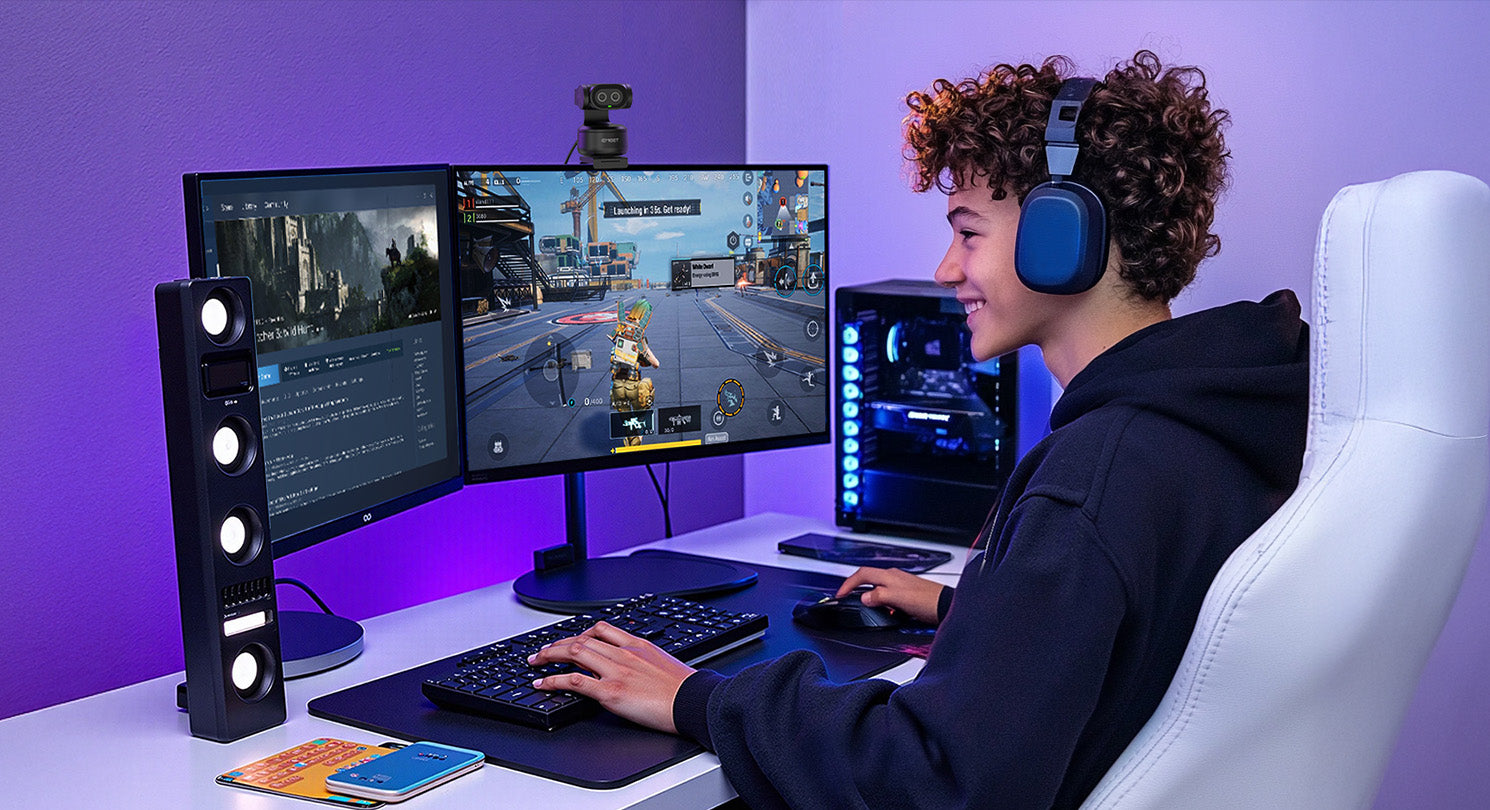
Compatible with Switch 2
The EMEET PIXY works perfectly with the Nintendo Switch 2. Improve your video and audio quality during your game play with your friends or enjoy smooth auto tracking with a simple gesture control.

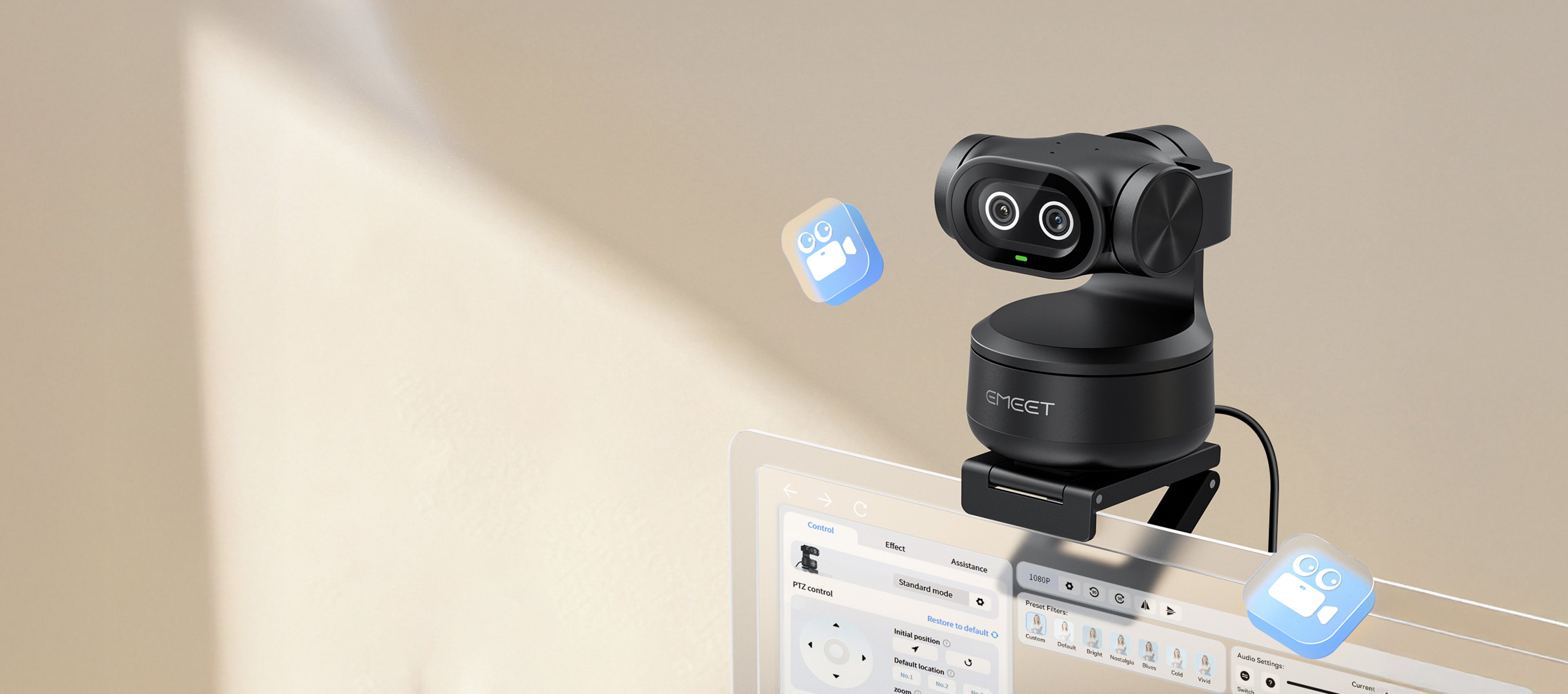
EMEET STUDIO
Easily get access to Al scriptwriting, device managing, multicam setting and changing parameters with the EMEET STUDIO.


User Scenarios





Recommended by
leading media
Trusted by creators


Specs
| Model |

EMEET PIXY
|

EMEET PIXY 2K
|
|
|---|---|---|---|
| Camera | Dual Camera |
Imaging Camera*1 AI-Assisted Camera*1 |
Imaging Camera*1 AI-Assisted Camera*1 |
| Video | Sensor Size | Sony 1/2.55" Image Sensor | Sony 1/2.55" Image Sensor |
| Video Resolution |
Default Resolution: 3840*2160@30FPS 640*360@30FPS, 640*480@30FPS 640*360@30FPS, 640*360@60FPS 640*480@30FPS,800*600@30FPS 960*720@30FPS,1024*576@30FPS 1024*576@60FPS,1280*720@30FPS 1280*720@60FPS,1280*960@30FPS 1920*1080@30FPS,1920*1080@60FPS 2560*1440@30FPS,3840*2160@30FPS |
Default Resolution: 2560*1440@30FPS 1920*1080@30FPS/60FPS 1280*960@30FPS 1280*720@30FPS/60FPS 1024*576@30FPS/60FPS 960*720@30FPS 800*600@30FPS 640*480@30FPS 640*360@30FPS/60FPS |
|
| Max Resolution | 4K@30fps & 1080P@60fps | 2K@30fps & 1080P@60fps | |
| Video Coding Format | MJPEG, YUY2 | MJPEG, YUY2 | |
| Aperture | F/1.8 | F/1.8 | |
| Field of View | 73° | 73° | |
| Digital Zoom | 1.5x Unavailable under 1080P60FPS & 4K resolution | 1.5x Unavailable under 1080P60FPS & 4K resolution | |
| Focus Type | BlinkFocus: Pro Dual Camera Autofocus Technology | BlinkFocus: Pro Dual Camera Autofocus Technology | |
| Audio | Microphone | 3-Mic Array | 3-Mic Array |
| Microphone Technology | AI-Powered Noise Cancellation | AI-Powered Noise Cancellation | |
| Audio Modes |
Live Mode Noise Canceling Mode Original Sound Mode |
Live Mode Noise Canceling Mode Original Sound Mode |
|
| Gimbal | Gimbal | 2-Axis (Pan & Tilt) | 2-Axis (Pan & Tilt) |
| Mechanical Range |
Pan: ±155° (310°) Tilt: ±90° (180°) |
Pan: ±155° (310°) Tilt: ±90° (180°) |
|
| Software | EMEET STUDIO | EMEET STUDIO | |
| Gesture Control | Support | Support | |
| Connectivity | USB-C to USB-C With a USB-C to USB-A adapter | USB-C to USB-C With a USB-C to USB-A adapter | |
| Interface | USB-C Port 1/4" Threaded Hole | USB-C Port 1/4" Threaded Hole | |
| Dimension (W x H x D) | 56*43*22mm±1mm | 56*43*22mm±1mm | |
| Weight | 120±5g | 120±5g | |
| System Requirement | A 2.4 GHz Intel® Core 2 Duo processor or higher 2 GB of RAM or more A USB 2.0 port | A 2.4 GHz Intel® Core 2 Duo processor or higher 2 GB of RAM or more A USB 2.0 port | |
| Compatibility |
Windows 10 and above (64-bit operating systems) macOS (10.14 and above) *Does not support Windows systems based on the ARM architecture |
Windows 10 and above (64-bit operating systems) macOS (10.14 and above) *Does not support Windows systems based on the ARM architecture |
|
| Package Content |
EMEET PIXY Mounitor Mount USB-C to C Cable (1.5m) USB-C to USB-A Adapter Quick Start Guide User Manual Safety and Warranty Policy |
EMEET PIXY 2K Mounitor Mount USB-C to C Cable (1.5m) USB-C to USB-A Adapter Quick Start Guide User Manual Safety and Warranty Policy |
|
FAQ
Have a Question?
EMEET PIXY
World's First Dual-Camera AI PTZ 4K Webcam
How to update the firmware?
If a firmware update is available, you’ll see a pop-up prompt. You can also go to the top right corner > Settings > Management > click the icon on the right > select “Update” to complete the firmware update.
How to download and update the software?
Step 1: Download EMEET STUDIO from the EMEET website


STEP 2: Open EMEET STUDIO. After connecting your device, a pop-up on the home page will prompt "Firmware Update." Click "Confirm" to go to the upgrade page, then follow the on-screen instructions to complete the update. (Do not unplug the device or shut down your computer during the update.)


Is it necessary to install dedicated software to access all features?
The core functions can be used without EMEET STUDIO; however, certain advanced features and settings—such as disabling gesture control or adjusting audio modes—require EMEET STUDIO for an enhanced experience.
What is the maximum number of devices supported for multi-device collaboration, and what are the configuration requirements?
The number of devices that can be used simultaneously for multi-device collaboration depends on your computer’s specifications and software environment. If you need to connect multiple devices with 4K resolution output, we recommend avoiding the use of a single USB hub. Instead, connect the devices to different USB ports on your computer (e.g., front and back ports, or ports on opposite sides). EMEET STUDIO supports connecting up to four devices at the same time.
What are the focus modes available, and in what scenarios should each be used?
EMEET PIXY provides the following focus modes:
1.Face Focus: Automatically detects and focuses on faces, ensuring clear facial details even in multi-person scenes. This mode helps save time by eliminating the need for manual adjustments and is ideal for personal live streaming.
2.Center Focus: Keeps the focus fixed in the center of the frame. Simply place the subject in the center during shooting to maintain clear image details. This mode is suitable for general-purpose scenarios.
3.Custom Area Focus: Allows users to freely select the focus area based on creative intent, offering precise control over the focal point of the image.
What scenarios is Pixy suitable for?
It is suitable for non-directional scenarios, as well as live streaming, meetings, and education/training settings.
How long is the USB cable?
1.5 meters
- Choosing a selection results in a full page refresh.